
Planning contractors for summary tasks in MS Project Pro
Contents:
- Assigning contractor resources on summary tasks in MS Project Pro
- Detailed description of contractors costs on summary tasks in the task usage view in MS Project Pro
- Detailed description of contractors costs in the resource usage view in MS Project Pro
- Create groupings by "Company" and "Contract" fields
- Chat
Assigning contractor resources on summary tasks in MS Project Pro
At the beginning of project planning, you may not have enough information to plan contracts. You can assign a contractor to a summary task. It is necessary that all subtasks be implemented only by this contractor.
Steps to assigne contractor resources on summary tasks in MS Project Pro:
- Open the Gantt chart view.
- Add the "Contract" custom column:
- Click the "Project" button in the top menu.
- Click the "Custom Fields" button in the "Properties" block.
- Click the "Task" box in the "Field" block.
- Select the "Text" type in the "Type:" field.
- Rename the empty field by clicking the "Rename ..." button (For example "Contract").
- Rename the empty field by clicking the "Rename ..." button (For example "Company").
- Click the "Ok" button.
- Add columns: "Company" and "Contract".
- Set the company name for subtasks in the "Company" field.
- Set the number and date of the contract for subtasks in the "Contract" field.
- Add the "Resource Names" button.
- Assigning the contractor resource to the summary task.(Read more "Assigning resources in MS Project")
- Set the cost of the contractor's work on tasks.
- You can filter tasks by the "Contract" field. (Read more "Filtering project data in MS Project Pro")

Detailed description of contractors costs on summary tasks in the task usage view in MS Project Pro
In MS Project Pro you can detail contractor costs on summary tasks by time period.
Steps to detailed description of contractors costs in the task usage view in MS Project Pro:
- Open the "Task Usage" view.
- Add columns: "Company" and "Contract".
- Click the "Task Usage Format" item in the top menu.
- Click the "Cost" box in the "Details" block.
- Set time period by month. (Read more "Timescale in MS Project Pro")
- Correct the cost values by period in the "Cost" field.

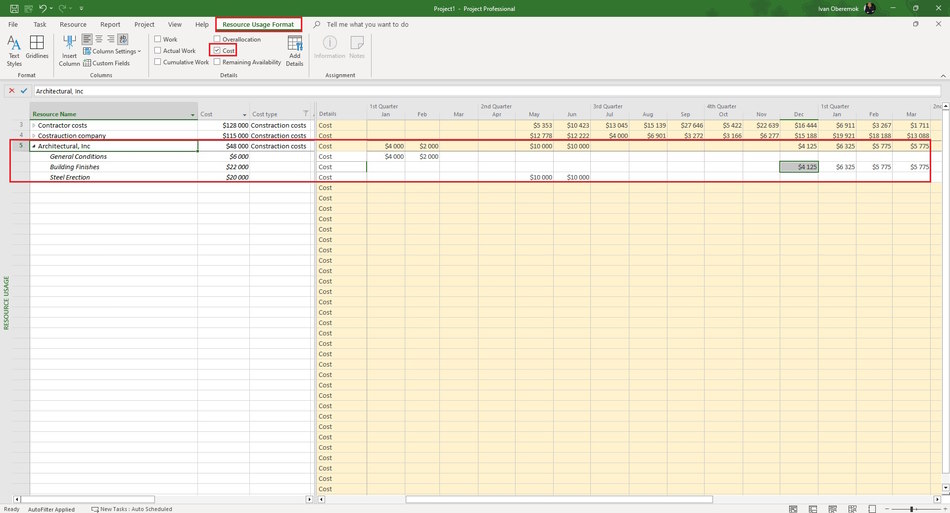
Detailed description of contractors costs in the resource usage view in MS Project Pro
Steps to detailed description of contractors costs in the resource usage view in MS Project Pro:
- Open the "Resource Usage" view.
- Click the "Resource Usage Format" item in the top menu.
- Click the "Cost" box in the "Details" block.
- Set time period by month. (Read more "Timescale in MS Project Pro")
- Correct the cost values by period in the "Cost" field.
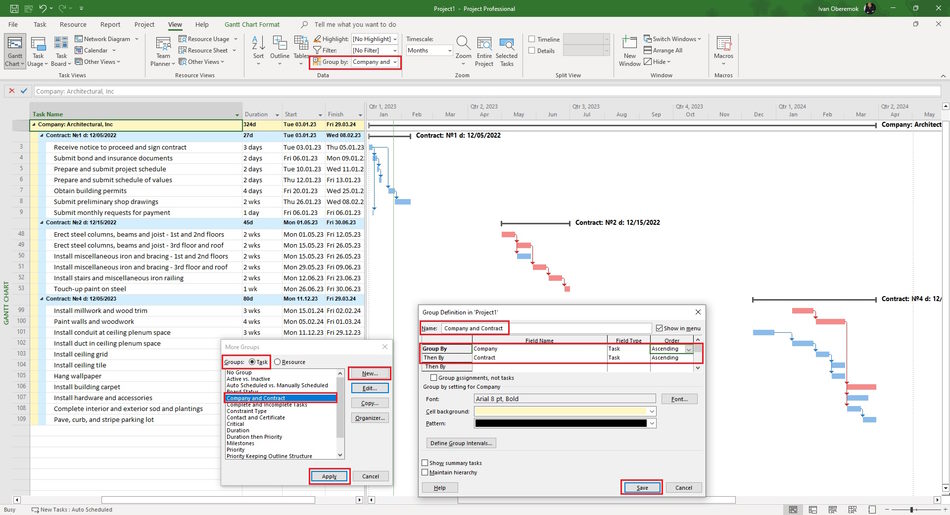
Creation of a grouping by the fields "Company" and "Contrat"
Steps to сreating of a grouping by the fields "Company" and "Contrat":
- Open the Gantt chart view.
- Create groupings by "Company" and "Contract" fields: (Read more "Grouping project data in MS Project Pro")
- Click "View" the item in the top menu.
- Open the "Group" field in the "Data" block.
- Click the "More Groups ..." item.
- Set the "Task" in the "Group:" block.
- Click the "New ..." button.
- Enter the group name in the "Name:" field. (For example "Company and Contract")
- Click the "Show in menu" box.
- In the "Field Name" column, set fieleds: "Company" and "Contract".
- Click the "Save" button.
- Select the "Company and Contract" group.
- Click the "Apply" button.
#msprojectpro, #oberemokii, #projectmanagment, #planningprocess

Author: Ivan Oberemok
