
Using the Earned Value method in MS Project Pro
Contents:
Setting earned value method in MS Project Pro
To use the earned value method in MS Project Pro, all resources must be of either work type or material type.
Stpes to set up earned value method in MS Project Pro:
- Set the status date:
- Click the item "Project" in the top menu.
- Click the date in the "Status Date" field.
- Enter the end date of the implementation period in the "Select Date:" field.
- Save the baseline. (Read more "Project baseline in MS Project Pro")
- Set the task actual duration. (Read more "Setting the task actual duration in MS Project Pro")
- Update the plan. (Read more "Update project in the MS Project Pro")
- Add the "Earned Value Method" column and check the values (all values must be "% Complete").
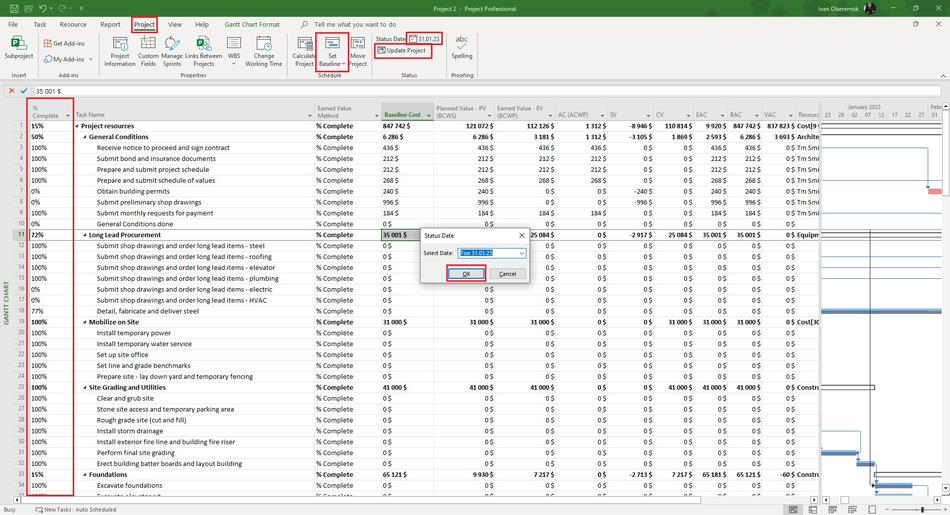
Using the earned value method in MS Project Pro
Steps to use the earned value method in MS Project Pro:
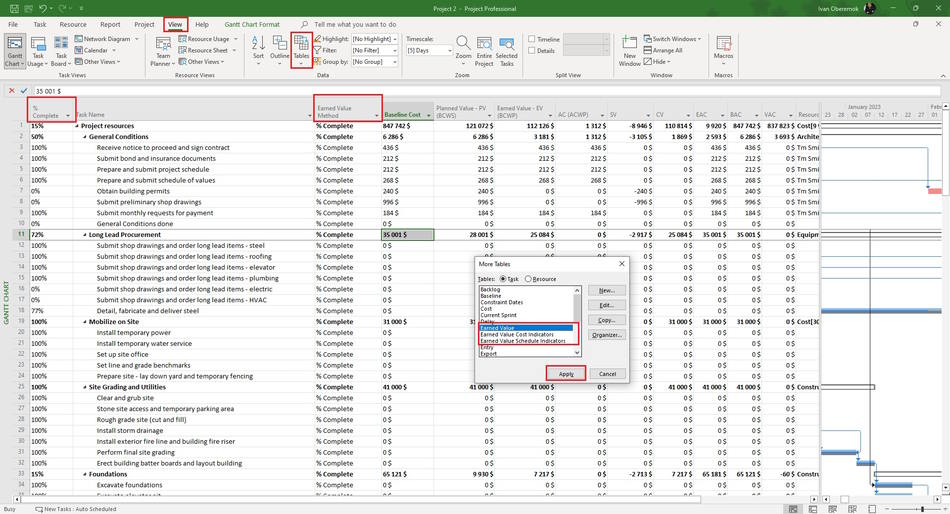
- Click the "View" item un the top menu.
- Click the "Tables" button in the "Data" block.
- Click the "More Tables..." item.
- Select the "Task" tub in the "Tables" field.
- Select one of the table: "Earned Value" or "Earned Value Cost Indicators" or "Earned Value Schedule Indicators".
- Click the "Apply" button.
Columns earned value tables:
- Planned Value - PV (BCWS) - Baseline costs of tasks planned according to the baseline during the implementation period.
- Earned Value - EV (BCWP) - Costs for tasks planned during the implementation period.
- AC (ACWP) - Actual costs for tasks planned during the implementation period. To determine them, the value of the % completion of the task is used
- SV - Deviation of base costs from planned costs for the implementation period (BCWS - BCWP). It shows the volume that was made during the period.
- CV - Deviation of base costs from actual costs for the implementation period (BCWS - ACWP). It shows how much the costs of tasks have changed over the period
#msprojectpro, #oberemokii, #projectmanagment, #projectcostmanagement, #monitoringandcontrollingprocess

Author: Ivan Oberemok
