
Setting the task actual duration in MS Project Pro
Contents:
The process of updating the timing of project tasks
The fact that the tasks of the project are completed is entered at the end of the current implementation period. The project manager must regularly set facts and reschedule backlogs.
The procedure for setting the task actual duration includes the following steps:
- Select the tasks that are being implemented in the current period.
- Move to the next period the tasks that were not implemented in this period. Set the start date of these tasks to be greater than the end date of the current period.
- Set the actual start date of the remaining tasks.
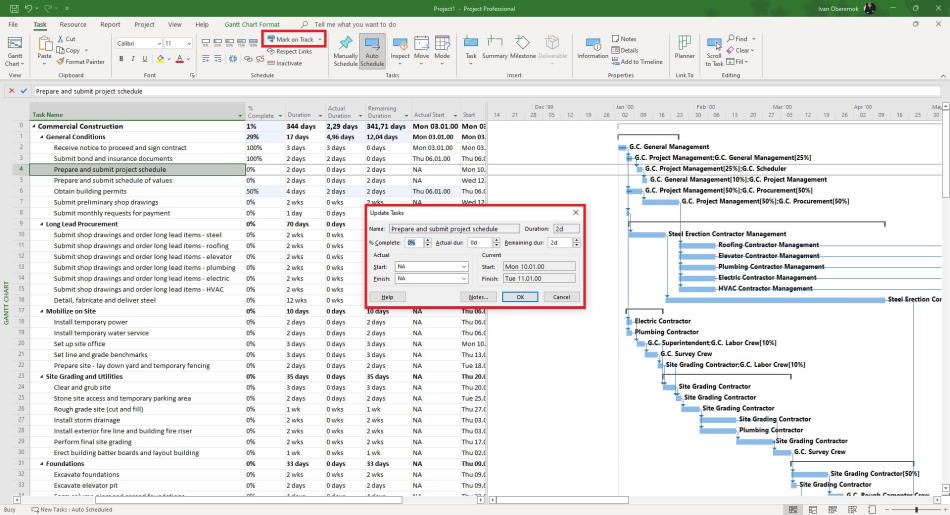
- Set the actual and remaining duration of these tasks.
- Update the project schedule plan to the start date of the future period.
Actual task duration in MS Project Pro
Steps for setting the actual duration in MS Project Pro:
- Click the item "View" in the top menu.
- Choose the filter "Data Range ..." in the field "Filter:" in the block "Data".
- Set the start date of the period and the end date of the current implementation period
- Add fields to the table: "% Complete", "Duration", "Actual Duration", "Remaining Duration", "Actual Start".
- If the task was not started, move it to the next period. Set the start date of the task (field "Start") to be the same as the start date of the next period.
- For the remaining tasks, set the actual start date in the "Actual Start" field.
- For the remaining tasks, set the actual duration in the "Actual Duration" field.
- For the remaining tasks, specify how many days are needed for their full implementation and enter in the "Remaining Duration" field.
- After that, the system itself will calculate values for the fields: "% Complete" and "Duration".
- After that, you can update the project.
#msprojectpro, #oberemokii, #projectmanagment, #projectschedulemanagement, #executingprocess

Author: Ivan Oberemok
