
Update project in the MS Project Pro
Contents:
- Update tasks in the MS Project Pro
- Update project in the MS Project Pro
- Update project with reschedule in the MS Project Pro
- Chat
Update tasks in the MS Project Pro
MS Project Pro has tools to update a project. You can update some tasks and all project. When you update project tasks, system can set actual duration, remaining duration, actual work and remaining work.
All update tools use the status date. You must to set status date Steps to set status date:
- Click the "Project" item in the top menu.
- Click the "NA" text in "Satus" in the "Status Date:" field in the block.
- Enter or select the date in the "Select Date:" field in "Status Date" the window.
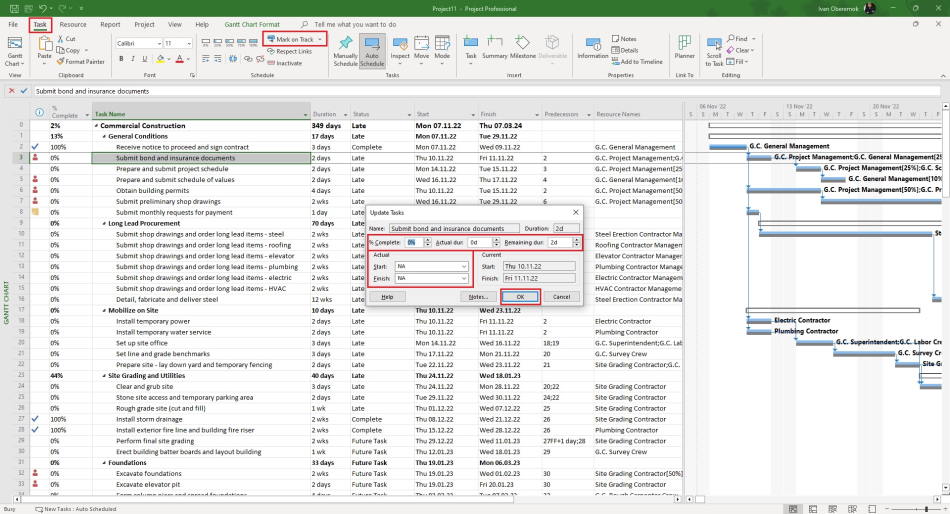
First tool. Steps to update task in MS Project:
- Select one task or some tasks.
- Click the "Task" item in the top menu.
- Click the "Mark and Track" button in the "Schedule" block.
Second tool.
- Select one task or some tasks.
- Click the "Task" item in the top menu.
- Click the "Mark and Track" menu in the "Schedule" block.
- Click the "Update Tasks" subitem.
- If start date different in actual start date enter or select an actual start date.
- If you know the finish date enter or select an actual finish date.
- Enter an actual duration in the "Actual dur:" field.
- Enter remaining duration in the "Remaining dur:" field.
- Click the "Ok" button.
Update project in the MS Project Pro
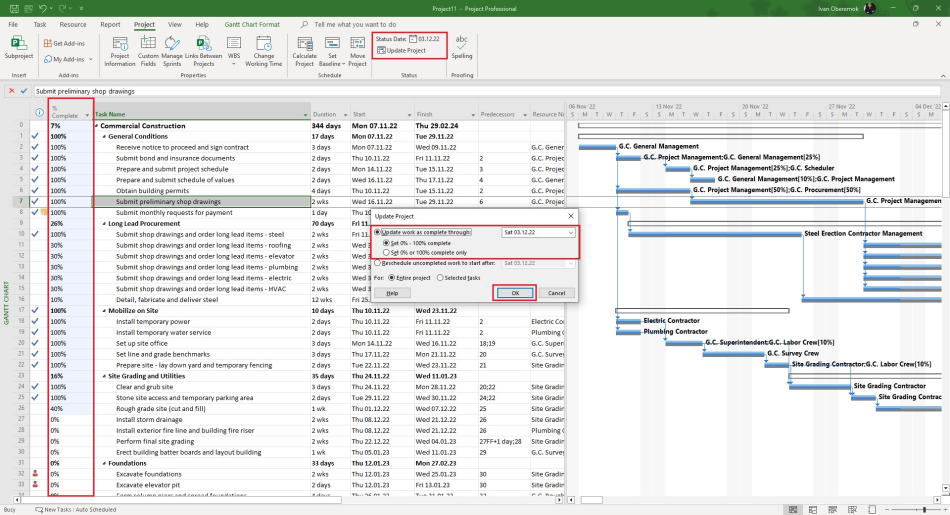
You can update a project without replanning in MS Project Pro. All tasks that fall within the period before the status date will be marked as completed.
Step to update a project without replanning in MS Project Pro:
- If you want to update only some tasks you have to select tasks before updating
- Click the "Project" item in the top menu.
- Click the "Update Project" in the "Status" block.
- Select the "Update work as complete through:" box.
- Enter or check the status date.
- If you want to set completed only for tasks whose finish date is scheduled before the status date, set the "Set 0% or 100% complete only" box.
- If you want to set completed for all tasks whose start date is scheduled before the status date, set the "Set 0% - 100% complete" box.
- If you want to update only some tasks, you have to set the "Selected tasks" in the "For:" field.
- Click the "Ok" button.
Update project with reschedule in the MS Project Pro
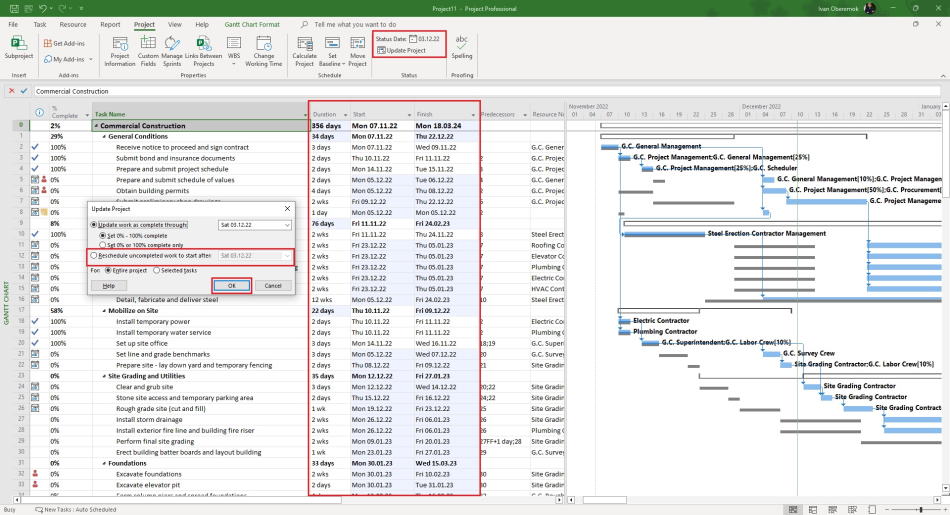
You can update a project with replanning in MS Project Pro. All tasks that are not completed in the period before the status date will be rescheduled.
Step to update a project with replanning in MS Project Pro:
- If you want to update only some tasks you have to select tasks before updating
- Click the "Project" item in the top menu.
- Click the "Update Project" in the "Status" block.
- Select the "Reschedule uncompleted work to start after:" box.
- Enter or check the status date.
- If you want to update only some tasks, you have to set the "Selected tasks" in the "For:" field.
- Click the "Ok" button.

Author: Ivan Oberemok
