
Planning budget work resources in MS Project Pro
Contents:
- Planning budget work resources in MS Project Pro
- Baseline of budget resources in the task usage view in MS Project Pro
- Planning budget work resources in the task resource view in MS Project Pro
- Chat
Planning budget work resources in MS Project Pro
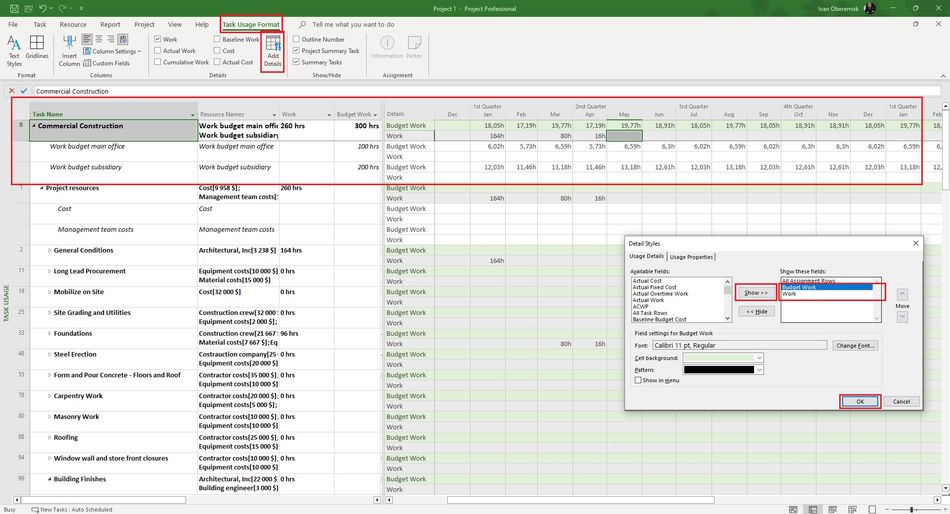
Steps to assign budget cost resources in MS Project Pro:
- Open "Task Usege" in your plan.
- Add the column "Resource Names".
- Choose the budget resource in the "Resource Names" colums in the project summary task.
- Add the "Budget Work" column in the left part. Enter the total amount for the budget
- Add the "Budget Work" column in the rght part.
- Click the "Task Usage Format" item in top menu.
- Click the "Add Details" button in the "Details" block,
- Select filels: "Budget Work" and "Work".
- Click the "Ok" button.
- Select a time period in the "Timescale" field in top menu "View" in the block "Zoom". (Read more "Timescale in MS Project Pro")
- Enter the budget amount for each time period.
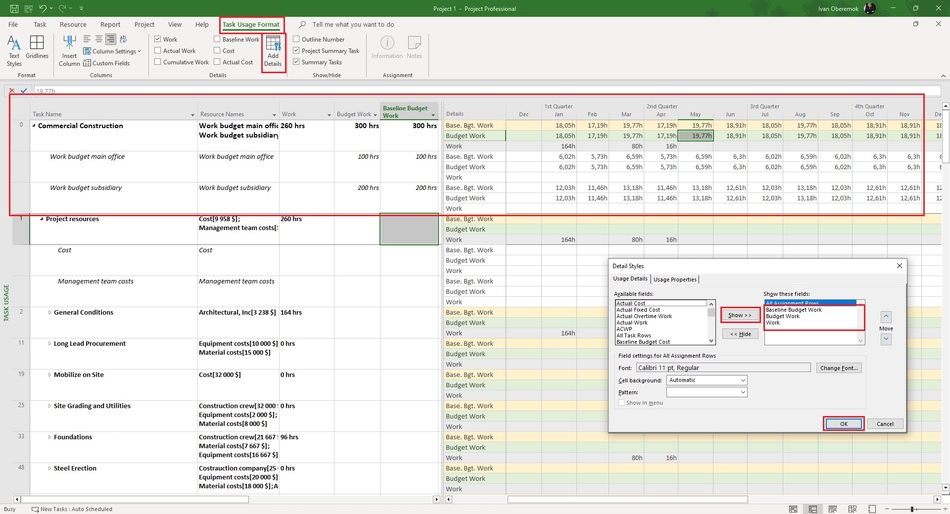
Baseline of budget work resources in the task usage view in MS Project Pro
Steps to use baseline of budget work resources in MS Project Pro:
- Assign budget work resources. (Read more "Budget planning in MS Project Pro")
- Set the baseline. (Read more "Project baseline in MS Project Pro")
- Open "Task Usege" in your plan.
- Add the column "Baseline budget cost".
- Click the "Task Usage Format" item in top menu.
- Click the "Add Details" button.
- Select fields: "Baseline Budget Cost" and "Budget Cost".
- Click the "Ok" button.
- Set the monthly time period. (Read more "Timescale in MS Project Pro")
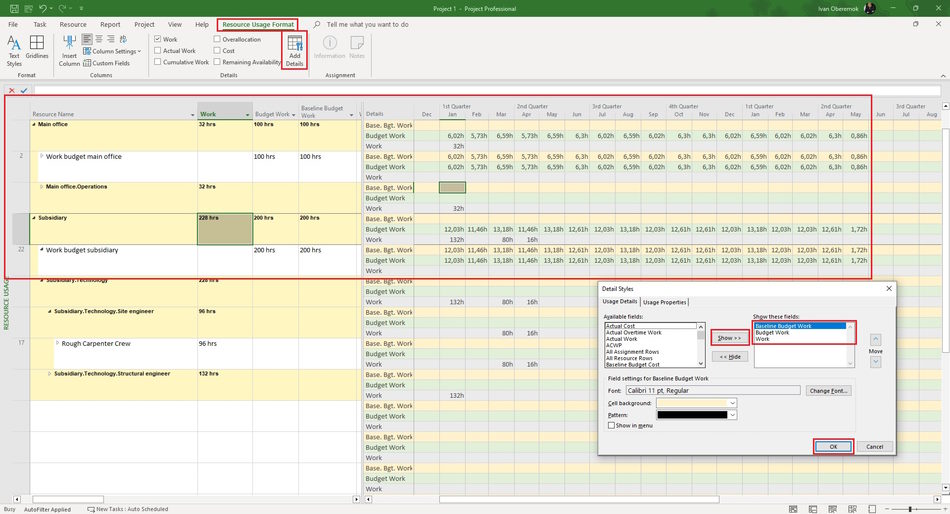
Planning budget work resources in the resource usage view in MS Project Pro
Steps to plan budget work resources in the resource usage view in MS Project Pro:
- Assign budget work resources. (Read more "Planning budget work resources in MS Project Pro")
- Set the baseline. (Read more "Project baseline in MS Project Pro")
- Open "Resource Usege" in your plan.
- Add column: "Work", "Budget Work" and "Baseline budget work".
- Click the "Task Usage Format" item in top menu.
- Click the "Add Details" button.
- Select fields: "Baseline Budget Work" and "Budget work".
- Click the "Ok" button.
- Set the monthly time period. (Read more "Timescale in MS Project Pro")
#msprojectpro, #oberemokii, #projectmanagment, #projectresourcemanagement, #planningprocess

Author: Ivan Oberemok
