
Automatic scheduling of contractors in MS Project Pro
Contents:
- Creating contractor resources using a material resource type in MS Project Pro
- Assigning contractor resources for automatic scheduling in MS Project Pro
- Chat
Creating contractor resources using a material resource type in MS Project Pro
For automatic scheduling of contractors, you need to create a contractor resource using the material resource type
Steps the add contractor resources using a material resource type in MS Project Pro:
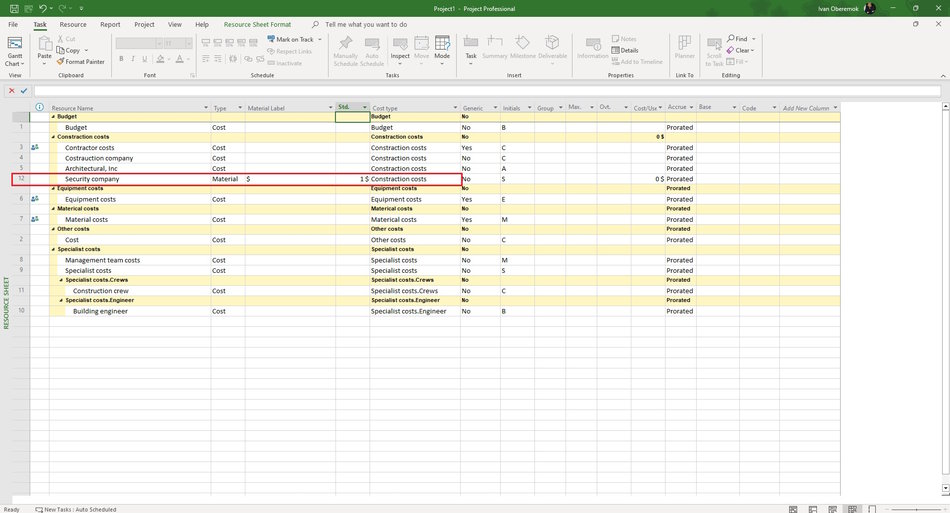
- Open the resource sheet view.
- Add new contractor resources. (Read more "Add resources in MS Project").
- Set the "Material" in the "Type" column.
- Set the "$" in the "Material Label" column.
- Set the "1 $" in the "Std. Rate" column.
- Set the cost type in the "Group" column.
- Or the create custom column (Reda more "Сreating a custom field to describe the cost type in MS Project Pro") and set cost type on this column.
- Set the "Prorated" in the "Accrue At" column.
Assigning contractor resources for automatic scheduling in MS Project Pro
With automatic contractor scheduling, you link the duration of the task and the amount of the contractor's payments. Thus, as the duration changes, the contractor's costs change.
Steps to assigne contractor resources for automatic scheduling in MS Project Pro:
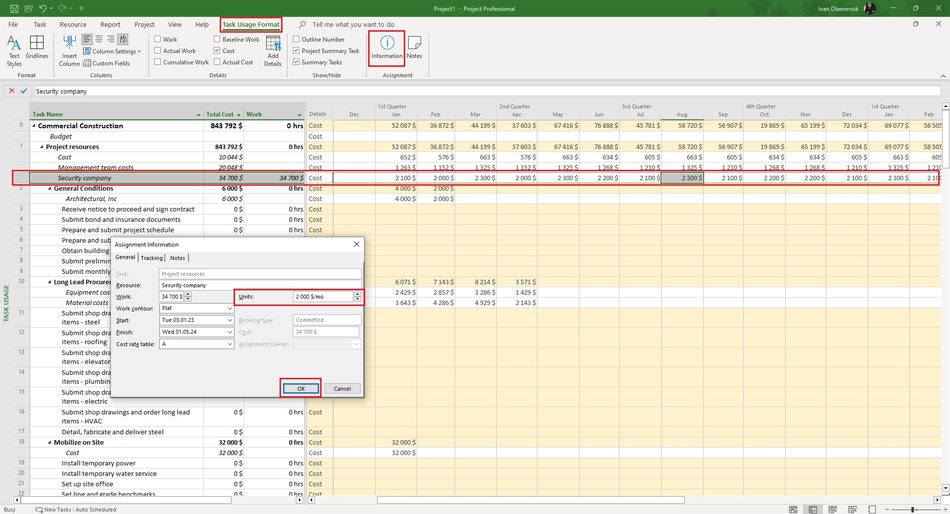
- Open the "Task Usage" view.
- Add columns: "Assignment Units", "Work", "Total Cost", and "Resource Names".
- Assign contractor resources to tasks in the ""Resource Names"" column.
- Enter the amount of expenses for the period in the "Assignment Units:" field. You can use abbreviations: "$/d", "$/w" or "$/mo"
- Or you can assign contractor resources in the resource assign window:
- Click the "Resource" item in the top menu.
- Click the "Information" button in the "Assigment" block.
- Click the "General" tub in the "Assigment Information" window.
- Enter the amount of expenses for the period in the "Units:" field. You can use abbreviations: "$/d", "$/w" or "$/mo"
- Click the "Ok" button.
- The system will calculate the costs in columns: "Total Cost" and "Work".
- Click the "Task Usage Format" item in the top menu.
- Click the boxs: "Cost" and "Wok".
- Set the monthly time period. (Read more "Timescale in MS Project Pro")
- Refine task cost distribution by time period in the "Work" field on the right part.
#msprojectpro, #oberemokii, #projectmanagment, #projectprocurementmanagement, #planningprocess

Author: Ivan Oberemok
