
Creating a program in MS Project Server
Contents:
- Creating a program in MS Project Desktop for MS Project Server
- Setting links between program tasks in MS Project Desktop
- Open program in MS Project Pro
- Chat
Creating a program in MS Project Desktop for MS Project Server
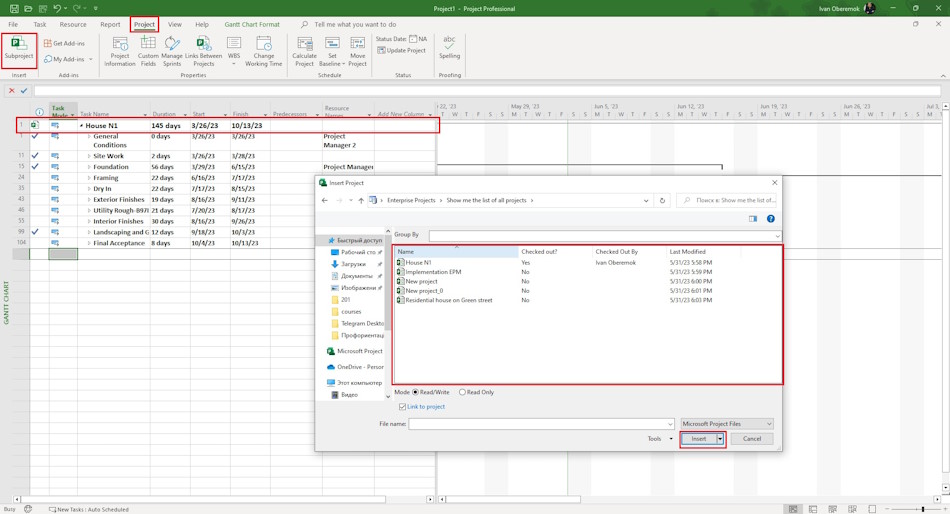
Steps to create a program in MS Project Desktop for MS Project Server:
- Open MS Project Desktop.
- Create a new project plan. (Read more "Create a new plan in MS Project")
- Click the "Project" item in the top menu.
- Click the "Subproject" in the "Insert" block.
- Select the project and click the "Insert" button.
- Click the "File" item in the top menu.
- Click the "Save" item in the left menu.
- Save the program. (Read more "Save a plan in MS Project")
- Close the program file.
Setting links between program tasks in MS Project Desktop
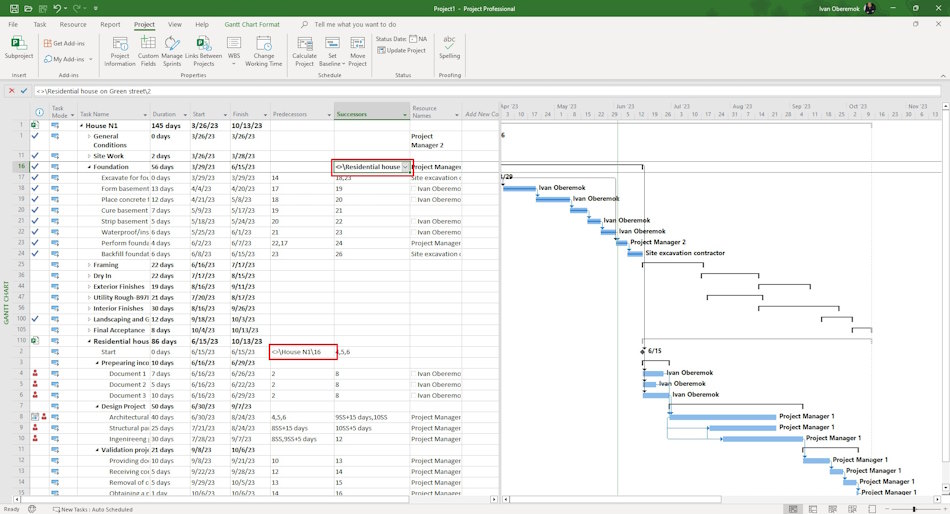
Steps to set links between program tasks in MS Project Desktop:
- Open MS Project Desktop.
- Open the program plan. (Read more "Open a plan in MS Project Desktop")
- Open project tasks.
- Select tasks (use the Ctrl key).
- Set links between task. (Read more "Linking tasks in MS Project Desktop")
- Save and publish the program plan.
Opening a program in MS Project Server
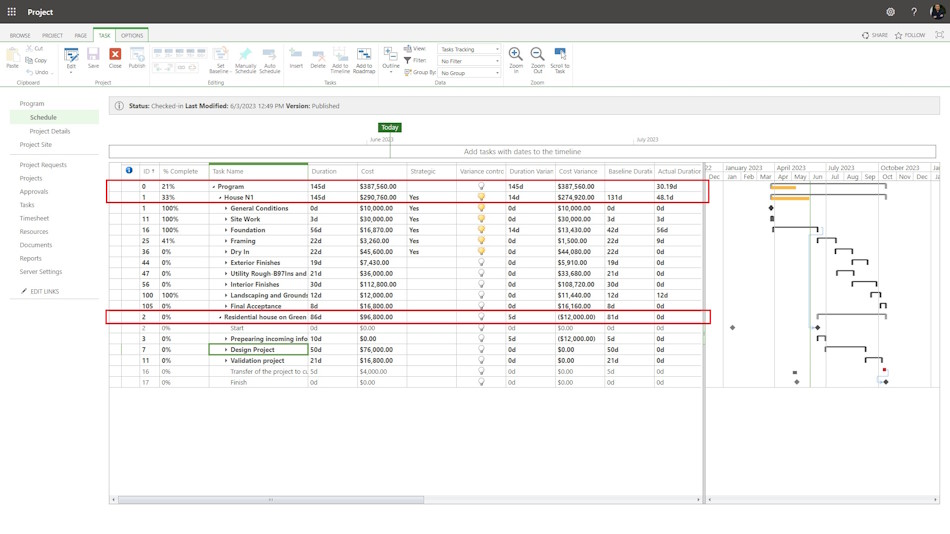
Steps to open a program in MS Project Server:
- Open MS Project Server.
- Click the "Project" item in the left menu.
- Click the program name.
- You can show projects and task in the program.
#programmanagement, #projectscopemanagement, #planningprocess, #msprojectpro, #msprojectserver, #oberemokii

Author: Ivan Oberemok
