
Linking tasks in MS Project Pro
Contents:
- Types of task relationships in MS Project Pro
- Tools for setting up dependencies between tasks in MS Project Pro
- Tips for setting up task relationships in MS Project Pro
- Chat
Types of task relationships in MS Project Pro
Type of task relationships:
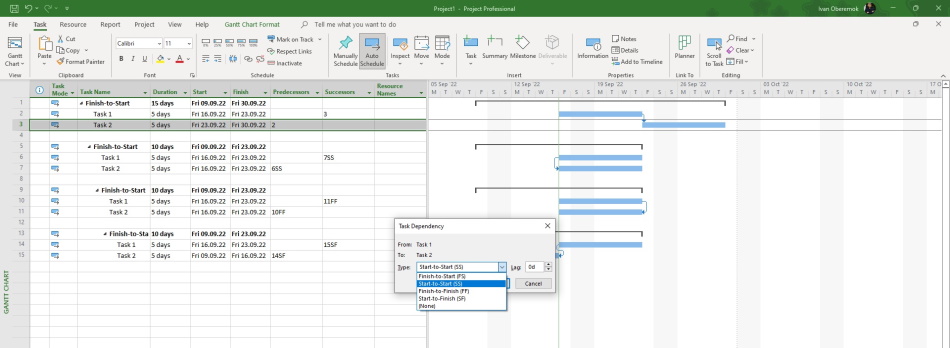
- Finish-to-Start (FS). You can set the finish date of the predecessor task determines the start date of the successor task.
- Finish-to-Finish (FF). You can set the start date of the predecessor task determines the start date of the successor task.
- Start-to-Start (SS). You can set the finish date of the predecessor task determines the finish date of the successor task.
- Start-to-Finish (SF). You can set the start date of the predecessor task determines the finish date of the successor task.

Tools for setting up dependencies between tasks in MS Project Pro
First tool for setting up dependencies between tasks:
- Open "Gantt Chart" in your plan.
- Click item "Gantt Chart Format" on the top menu and click item "Insert Column" on the group "Columns".
- Inset columns "Predecessors" and "Successors".
- Inset numeric of predecessors task in field "Predecessors".
- Inset numeric of successors task in field "Successors".
Second tool for setting up dependencies between tasks:
- Open "Gantt Chart" in your plan.
- Select tasks and click the button "Link the Select Tasks (Ctrl+F2)" on the item top menu "Task".
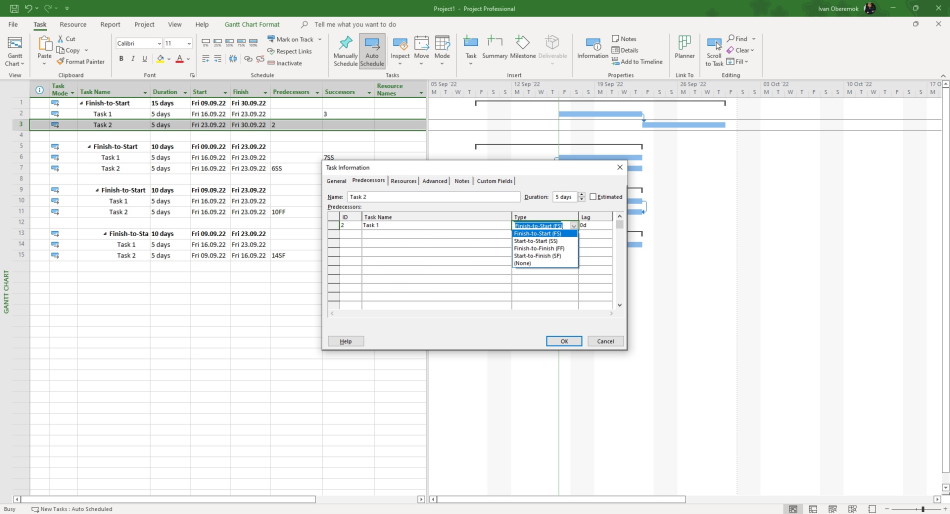
Third tool for setting up dependencies between tasks:
- Click the task.
- Choose the tub "Predecessors".
- Choose the tasks in the column "Task name".
- Set type of task relationships in the column "Type".
- Set number of days lag in field "Lag".
- Click button "Ok"
Tips for setting up task relationships in MS Project Pro
Steps highlight dependency tasks:
- Click the "Task Path" on the "Project" tab, in the "Properties" group.
- If you want to highlight predecessors tasks you will choose item "Predecessors".
- If you want to highlight successors tasks you will choose item "Successors"
- If you want to highlight main predecessors tasks you will choose item "Driving predecessors".
- If you want to highlight main successors tasks you will choose item "Driving successors".

#msprojectpro, #oberemokii, #projectmanagment, #projectschedulemanagement, #planningprocess

Author: Ivan Oberemok
