
Resource assign analysis in resource usage view in MS Project Pro
Contents:
- Resource assign analysis in resource usage view in MS Project Pro
- Resource assign analysis in resource sheet view in MS Project Pro
- Chat
Resource assign analysis in resource usage view in MS Project Pro
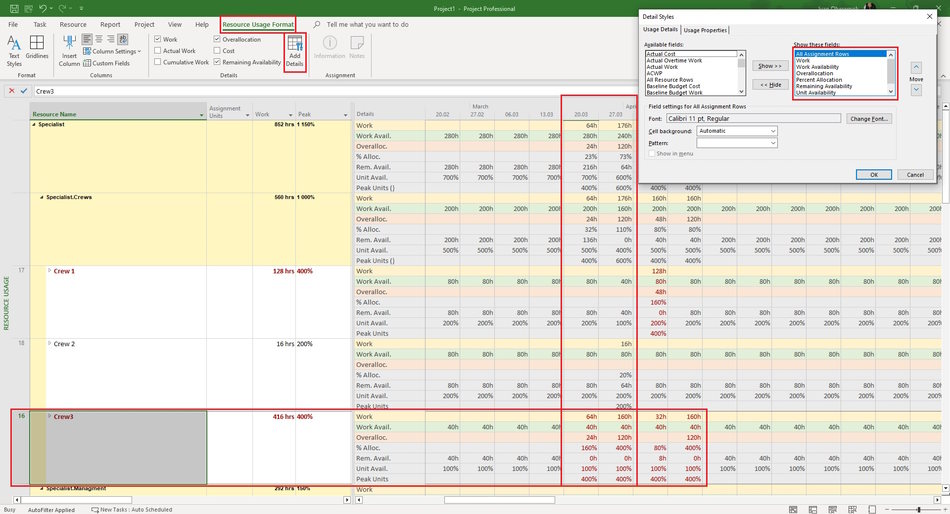
Analysis of resource loading in the MS Project Pro is carried out by periods. A detailed analysis of labor resources is carried out on the right side of the resource usage view. The analysis is carried out both for one resource and for a group of resources
Fields for analyzing resource load levels MS Project Pro:
- Work - number of works for the period.
- Work Availability - availability of resources in hours.
- Overallocation - resource availability overtime in hours
- Percent Allocation - reloading resources in percent.
- Remaining Availability - availability of resources in hours.
- Unit Availability - overall resource availability in percent.
- Peak Units - recommended amount of resources.
Steps to set the resource usage view for resource assign analysis in MS Project Pro:
- Open the resource usage view.
- Add columns: "Assignment Units", "Work" and "Peak"
- Click the "Resource Usage Format" item in the top menu.
- Click the "Add Details" button in the "Details" block.
- Add fields: "Work", "Work Availability", "Overallocation", "Percent Allocation", "Remaining Availability", "Unit Availability" and "Peak Units".
- Set the time period in the "Timescale" field.. (Read more "Timescale in MS Project Pro")
We recommend:
- Optimize the loading of resources for the next periods within weeks.
- Optimize loading of future resources within months.
- Optimize the loading of resources with the highest value in the "Overallocation" column.
- Apply the minimum allowable deviation value (the "Overallocation" column), for example 110%
Resource assign analysis in a resource sheet view in MS Project Pro
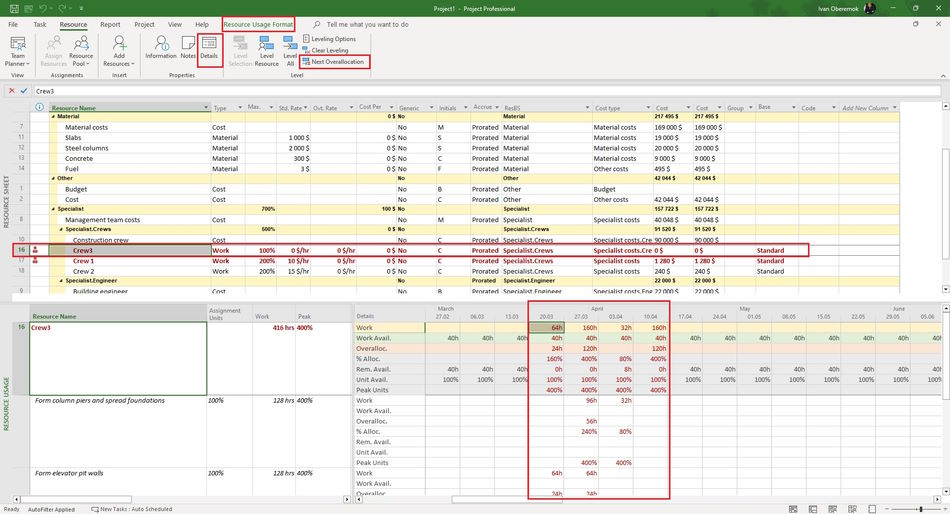
You can parse resource assignment in a sheet view view.
Steps to set the resource sheet view for resource assign analysis in MS Project Pro:
- Open the Resource sheet view.
- Click the "Resource" item in the top menu.
- Click the "Details" in the "Properties" block.
- Select the resource in the resource sheet view.
- Click the button panel and select the resource usage view.
- Click the "Next Overallocation" button.
- Set the time period in the "Timescale" field.. (Read more "Timescale in MS Project Pro")
- Click the "Resource Usage Format" item in the top menu and add the fields in the the resource usage view. (Read more "Resource assign analysis in resource usage view in MS Project Pro")
#msprojectpro, #oberemokii, #projectmanagment, #projectresourcemanagement, #monitoringandcontrollingprocess

Author: Ivan Oberemok
