
Automatic scheduling of task duration depending on the crew capacity in MS Project Pro
Contents:
- Assigning crews using a material type resource in the Gantt chart view in MS Project Pro
- Clarification of the assignment of crews using a material type resource in the task usage view in MS Project Pro
- Chat
Automatic scheduling of task duration depending on the crew capacity in MS Project Pro
MS Project Pro can calculate the duration of tasks depending on the volume of the task and the crew capacity. You can use this tool only if tasks have a fixed work type.
Steps to assign crews in the automatic scheduling of the duration of tasks in the Gantt chart view in MS Project Pro:
- Open the Cantt chart view.
- Click the "Task" item in the top menu.
- Click the "Details" item in block "Properties".
- Click the "Task Form Format" item in top menu for window "Task details from".
- Click the "Work" item in block "Details"
- Set the "Fixed Work" in the "Task type:" field.
- Click the "OK" button.
- Choose the crew name in the window "Task details from" in the "Resource Name" field.
- Enter the crew work in this task in the "Work" column.
- Click the "OK" button.
- Enter the crew capacity for the period in the 'Units" field. You can specify the cost for periods: hour - "hr", day - "d", week - "wk", month - "mo", year - "yr".
- Click the "OK" button.
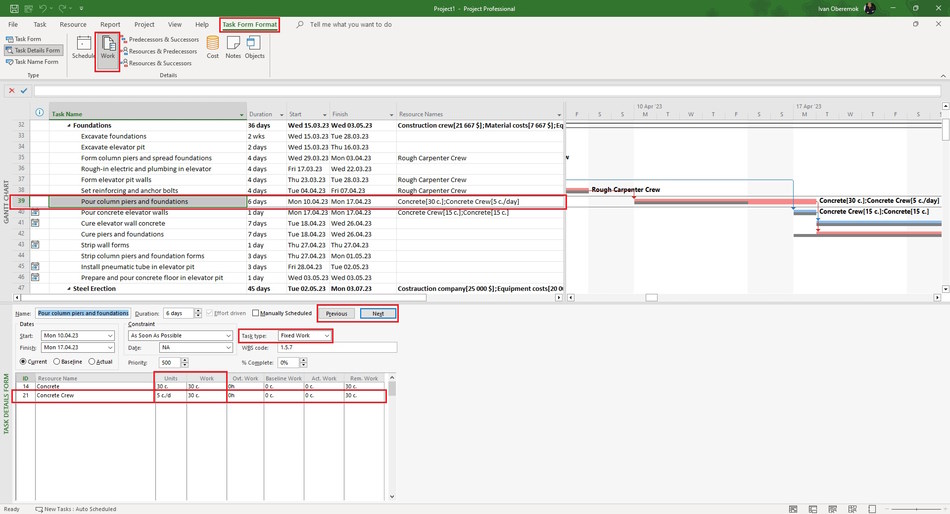
Clarification of the appointment of crew in the automatic scheduling of the duration of tasks in MS Project Pro
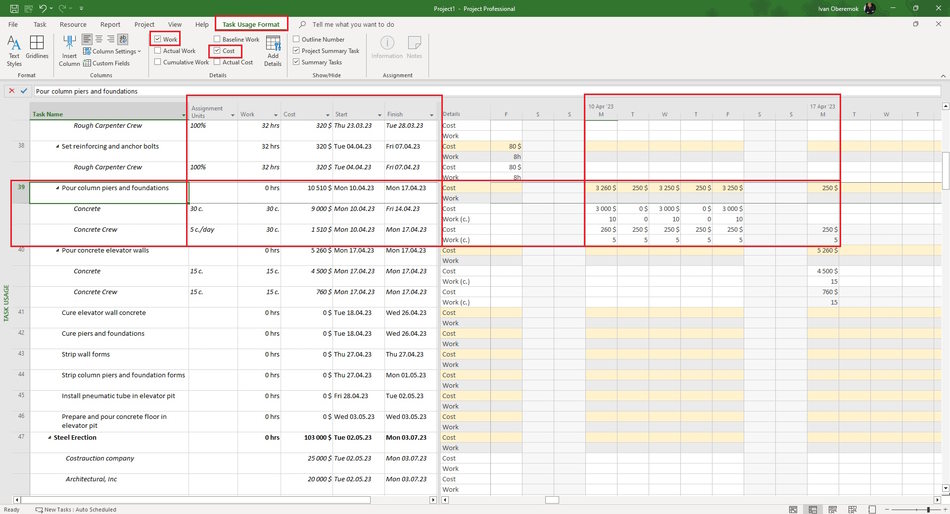
Steps to сlarification of the appointment of teams in the automatic scheduling of the duration of tasks in MS Project Pro:
- Open the task usage view.
- Add columns: "Assignment Units", "Work", "Cost", "Start" and "Finish".
- You can replace the crew in the "Resource Names" column.
- Specify the assign start in the "Start" column.
- Specify the assign end in the "Finish" column.
- Specify the crew capacity for the period in the 'Assignment Units" column. You can specify the cost for periods: hour - "hr", day - "d", week - "wk", month - "mo", year - "yr".
- Specify amount work of crew in the "Work" column.
- Compare the task cost value with its baseline cost. If you used a cost resource to describe a cost resource then you need to reduce the amount of the cost resource by the cost amount of the cost resource.
- Click the "Task Usage Format" item in the top menu.
- Click boxs: "Cost" and "Work".
- Set the time period. (Read more "Timescale in MS Project Pro")
- Specify the amount work of crew for the period in the "Work" field on the right part.
#msprojectpro, #oberemokii, #projectmanagment, #projectresourcemanagement, #planningprocess

Author: Ivan Oberemok
