
Assigning a crew resource using a material type resource in MS Project Pro
Contents:
- Assigning crews using a material type resource in the Gantt chart view in MS Project Pro
- Clarification of the assignment of crews using a material type resource in the task usage view in MS Project Pro
- Clarification of the assignment of crews using a material type resource in the resource usage view in MS Project Pro
- Chat
Assigning crews using a material type resource in the Gantt chart view in MS Project Pro
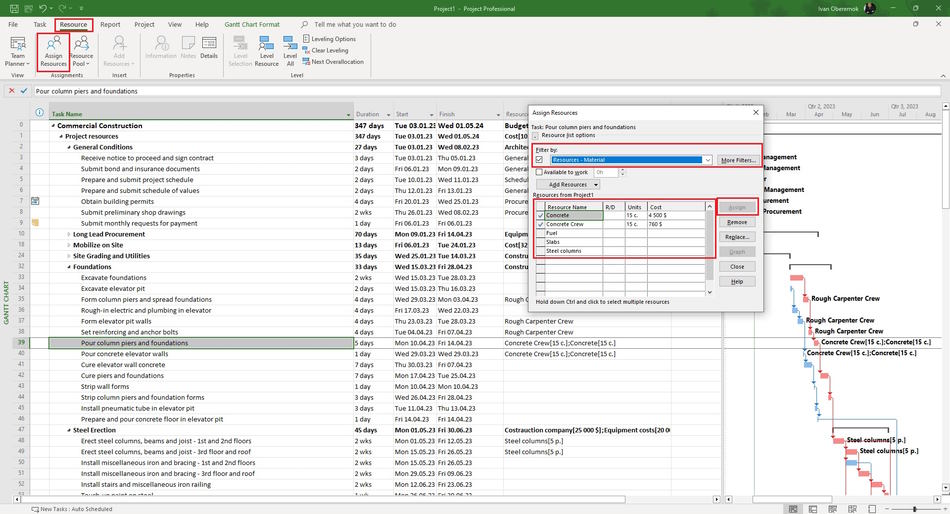
First tool. Steps to assign crews using a material type resource in the Gantt chart view in MS Project Pro:
- Open the Gantt chart view.
- Click the "Resource" item in the top menu.
- Click the "Assign Resources" item in block "Assigments".
- Open the "Resource list options" block.
- Set the "Resources - Material" in the "Filter by:" field.
- Select the resource.
- Enter units for assigning crew in the 'Units" column.
- Click the "Assign" button.
- Click the "Close" button.
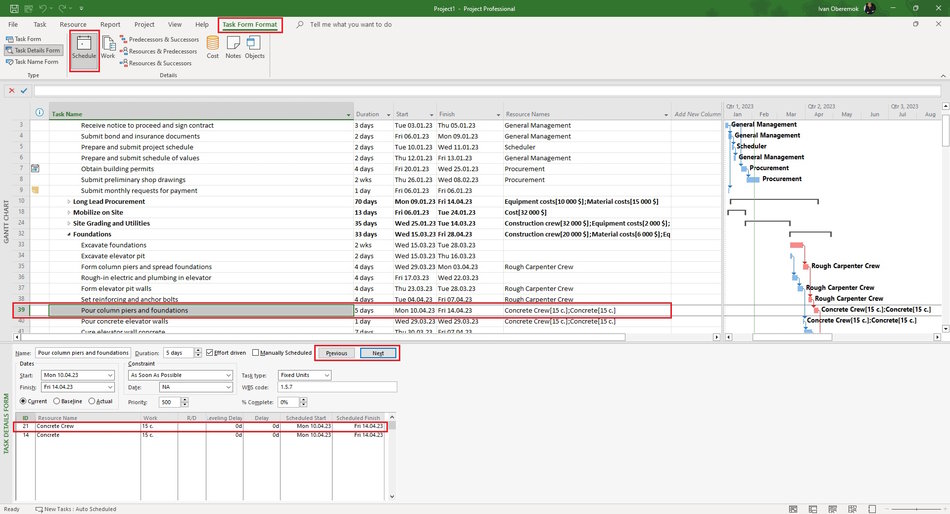
Second tool. Steps to assign crews using a material type resource in the Gantt chart view in MS Project Pro:
- Click the "Task" item in the top menu.
- Click the "Details" item in block "Properties".
- Click the "Task Form Format" item in top menu for window "Task details from".
- Click the "Work" item in block "Details"
- Choose crews in the window "Task details from" in the "Resource Name" field.
- Enter units for each assigning crew in the 'Units" field.
- Click the "OK" button.
Clarification of the assignment of crews using a material type resource in the task usage view in MS Project Pro
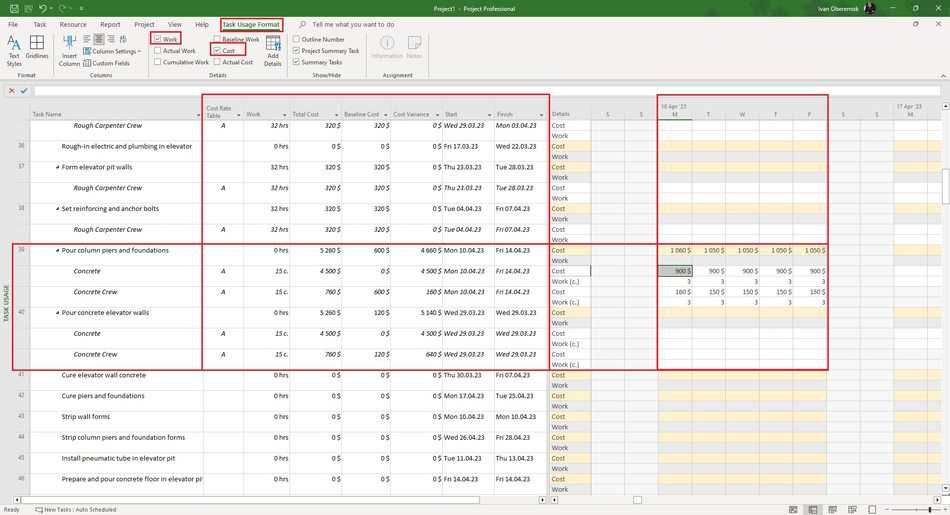
Steps to clarification of the assignment of crews using a material type resource in the task usage view in MS Project Pro:
- Open the task usage view.
- Add columns: "Cost Rate Table", "Total Cost", "Work", "Baseline Cost", "Variance" and "Resource Names".
- You can replace the resource in the "Resource Names" column.
- Specify the assign start in the "Start" column.
- Specify the assign end in the "Finish" column.
- Specify the type of rate in the "Cost Rate Table" column.
- Enter amount work of crew in the "Work" column.
- Compare the task cost value with its baseline cost. If you used a cost resource to describe a cost resource then you need to reduce the amount of the cost resource by the cost amount of the cost resource.
- Click the "Task Usage Format" item in the top menu.
- Click boxs: "Cost" and "Work".
- Set the time period. (Read more "Timescale in MS Project Pro")
- Specify the amount work of crew for the period in the "Work" field on the right part.
Clarification of the assignment of crews using a material type resource in the resource usage view in MS Project Pro
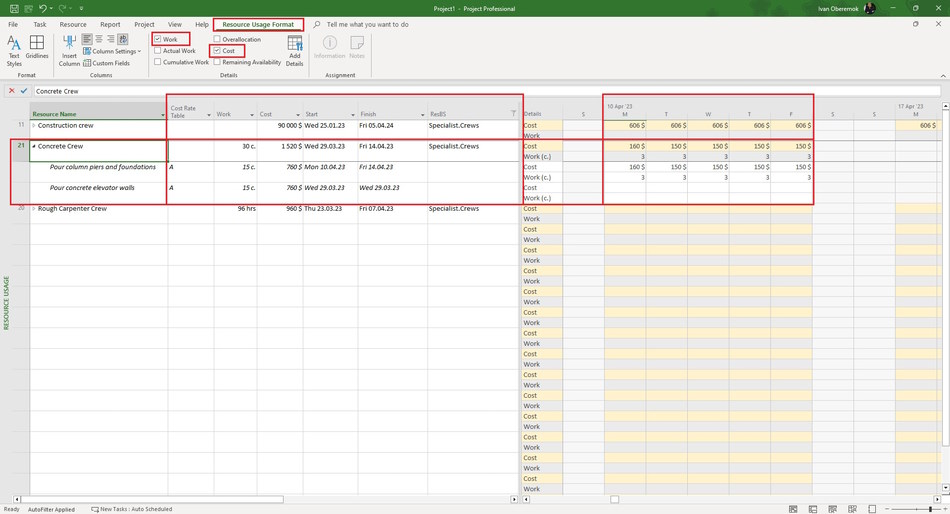
Steps to clarification of the assignment of crews using a material type resource in the resource usage view in MS Project Pro:
- Open the resource usage view.
- Add columns: "Cost Rate Table" ,"Work" , "Cost", "Start", "Finish" and "ResBS".
- Set the "Crews" in the "ResBS" column filter.
- Specify the assign start in the "Start" column.
- Specify the assign end in the "Finish" column.
- Specify the type of rate in the "Cost Rate Table" column.
- Specify the amount work of crew in the "Works" column.
- Click the "Resources Usage Format" item in the top menu.
- Click boxs: "Cost" and "Work".
- Set the time period. (Read more "Timescale in MS Project Pro")
- Specify the amount of work of crew for the period in the "Work" field on the right part.
#msprojectpro, #oberemokii, #projectmanagment, #projectresourcemanagement, #planningprocess

Author: Ivan Oberemok
