
Assigning equipment resources in MS Project Pro
Contents:
- Assigning equipment resources in the Gantt chart view in MS Project Pro
- Assigning equipment resources in the task from view in MS Project Pro
- Clarification of the assignment of equipment resources in the task usage view in MS Project Pro
- Clarification of the assignment of equipment resources in the resource usage view in MS Project Pro
- Chat
Assigning equipment resources in the Gantt chart view in MS Project Pro
You can assign equipment resources to any tasks of you plan.
First tool. Steps to assign equipment resources in the Gantt chart view in MS Project Pro:
- Open the Gantt chart view.
- Add the "Resource Names" column.
- Click the cell on the task in the the "Resource Names" column.
- Select the equipment resources of this task.
It is the easiest assign tool but using this tool you can not set assign parameters.
Second tool. Steps to assign equipment resources using the assign resources tool in MS Project Pro:
- Open the Gantt chart view.
- Click the "Resource" item in the top menu.
- Click the "Assign Resources" button in block "Assigments".
- Open the "Resource list opteions" block.
- Select the "Resources - Work" filter in the "Filter by:" feild.
- Select the task in the table.
- Select the equipment resource in the "Resources from ..." list
- Click the "Assign" button.
- Edit assign unit in the "Units" column.
- The system will calculate assign cost in the "Cost" field.
- Click the "Close" button.

Assigning equipment resources in the task from view in MS Project Pro
Steps to assign equipment resources in the Gantt chart view in MS Project Pro:
- Open the gantt chart view.
- Click the "Task" item in the top menu.
- Click the "Details" item in block "Properties".
- Click the item "Task Form Format" in top menu for window "Task details from".
- Click the item "Work" in block "Details".
- You can replace the assignment start in the "Scheduled Start" column. Do not enter an assignment start less than the task start.
- You can replace the assignment end in the "Scheduled Finish" column. Do not enter an assignment end more than the task end.
- Choose resources in the window "Task details from" in the field "Resource Name".
- Enter units for each assigning equipment resource unit in the field 'Units".
- Click the button "OK".

Clarification of the assignment of equipment resources in the task usage view in MS Project Pro
Steps to clarification of the assignment of equipment resources in the task usage view in MS Project Pro:
- Open the task usage view.
- Add columns: "Assigment Units", "Work" ,"Start" ,"Finish" ,"Baseline Cost" ,"Variance" and "Resource Names".
- You can replace the resource in the "Resource Names" column.
- You can replace the assignment start in the "Start" column. Do not enter an assignment start less than the task start.
- You can replace the assignment end in the "Finish" column. Do not enter an assignment end more than the task end.
- Enter the percentage of equipment participation on the task in the "Assignment Units" column.
- Enter the assignment work in the "Work" column.
- Compare the task cost value with its baseline cost. If you used a cost resource to describe a cost of equipment then you need to reduce the amount of the cost resource by the cost amount of the cost resource.
- Click the "Task Usage Format" item in the top menu.
- Click boxs: "Cost" and "Work".
- Set the monthly time period. (Read more "Timescale in MS Project Pro")
- Specify the assignment work for the period in the "Work" field on the right part.

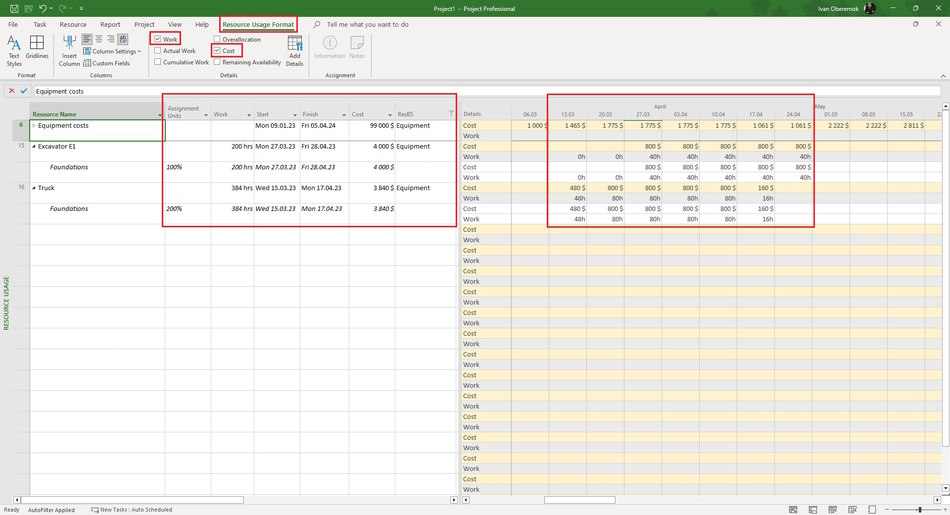
Clarification of the assignment of equipment resources in the resource usage view in MS Project Pro
Steps to clarification of the assignment of equipment resources in the resource usage view in MS Project Pro:
- Open the resource usage view.
- Add columns: "Assigment Units", "Cost", "Work", "Start", "Finish" and "ResBS".
- Set the "Equipment" in the filter of the "ResBS" column.
- Specify the assignment start in the "Start" column.
- Specify the assignment end in the "Finish" column.
- Specify the assignment work in the "Works" column.
- Click the "Resources Usage Format" item in the top menu.
- Click boxs: "Cost" and "Work".
- Set the monthly time period. (Read more "Timescale in MS Project Pro")
- Specify the assignment work for the period in the "Work" field on the right part.
#msprojectpro, #oberemokii, #projectmanagment, #projectresourcemanagement, #planningprocess

Author: Ivan Oberemok
