
Setting actual material resources in MS Project Pro
Contents:
- Setting actual of material resources in the Gantt chart view in MS Project Pro
- Detailed setting of actual material resources in task usage view in MS Project Pro
- Detailed setting of actual material resources in the resource usage view in MS Project Pro
- Chat
Setting actual material resources in the Gantt chart view in MS Project Pro
It is necessary to establish the fact of material resources after setting the actual duration and start dates of tasks. This fact setting tool is suitable for fully completed tasks.
Steps to set actual material resources in the Gantt chart view in MS Project Pro:
- Open the Gantt chart view.
- Click the "Task" item in the top menu.
- Click the "Details" button in the "Properties" block
- Click teh "Task Form Format" in the top menu.
- Click the "Work" buttonin the "Details" block.
- Enter the amount of resources actually spent in the "Act. work" column in the "Task details form" window.
- Click the "Ok" button

Detailed setting of actual material resources in task usage view in MS Project Pro
Steps to detailed setting of actual material resources in task usage view in MS Project Pro:
- Open the task usage view.
- Add columns: "Work", "Actual Work", "Remaning Work", "Baseline Work" and "Work Variance".
- Click the "Task Usage Format" item in the top menu.
- Click boxs: "Baseline Work", "Work" and "Actual Work".
- Open the task by clicking the triangle near the task name.
- Enter the amount of resources actually spent in the "Actual work" column.
- Set the time period. We recommend setting the time period to a week. (Read more "Timescale in MS Project Pro")
- Adjust the actual material resource for period in the "Actual Work" field.
- MS Project Pro is automatically updated planned works after setting actual works.
- You can compare the actual work and the baseline work.

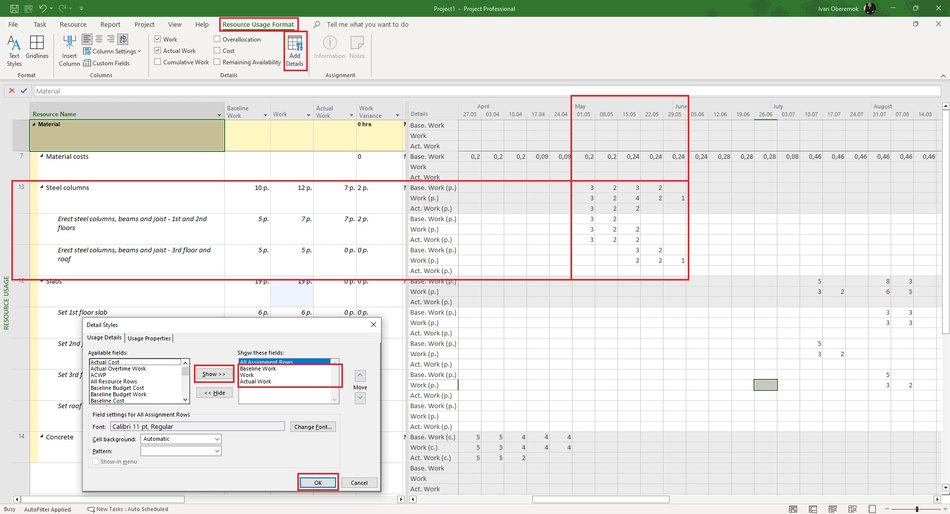
Detailed setting of actual material resources in the resource usage view in MS Project Pro
Steps to detailed setting of actual material resources in the resource usage view in MS Project Pro:
- Open the resource usage view.
- Add columns: "Work", "Actual Work", "Baseline Work" and "Work Variance".
- Click the "Resource Usage Format" item in the top menu.
- Click boxs: "Baseline Work", "Work" and "Actual Work".
- Open the resource by clicking the triangle near the resource name.
- Enter the amount of resources actually spent in the "Actual work" column.
- Set the time period. We recommend setting the time period to a week. (Read more "Timescale in MS Project Pro")
- Adjust actual material resource for period in the "Actual Work" field.
- MS Project Pro is automatically updated planned works after setting actual works.
- You can compare the actual work and the baseline work.
#msprojectpro, #oberemokii, #projectmanagment, #projectresourcemanagement, #executingprocess

Author: Ivan Oberemok
