
Setting actual costs using material type resources in MS Project Pro
Contents:
- Setting active costs using material type resources in the task usage view in MS Project Pro
- Set active costs using material type resources in the resource usage view in MS Project Pro
- Chat
Setting active costs using material type resources in the task usage view in MS Project Pro
To close the current implementation period, you need to close the execution of the task and set the actual costs. MS Project Pro sets the actual cost when setting the fact that tasks are completed. But you need to specify actual tasks for tasks for the period,
Steps to set active costs using material type resources in the task usage view in MS Project Pro:
- Open the task usage view.
- Add columns: "Work", "Actual Work", "Cost", "Basline Cost", "Cost Variance", "Actual Cost" and "Remaning Cost".
- Click the "Task Usage Format" item in the top menu.
- Clck the "Add Details" button in the "Details" block.
- Add fields: "Basline Cost", "Cost", "Actual Cost", "Work" and "Actual Work".
- Set the time period. We recommend setting the time period to a month. (Read more "Timescale in MS Project Pro")
- Check the actual cost in the period and adjust if necessary in the "Actual Work" field.
- Compare the actual and planned costs for the closing period, they must be the same.

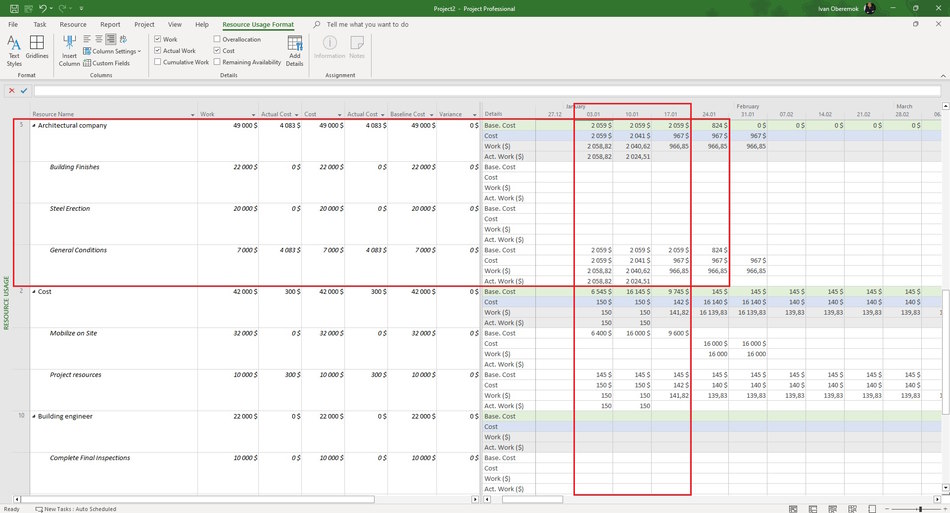
Set active costs using material type resources in the resource usage view in MS Project Pro
You can set the actual costs using material type resources on tasks per period for each resource separately.
Steps to set active costs using material type resources in the task usage view in MS Project Pro:
- Open the resource usage view.
- Add columns: "Work", "Actual Work", "Cost", "Basline Cost", "Cost Variance", "Actual Cost" and "Remaning Cost".
- Click the "Resource Usage Format" item in the top menu.
- Clck the "Add Details" button in the "Details" block.
- Add fields: "Basline Cost", "Cost", "Actual Cost" , "Work" and "Actual Work".
- Set the time period. We recommend setting the time period to a month. (Read more "Timescale in MS Project Pro")
- Check the actual cost in the period and adjust if necessary in the "Actual Work" field.
- Compare the actual and planned costs for the closing period, they must be the same.
#msprojectpro, #oberemokii, #projectmanagment, #projectcostmanagement, #executingprocess

Author: Ivan Oberemok
