
PWA Settings. Reporting
Contents:
What is Project Data
Project Data in Microsoft Project Server represents a structured set of information that is stored on a dedicated reporting server and used for analyzing the state and performance of projects. This data repository acts as a centralized source that accumulates key details about tasks, resources, timelines, assignments, and overall project progress. Because the information is stored in an organized and standardized format, it becomes convenient to use it for generating analytical reports, building dashboards, and performing deeper evaluations of project efficiency.
All Project Data is presented as a system of interconnected tables. These tables are divided into two primary categories: time‑distributed and non‑time‑distributed. Time‑distributed tables contain values that are recorded across specific time intervals—such as days, weeks, or months—making them especially useful for tracking effort, work hours, or actual progress over time. Non‑time‑distributed tables store static or relatively stable project attributes, including task metadata, resource characteristics, and general project properties that do not depend on time.
Understanding the difference between these table types is essential for choosing the correct data source when preparing reports. Time‑distributed tables allow for dynamic trend analysis and detailed monitoring—while non‑time‑distributed tables serve as a stable reference foundation. For a deeper explanation of these categories and recommendations on how to select the appropriate table depending on the reporting goal, you can read the article “Type of tables in Project Data and what type choose for report”.
Data granularity settings
Reporting settings works only with tables distributed in time. For this tables we can configure data detailing. The Reporting settings give us possibility make it into four grades: daily, weekly, monthly or by fiscal period. For making these settings you need go to Server settings in your Project Server.
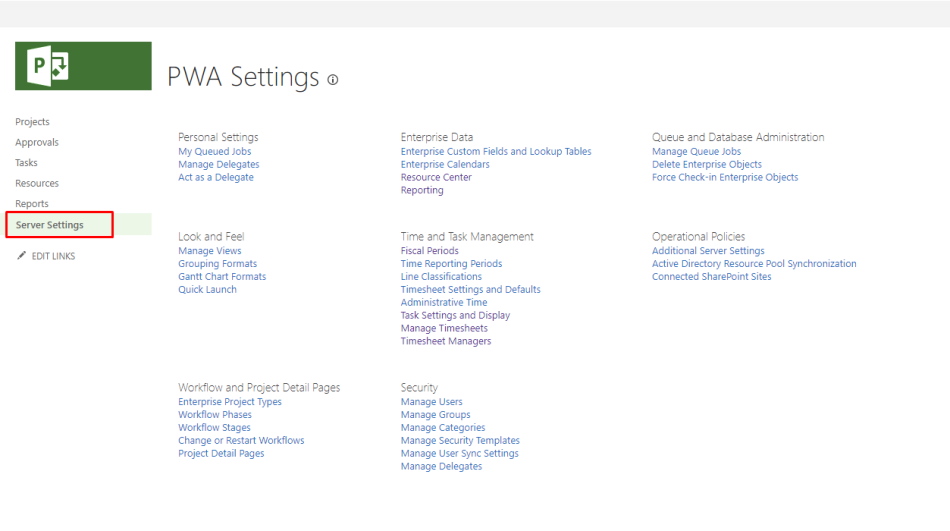
For changing granularity settings take the following steps:
- 1. Go to "Server settings" on main page.
- 2. Find settings section "Enterprise Data".
- 3. Click on the "Reporting".
- 4. Set granularity suitable for your server.
- 5. Click "Save".
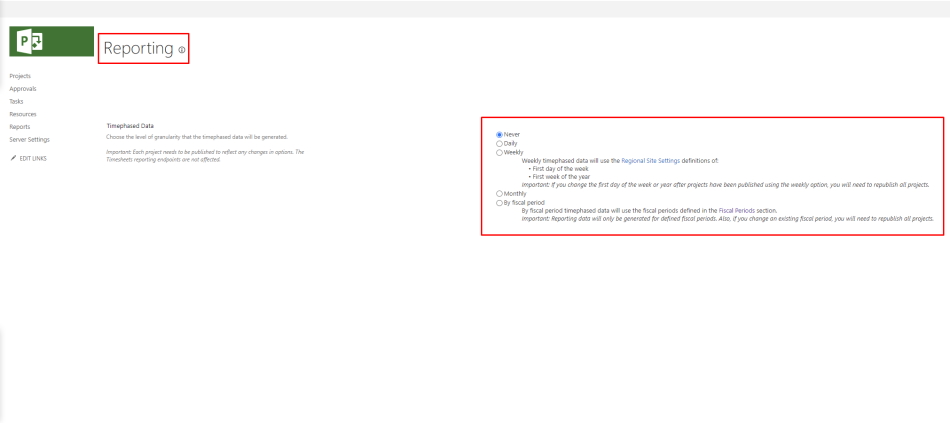
Here is you can choose granularity suiting for your enterprise data:
- Daily – all your data will be recorded every day. So, in columns “Time by day” you will see a row for each day.
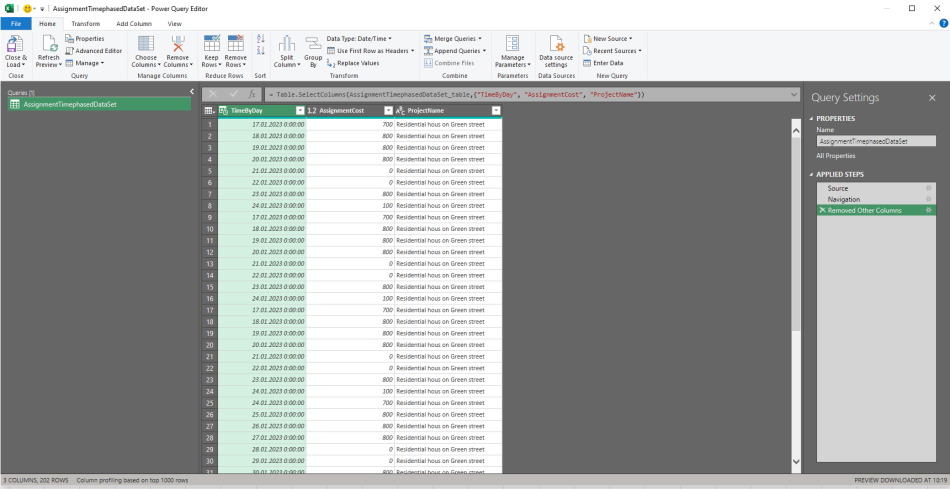
- Weekly – all your data will be recorded summary for every week. In the column “Time by day” you will see a row for each week. Also, you can set in the Regional Site Settings which day will be first in a week, what week will be first of the year. One important note, if you choose weekly data granularity you will haven’t possibility divide data clearly by month. Because most often the end and beginning of the month do not fall on the beginning of the week.
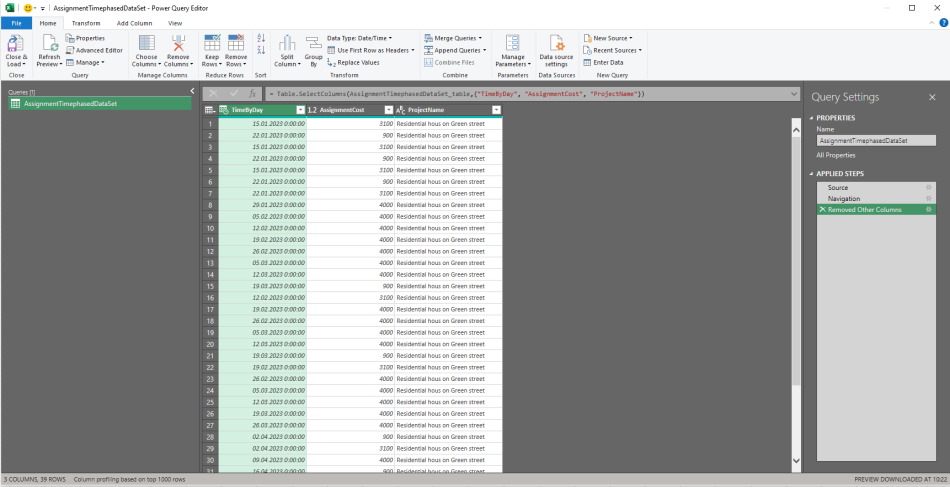
- Monthly – all data will be recorded summary for all month. In the column “Time by day” you will see only one row for all month. This chooses very suitable if you have a big project portfolio and you track progress of project several time in the month. In this way you safe your reports from overloading and safe a time for refreshing report.
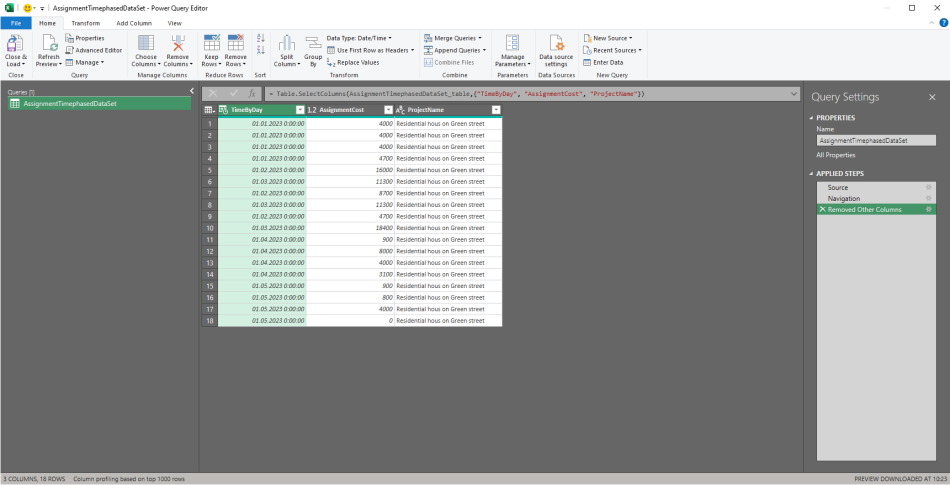
- By fiscal period – all data will be recorded summaries for all fiscal periods. In the column “Time by day” you will see only one row for all fiscal periods. This is the largest option for detailing data. Before choosing this option you need set fiscal periods in the “Time and Task Management” section and press “Fiscal Periods”.
After changing settings, very important, you need republish all your projects! If you don’t do that your tables in Project Data stay in previous settings.
These settings don’t affect the ability of users to reporting them time of project. These settings apply only Project Data report server. So, if you choose option monthly for Project Data, users still can report for project every day.

Author: Ivan Oberemok
