
Customizing the Gantt Chart Layout in MS Project Pro
Contents:
- Customizing tasks rollup on Gantt chart in MS Project Pro
- Customizing Gantt chart layout in MS Project Pro
- Chat
Customizing tasks rollup on Gantt chart in MS Project Pro
You can display tasks in summary tasks if you set roll up on tasks.
First tool. Steps to set roll up on tasks:
- Open the Gantt chart.
- Add the "Rollup" column.
- Set the "Yes" for tasks. You can use the "Strategic" castume field. (Read more "Strategic project schedule in MS Project Pro").
- "Rollup" is set to "Yes" for all summary tasks by default. You can change if.
Second tool. Steps to set roll up on tasks:
- Open the Gantt chart.
- Duble click the task.
- Click the "General" tub.
- Click the "Rollup" box.
You can change the rollup bar style. Steps to show the critical tasks:
- Click the "Gantt Chart Format" item in the top menu.
- Click the "Format" button in the "Bar Style" block.
- Click the "BarStyles" subitem.
- Insert new row in the under the "*Rolled Up Task" row by clicking the "Insert Row" button.
- Describe new bar for critical tasks. You can copy data from the "*Rolled Up Task" row and add the "Critical" name in the "Show For ... Tasks" filed.
- Click the "Ok" button.

Customizing Gantt chart layout in MS Project Pro
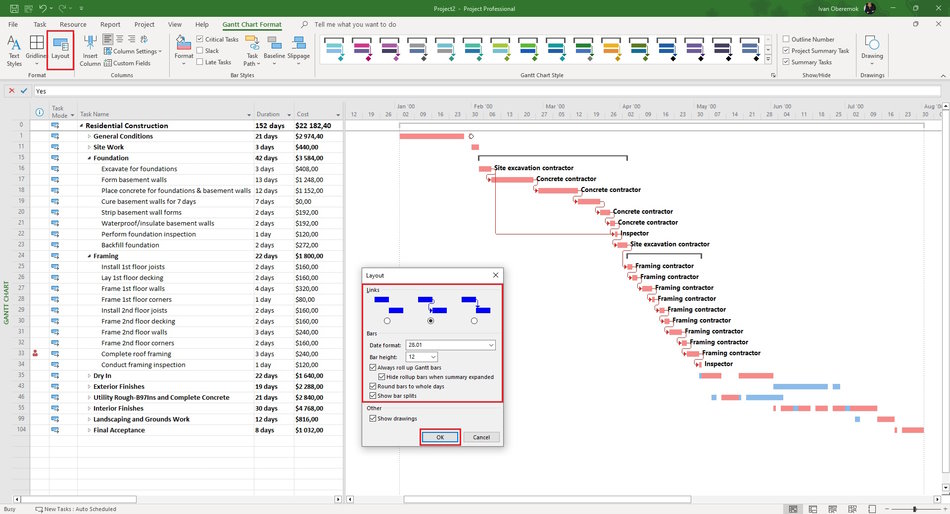
Steps to customize Gantt chart layout in MS Project Pro:
- Click the "Gantt Chart Format" item in the top menu.
- Click the "Layout" button.
- You can change the links style in the "Links" block.
- You can change format date in the "Date format:" field.
- You can change the height bar in the "Bar hieght" field.
- You can change the style the summary tasks by clcking the "Always roll up Gantt bars" box. If summary tasks are closed, they will be shown as regular tasks.
- If you click the "Hide rollup bars when summary expanded" box, opening summary tasks will be shown as regular summary tasks.
- You can set round bars to whole day by clicking the "Round bars to whole day" box.
- You can show or hide tasks splits by clicking the "Show bar splits" box.
- You can show or hide drawings on Gantt chart by clicking the "Show drawings" box.
- Click the "Ok" button.
#msprojectpro, #oberemokii, #projectmanagment, #projectintegrationmanagement, #planningprocess

Author: Ivan Oberemok
