
Strategic project schedule in MS Project Pro
Contents:
Strategic tasks in MS Project Pro
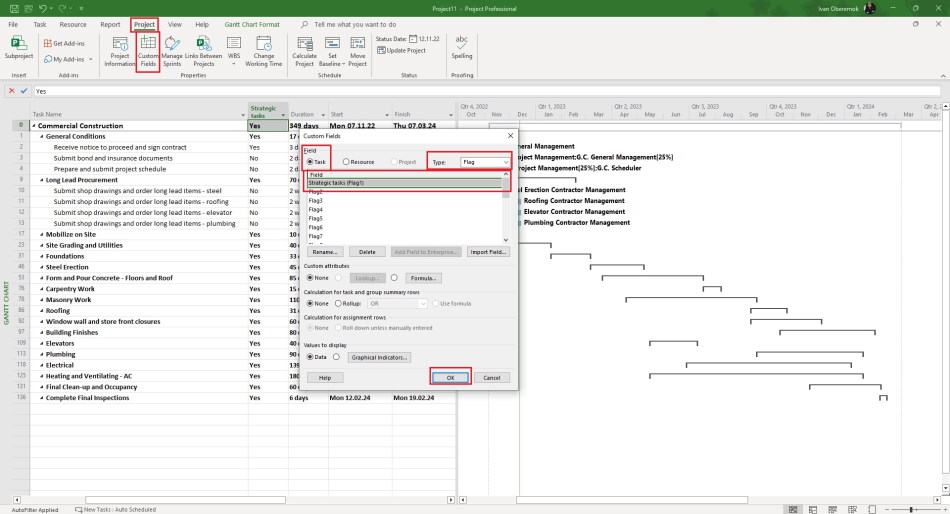
You can create a strategic project schedule using a custom column in MS Project. You must add a custom column using flag type or text type.
First creation tool is use the flag type custom column. Steps to create strategic custom column in MS Project Pro
- Click the "Custom Fields" button in the "Properties" block in the "Project" item of the top menu.
- Select field type "Task" in the "Field" block.
- Select type "Flag" in the "Type:" field.
- Select the empty field in the table and click the "Rename ...." button.
- Add the "Strategic task" field.
- Click the "Ok" button.
- Add the "Strategic task" column in the table.
- Set the "Yes" value for the Strategic tasks in the "Strategic task" field.
Stakeholder tasks in MS Project Pro
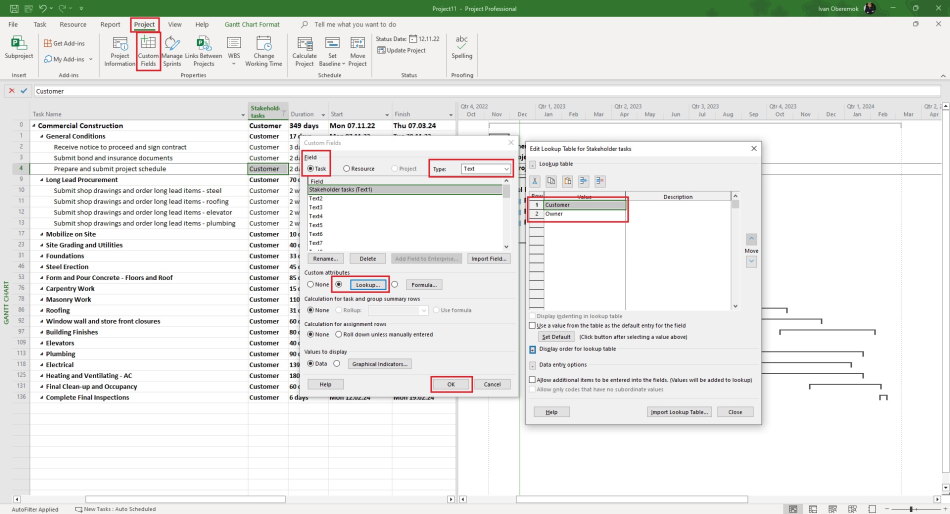
You can add stakeholder names in the "Stakeholder tasks" field. You can set stakeholder's strategic tasks.
First creation tool is use the flag type custom column. Steps to create stakeholder custom column in MS Project Pro
- Click the "Custom Fields" button in the "Properties" block in the "Project" item of the top menu.
- Select field type "Task" in the "Field" block.
- Select type "Flag" in the "Type:" field.
- Select the empty field in the table and click the "Rename ...." button.
- Add the "Stakeholder task" field.
- Click the "Lookup ..." button.
- Enter the stakeholder list in the "Value" column.
- Click the "Ok" button.
- Click the "Ok" button.
- Add the "Stakeholder task" column in the table.
- Select the stakeholder name for the strategic tasks in the "Stakeholder task" field.
#msprojectpro, #oberemokii, #projectmanagment, #projectschedulemanagement, #projectstakeholdermanagement, #planningprocess

Author: Ivan Oberemok
