
Setting task and resource calendars in MS Project Pro
Contents:
Setting a tasks calendar in MS Project Pro
You can only set one calendar per task. You must set the task calendar before other task scheduling steps. If you don't set a task calendar, the project calendar will be used.
Steps to set a tasks calendar in MS Project Pro:
- Open Gantt chart.
- Double click the task name or click the "Information" button in the "Properties" block.
- Click the "Advanced" tub.
- Select the calendar in the "Calendar:" field.
- Click the "Ok" button.

Setting a resources calendar in MS Project Pro
You can use project calendars for resources. If you don't set a task calendar, the project calendar will be used. You can customize the resource calendar.
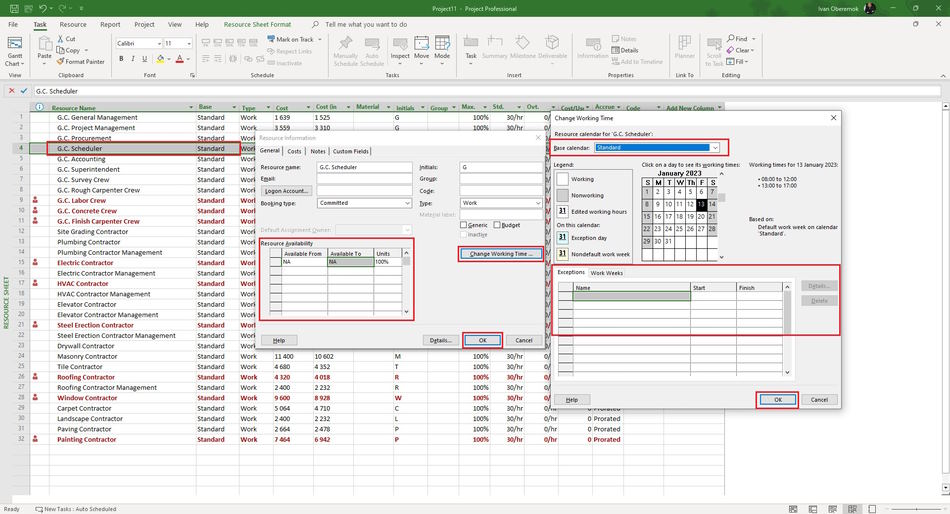
Steps to set a resource calendar in MS Project Pro:
- Open Recource Sheet.
- Add the "Base" column. You can set the project calendar in this field.
- You can set resource availability in the "Resource Availability" block:
- Set the end date for the current availability in the "Availabe To" column.
- Set the day after the last availability end date in the "Available From" column for new availability.
- Set the "NA" for the new availability in the "Available To" column.
- Set availability units in the "Units" column.
- You can customize the resource calendar by clicking the "Change Working Time ..." button.
- Select the base calendar in the "Base calendar" field.
- Set the exceptions in the "Exceptions" tub. (Read more in "MS Project calendar")
- Set the time work weeks in the "Work Weeks" tub. (Read more in "MS Project calendar")
- Click the "Ok" button.
- Click the "Ok" button.
#msprojectpro, #oberemokii, #projectmanagment, #projectintegrationmanagement, #planningprocess

Author: Ivan Oberemok
