
Describing a resource in MS Project Pro
Contents:
- Describing a resource in MS Project Pro
- Adding notes to resources in MS Project Pro
- Describing a resource details in MS Project Pro
- Chat
Describing a resource in MS Project Pro
Steps to describe the resource in MS Project:
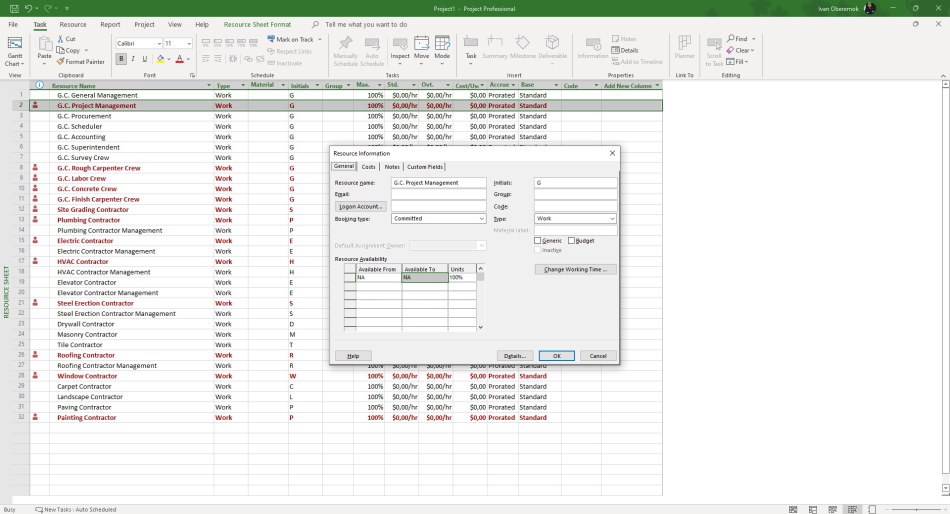
- Click on the resource by the mouse.
- If you choose the resource type "Work" you will set work-time. You can set resource availability in the block "Resource Availability". You must set date start in the field "Availability From" and date finish in the "Availability To". The units availability set in the field "Units". The default availability set in the field "Max" or resource calendar.
- if you want to change the resource calendar, you will click the button "Change Working Time...". You can change the resource calendar as the other project calendar.
- If you click the item "Generic" you will describe the generic resource.
- You can describe resource in the tab "Notes". The describe text can be different, You can add links to files.
- You can add information in custom columns in the tab "Custom fields".
Adding notes to resources in MS Project Pro
MS Project allows you to add supporting information for project resources. It could be:
- Resource note;
- Accompanying file;
- Hyperlink.
To add a note to a task:
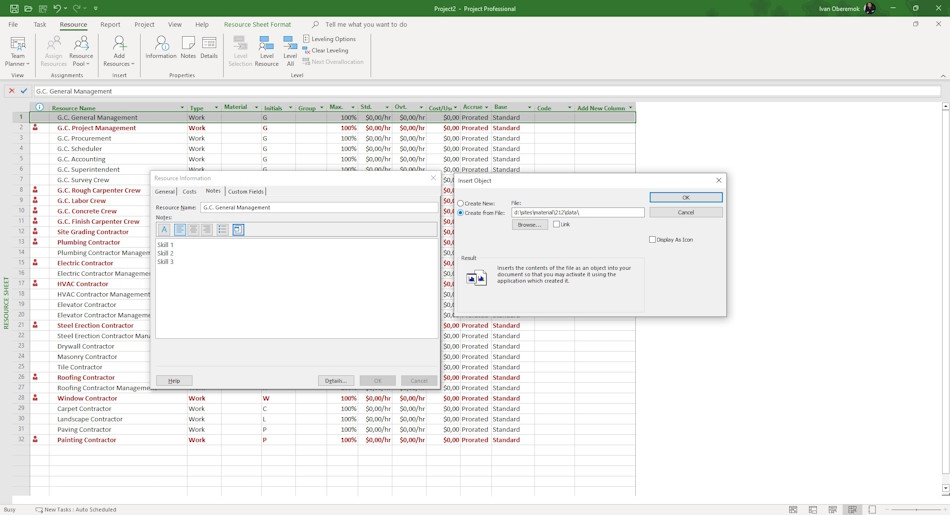
- Open the "Resource Sheet" view in your plan.
- Double click the left mouse button on a resource. Or click the "Resource" item in the top menu and click in the item "Information" in the block "Properties".
- The resource information you can enter in the tab "Notes".
- In the Notes text box, enter your note text. It is possible to format the entered text by clicking on the appropriate buttons "Format Font", "Align left", "Align center", "Align right", "Bulleted list".
Describing a resource details in MS Project Pro
You can describe a resource details in MS Project Pro.
The steps of describing a resource details in MS Project Pro:
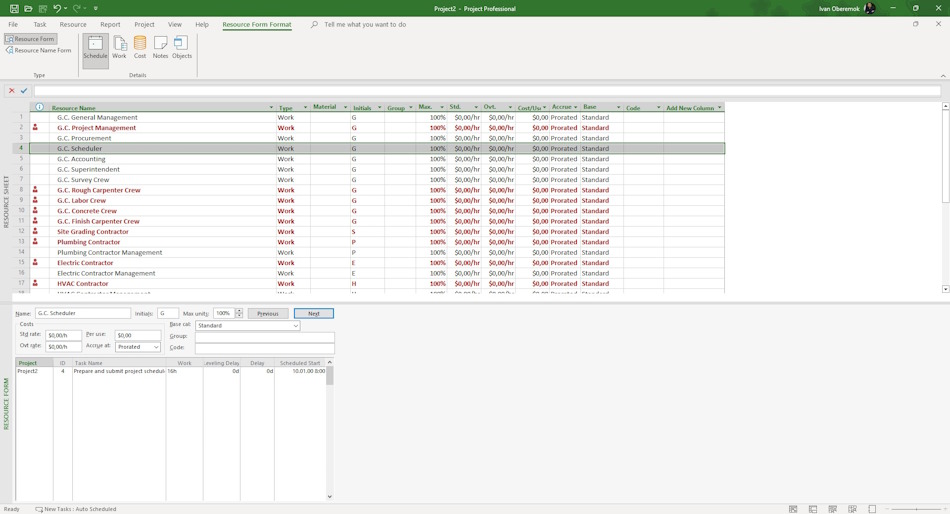
- Open the "Resource Sheet" view in your plan.
- Click the item "Resource" on the top menu.
- Click the item "Details" on the block "Properties".
- Click the item "Resource Form Format" in the top menu.
- Select type of form in the "Type" block.
- Select type of date in the "Details" block.
#projectmanagment, #projectresourcemanagement, #planningprocess, #msprojectpro, #oberemokii

Author: Ivan Oberemok
