
Build team from enterprise in MS Project Server
Contents:
Build team from enterprise in MS Project Server

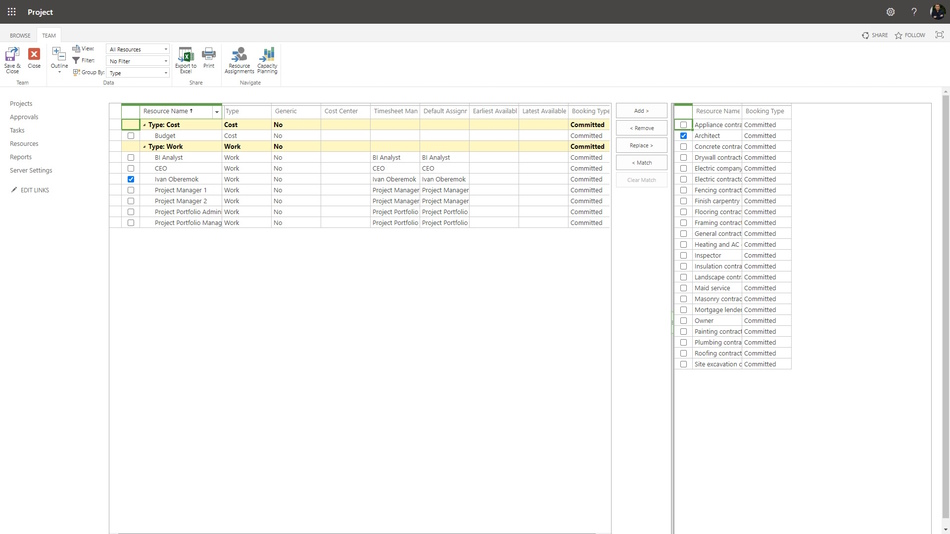
Steps to build team from enterprise in MS Project Server:
- Open MS Project Server.
- Click the "Projects" item in the left menu.
- Click the project name.
- Click the "PROJECT" item in the top menu.
- Click the "Build Team" button in the "Navigate" block.
- To add new resource:
- Choose the enterprise resource in the left block.
- Click the "Add >" button.
- To remove the enterprise resource from project plan:
- Select the local resource in the right block.
- Click the "< Remove" button.
- To replace the local resource:
- Choose the enterprise resource in the left block.
- Select the local resource in the right block.
- Click the "Replace >" button.
- To match resources:
- Choose the local resource in the right block.
- Click the "< Match" button.
- To change view select it in the "View:" field. (Read more "Using the view in MS Project Server")
- To set up the filter select the filter in the "Filter" filed. (Read more "Using the view in MS Project Server")
- To set up the group select it the group the "Group" filed. (Read more "Using the view in MS Project Server")
- You can export the enterprise resources list click the "Export o Excel" button.
- You can print the enterprise resources list click the "Print" button.
- You can show the enterprise resources assignments click the "Resource Assigments" button.
- You can analyze the enterprise resources assignments click the "Capacity Planning" button.
- To save click the "Save & Close" button in the "Team" block.
- To close click the "Close" button in the "Team" block.
#projectportfoliomanagement, #projectresourcemanagement, #planningprocess, #msprojectserver, #oberemokii

Author: Ivan Oberemok
