
Using the view in MS Project Server
Contents:
- Using a view in MS Project Server
- Using a filter in a view in MS Project Server
- Using a group in a view in MS Project Server
- Chat
Using a view in MS Project Server
The most of applications have their views. You can use these views in applications. Each view has a set of columns. Default filters and groups for a view.
For example, consider the project portfolio views. Steps to use a view in portfolio in MS Project Server:
- Cick the "PROJECTS" item top menu.
- Click the "View" field.
- Select a view.
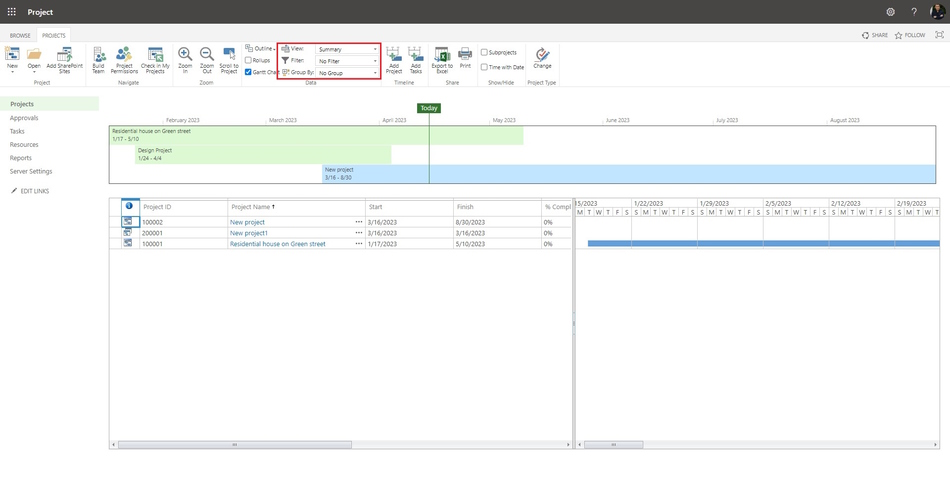
Steps use view columns in MS Project Server:
- Click the triangle near the column name.
- You can hide column, click the "Hide Column" item.
- You can set the list of view columns, click the "Configure Columns ..." item.
- You can set sort by this column. Select type sort: "Sort Ascending" or "Sort Descending".
- You can set the filter. Select the value of the column and click it.

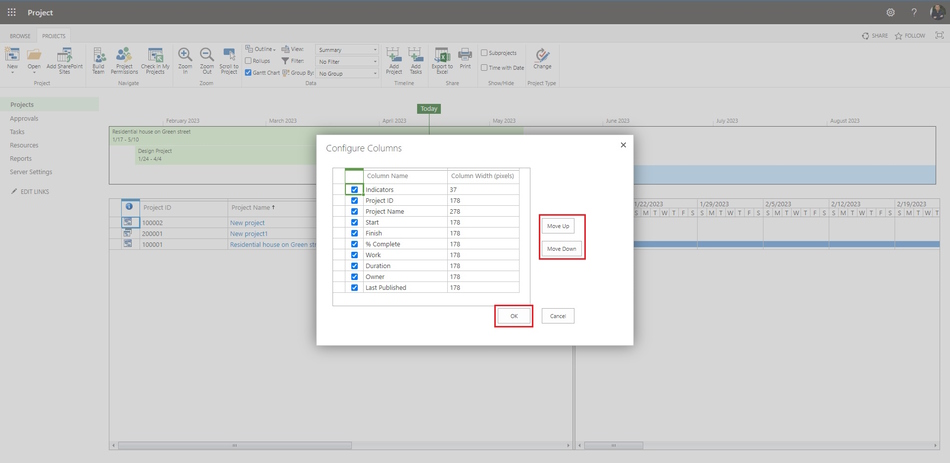
Steps to set the list of view columns in MS Project Server:
- Click the triangle near the column name.
- You can set the list of view columns, click the "Configure Columns ..." item.
- If you want to hide a column, uncheck the box next to the column name.
- If you want to reorder columns. Select the column and click the "Move Up" button or the "Move Down" button.
- To save click the "Ok" button.
Using a filter in a view in MS Project Server
Steps to use a filter in a view in MS Project Server:
- Click the "Filter" field in the "Data" block.
- Click the "Custom Filter..." item.
- Select the column name in "Field Name" field.
- Select the type test in the "Test" field.
- Enter the value in the "Value" field.
- If you want to add more filters, please select a condition in the "Add/Or" field.
- To save click the "Ok" bitton.

Using a group in a view in MS Project Server
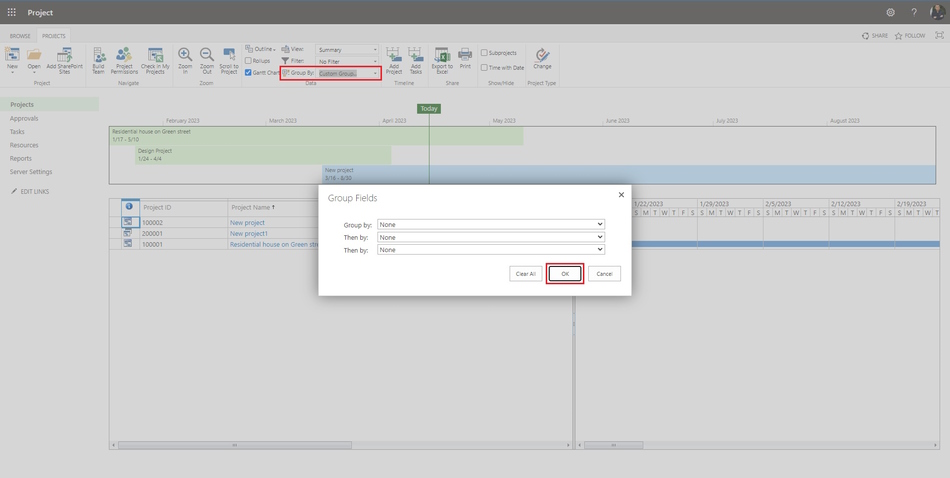
Steps to use a group in a view in MS Project Server:
- Click the "Group By" field in the "Data" block.
- You can select the column name for grouping.
- You can create a multi-column group by clicking the "Custom Group..." item.
- Select the column name in "Group by:" field.
- Select the next column name in "Then by:" field.
- To save click the "Ok" bitton.
#projectmanagment, #projectintegrationmanagement, #initiatingprocess, #msprojectserver, #oberemokii

Author: Ivan Oberemok
