
Enterprise calendars in MS Project Server
Contents:
- Managing enterprise calendars in MS Project Server
- Editing the enterprise calendar in MS Project Server
- Setting the enterprise calendars in MS Project Server
- Chat
Managing enterprise calendars in MS Project Server
In MS Project Server, calendars are used to describe working and non-working times. You can create an unlimited number of calendars.
MS Project uses enterprise calendars for:
- Projects. The project calendar defines the default working time for the entire project (for all project resources and tasks);
- Resours. The resource's calendars are used for individual resources or for groups of resources that have individual work schedules;
- Tasks. The task's calendars are used for tasks that may be performed during times other than the standard project calendar.
Steps to manage enterprise calendars in MS Project Server:
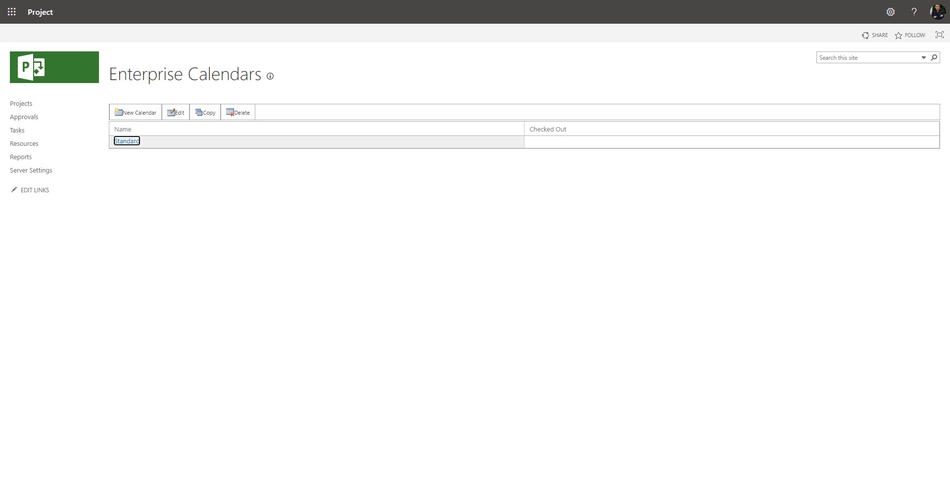
- Click the "Server Settings" item in the left menu.
- Click the "Enterprise Calendars" like in the "Enterprise Data" block.
- To create a new enterprise calendar click the "New Calendar" button.
- To create a new enterprise calendar based on an existing calendar, select the calendar click the "Copy" button.
- To edit the enterprise calendar, select the calendar and click the "Edit" button.
- To delete he calendar, select the calendar and click the "Delete" button.
Editing the enterprise calendar in MS Project Server
Steps to edit the enterprise calendar in MS Project Server:
- Click the "Server Settings" item in the left menu.
- Click the "Enterprise Calendars" like in the "Enterprise Data" block.
- To edit the enterprise calendar, select the calendar and click the "Edit" button.
- Edit the enterprise calendar name in the "For calendar:" field.
- You can set holidays and specific working day and working time in calendar in the "Exaptions" tub. (Read more "Edit calendar holidays and weekends in MS Project Pro")
- You can set work day and work time in calendar in the "Work Weeks" tub.
- To save click the "Save" button.

Setting the enterprise calendars in MS Project Server
Steps to set up the enterprise calendars in MS Project Server
- Open the MS Project Pro.
- Click the "File" item in the top menu.
- Clic the "Info" item in the left menu.
- Click the "Organizer" button.
- Click the "Open Enterprise Global" item.
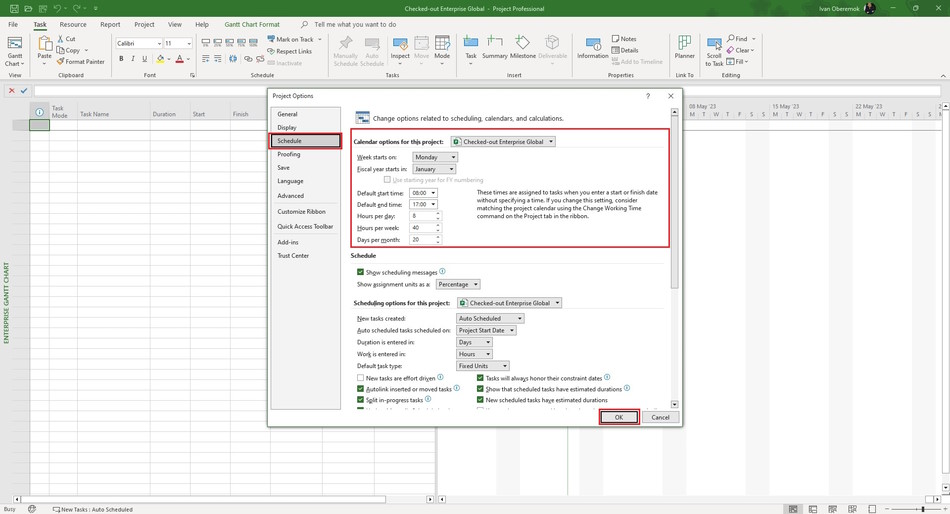
- Click the "Schedule" item in the left menu by the "Project Options" window.
- You can set up enterprise calendars:
- You can set day start of week in the field "Week starts on:".
- You can set a mounth of fiscal year starts in the feild "Fiscal year starts on:".
- You can set time of start working day in field "Default start time:".
- You can set time of end working day in field "Default end time".
- You can set number of working hours in day in field "Hours per day:".
- You can set number of working hours in week in field "Hours per week:"
- You can set number of working day in month in field "Day per month:"
- Click the "Ok" button.
#projectmanagment, #projectintegrationmanagement, #initiatingprocess, #msprojectserver, #oberemokii

Author: Ivan Oberemok
