
Creating a enterprise custom field with a lookup table in MS Project Server
Contents:
- Creating a lookup table in MS Project Server
- Creating a enterprise custom field with a lookup table in MS Project Server
- Chat
Creating a lookup table in MS Project Server
Steps to create a lookup table in MS Project Server:
- Click the "Server Settings" item in the left menu.
- Click the "Enterprise Custom Fields and Lookup Tables" item in the "Enterprise Data" block.
- To create the lookup table, click the "New Lookup Table" button.
- Or you can to copy exist lookup table. Select the lookup table and click the "Copy Lookup Table" button.
- To edit a lookup table, click the lookup table name in the "Lookup Table" column.
- To delete a lookup table, select the lookup table and click the "Delete Lookup Table" button.
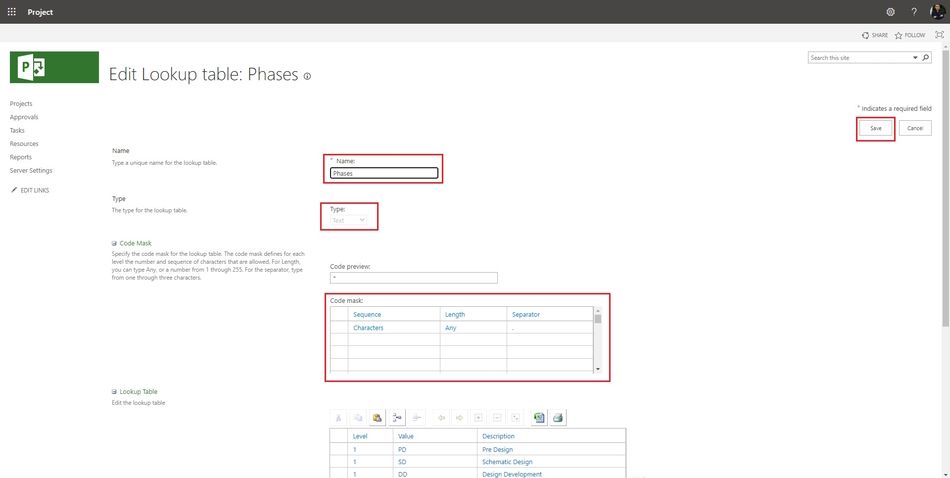
Steps to add values to the lookup table in MS Project Server:
- Enter the lookup table name in the "Name" field. The name must to be unic. You can use special symbols.
- Select the type of data in the "Type" field.
- You can set multi level outline, add more values of the code mask table. Set up the code mask values:
- Set the character type for each level.
- Set the length of level values.
- Set the type a separator.
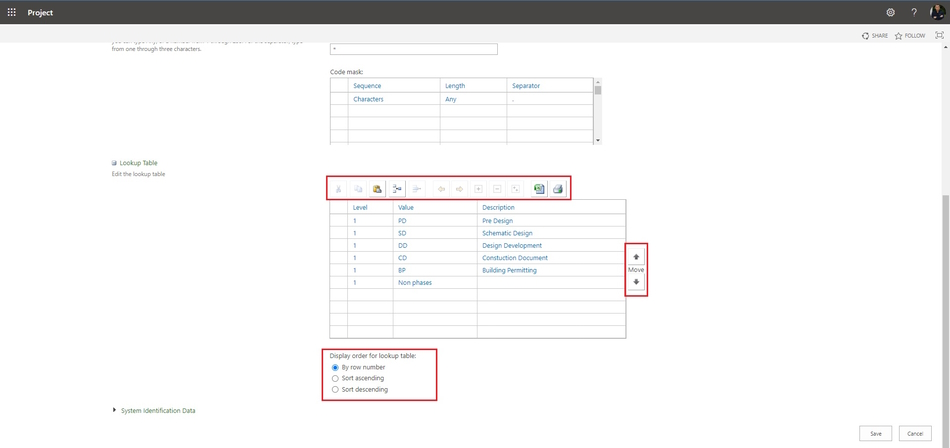
- Add vlues to the lookup table:
- Enter the table values in the "Value" column.
- If you want, you can add the description in the "Description" column.
- If you want add value click the "Insert Row" button.
- If you want to delete value, select it and click the "Delete Row" button.
- If you want copy value, select it and click the "Copy Row" button.
- If you want past value, click the "Paste Row" button.
- If you want change a value level, click the "Indent" button or the "Outdent" button.
- If yo want to export table in MS Excel, click the "Export to Excel" button.
- If yo want to print table, click the "Print" button.
Creating a enterprise custom field with a lookup table in MS Project Server
Steps to create a enterprise custom field with a lookup table in MS Project Server:
- Create a enterprise custom field. (Read more "Adding enterprise custom fields in MS Project Server")
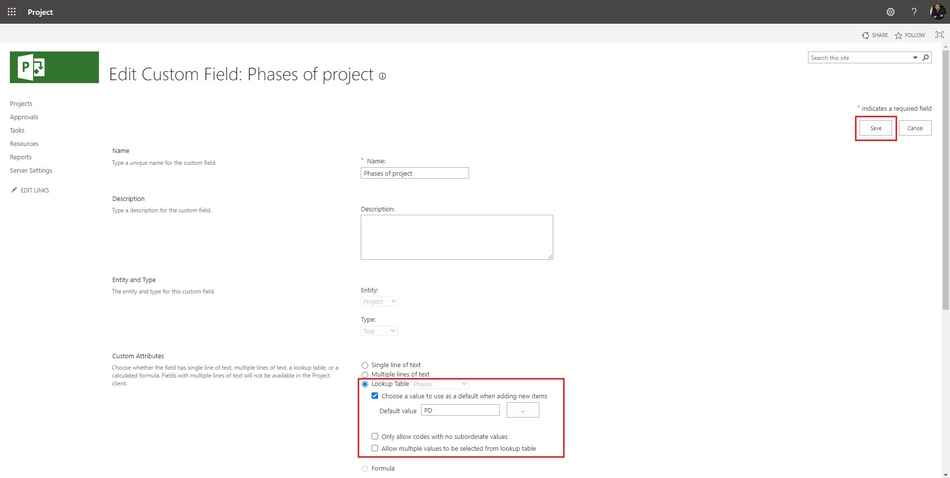
- Enter the field name in the "Name" field. The name must to be unic. You can use special symbols.
- Select the type of entity in the "Entity" field.
- Select the type of data in the "Type" field.
- Select the "Lookup Table" in the "Custom Attributes" block.
- Select the lookup table name.
- If you want to use a default value:
- Click the "Choose a value to use as a default when adding new items" box.
- Select the default value.
- If you want to use codes, click the "Only allow codes with no subordinate values" box.
- If you want to use multiple values, click the "Allow multiple values to be selected from lookup table" box.
- To save click the "Save" button.
#projectmanagment, #projectintegrationmanagement, #initiatingprocess, #msprojectserver, #oberemokii

Author: Ivan Oberemok
