
Adding and Editing tasks to the plan in MS SharePoint
Contents:
Adding tasks to the plan in MS SharePoint
Steps to add new tasks to the plan in MS SharePoint:
- Open a project plan. Click the "Projects" item in the left menu and click the project name.
- Click the "Tasks" item in the left menu.
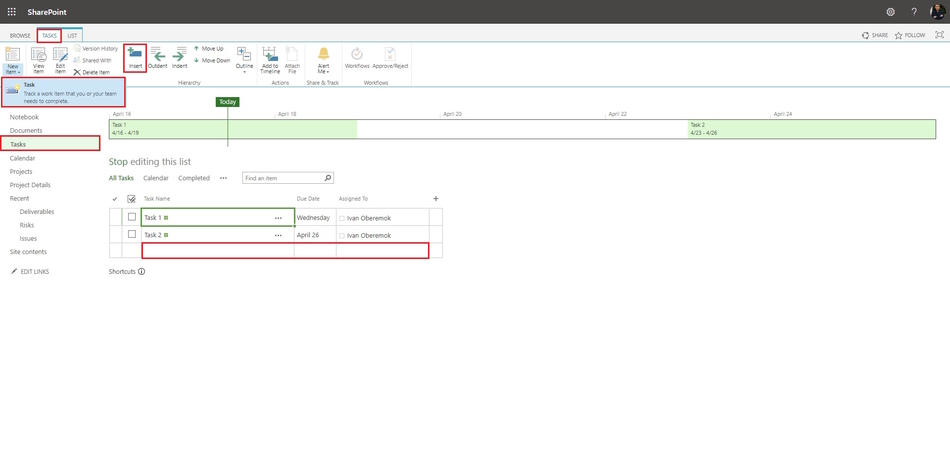
- You can add task in the table:
- Add the task name in the "Task name" column.
- Edit the task end date in the "Due Date" column.
- Edit the task worker in the "Assigned To" column.
- To add a task in the timeline: select the task and click the "Add to Timeline" buton. (Read more "Project timeline in MS Project Server")
- You can add task in the top menu.
- Click the "New Item" item in the top menu.
- Click the "Task" item.
- Enter the task name in the "Task Name" field.
- Enter the task start date in the "Start Date" field.
- Enter the task end date in the "Due Date" field.
- Enter the task worker in the "Assigned To" field.
- Enter the task description in the "Description" field.
- Set the dependency between tasks in the "Predecessors" block.
- Set the task priority in the "Priority" block.
- To save click the "Save" button.
- You can add a new task by click in the "Insert" button in the "Hierarchy" block.
Steps to chabge view format in MS SharePoint:
- Click the "LIST" item in the left menu.
- To edit in the table mode, click the "Quick Edit" button in the "View Format" block.
- To edit in default mode, click the "View" button in the "View Format" block.

Editing tasks to the plan in MS SharePoint
Steps to view the task in MS SharePoint:
- Click the task name in the "Task Name" column.
Or
- Select the task.
- Click the "Tasks" item in the left menu.
- Click the "View Item" button in the "Manage" block.
- Click the "SHOW MORE" link.
- To edit the task click the "Edit item" button.
- To delete the task click the "Delete item" button.
- Click the "Close" button.

Steps to edit task in MS SharePoint:
- Select the task.
- Click the "Edit Item" item in the top menu.
- Click the "Task" item.
- Edit the task name in the "Task Name" field.
- Edit the task start date in the "Start Date" field.
- Edit the task end date in the "Due Date" field.
- Edit the task worker in the "Assigned To" field.
- Edit the task description in the "Description" field.
- Set the dependency between tasks in the "Predecessors" block.
- Set the task priority in the "Priority" block.
- To save click the "Save" button.

#projectmanagment, #projectscopemanagement, #planningprocess, #mssharepoint, #oberemokii

Author: Ivan Oberemok
