
Register of requests for a project in MS Project Server
Contents:
- Creating a register of project requests in MS Project Server
- Editing a register of project requests in MS Project Server
- Creating a project from a register of project requests in MS Project Server
- Chat
Creating a register of project requests in MS Project Server
We recommend collecting project requests in a shared list. Let's create such a register of project requests.
We recommend that you create the following fields:
- Project name - field type is "single line of text". These is the field for storing the project name.
- Project type - field type is "choice". These is the field for storing the project type.
- Customer - field type is "single line of text". These is the field for storing the project customer.
- Initiator - field type is "single line of text". These is the field for storing the project initiator.
- Deadlines - field type is "multiple lines of text". These is the field for storing the project dead lines.
- Budget - field type is "currency". These is the field for storing the project budget.
- Income - field type is "currency". These is the field for storing the project income.
- Project manager - field type is "single line of text", These is the field for storing the project manager.
- Profit - field type is "calculated". These is the field for calculated (Income-Budget) the project profit.
- ROI - field type is "calculated". These is the field for calculated ((Income-Budget)/Budget) the project ROI.
- Description - field type is "multiple lines of text". These is the field for storing the project description.
- Status - field type is "choice". These is the field for storing (Added, Analyzed, Implemented, Archive) the project status.
Steps to create a register of project requests in MS Project Server:
- Сreate a new register in MS SharePoint. (Read more "Сreating applications in MS SharePoint")
- Add register colums. (Read more "Creating applications columns in MS SharePoint")
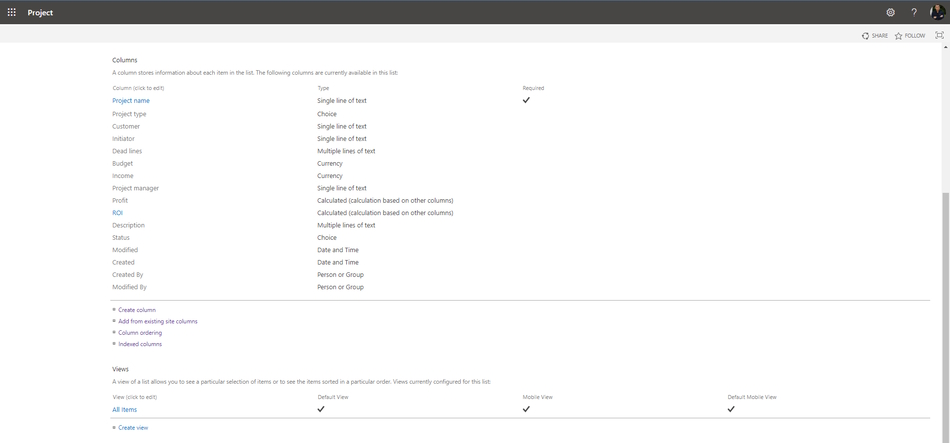
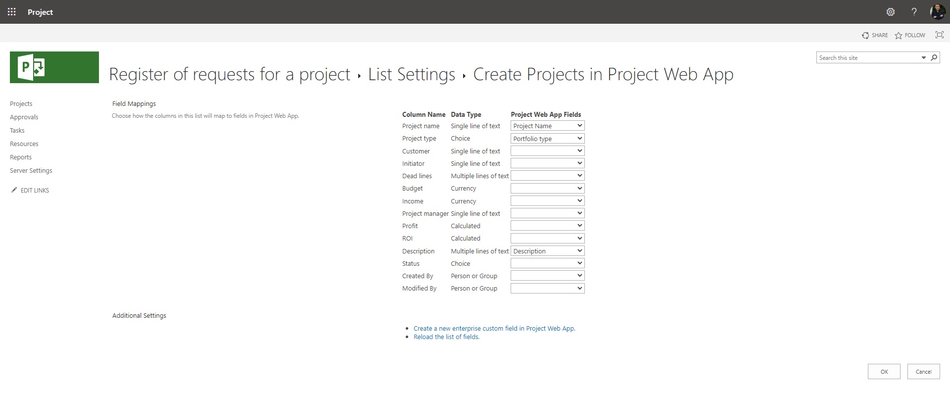
Steps to set likes betwin register columns and enterprise custom fields:
- Open the register of project requests.
- Click the "LIST" item in the top menu.
- Click the "List Settings" button in the "Settings" block.
- Click the "Project Server settings" link.
- Select the enterprise custom fields.
- Click the "Ok" button.
Editing a register of project requests in MS Project Server
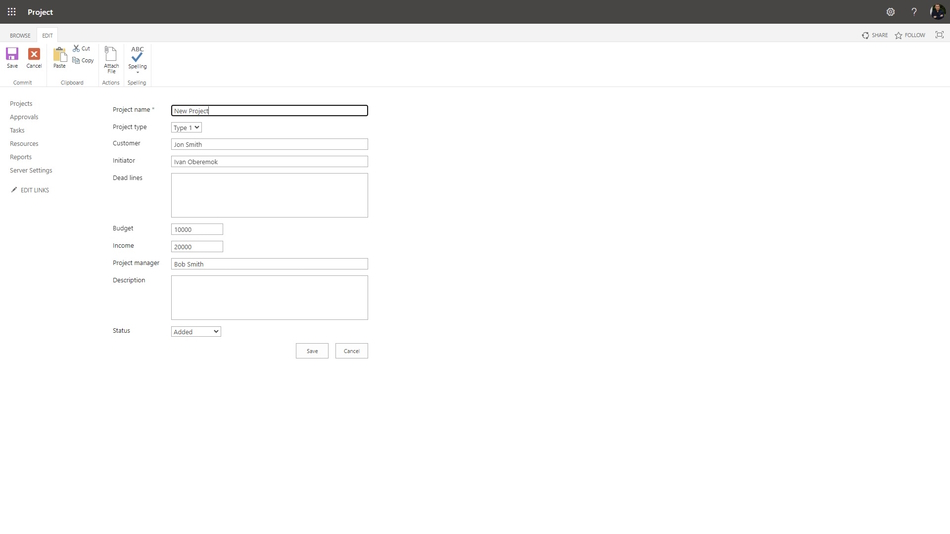
Steps to edit aregister of project requests in MS Project Server:
- Open the register of project requests.
- Click the "ITEMS" item in the top menu.
- Click the "New Item" button in the "Items" block.
- Or click the "new item" link.
- Enter the data in project request fields. You can edit a project request in any time.
- You can attach files to this project request.
- Click the "Save" blutton.
Creating a project from a register of project requests in MS Project Server
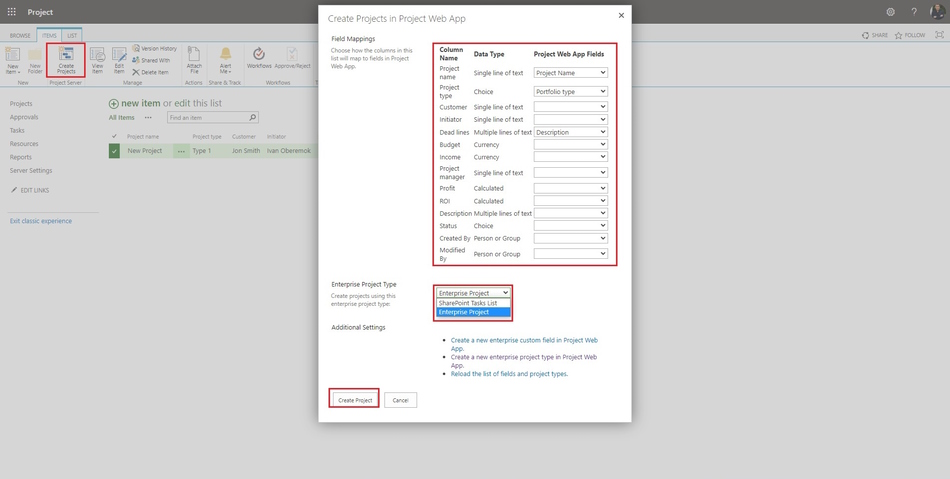
Steps to create a project from a register of project requests in MS Project Server:
- Open the register of project requests.
- Select the project request.
- Click the "ITEMS" item in the top menu.
- Click the "Create Projects" button in the "Project Server" block.
- Check the field mappings in the "Field Meppings" block.
- Select the project type in the "Enterprice Project Type" field.
- Click the "Create Project" button.
#msprojectserver, #oberemokii, #projectintegrationmanagement, #initiatingprocess, #projectmanagment

Author: Ivan Oberemok
