
Creating a report on tasks for the responsible in MS Project Pro
Contents:
- Adding grouping by responsible in MS Project Pro
- Adding a filter to highlight tasks with assigned responsible in MS Project Pro
- Creating a report on tasks for the responsible in MS Project Pro
- Chat
Adding grouping by responsible in MS Project Pro
Create a grouping by responsible to create a report and filter to highlight outstanding tasks of the current period by responsible.
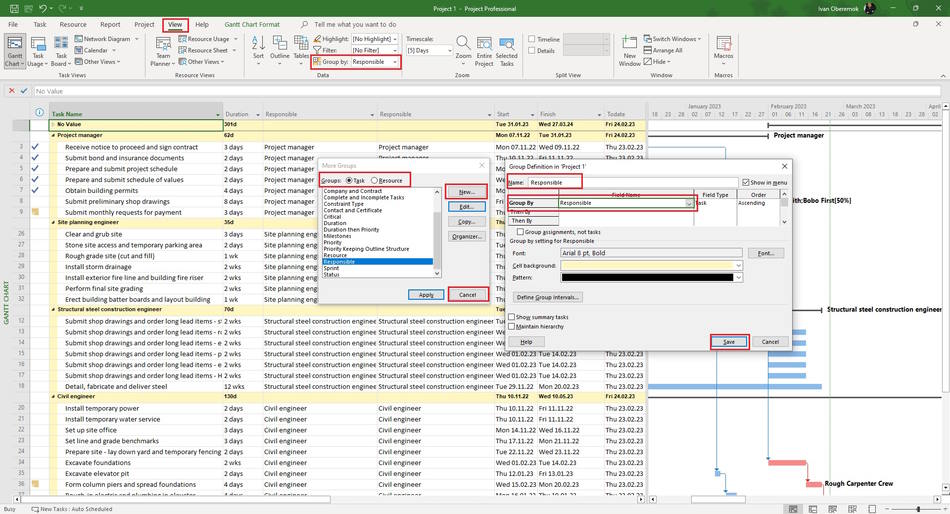
Steps to add grouping by responsible in MS Project Pro:
- Add the "Responsible" costum colum. (Read more "Assigning responsible persons to tasks in MS Project Pro")
- Click "View" the item in the top menu.
- Open the "Group" field in the "Data" block.
- Click the "More Groups ..." item.
- Click the "Task" box in the "Group:" block.
- Click the "New ..." button.
- Enter the group name in the "Name:" field.
- Click the "Show in menu" box.
- Select the "Responsible" in the "Field Name" column.
- Set the "Asending" in the "Order" field.
- Click the "Save" button.
Adding a filter to highlight tasks with assigned responsible in MS Project Pro
Create a filter to highlight outstanding tasks of the current period. Filter tasks that do not have responsible.
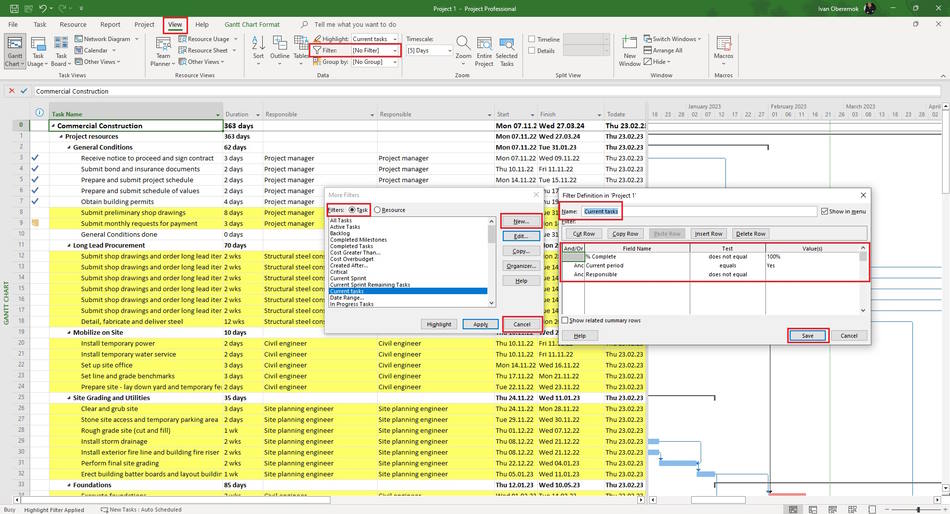
Steps to add a filter to highlight tasks with assigned responsible in MS Project Pro:
- Click "View" the item in the top menu.
- Open the "Filter" field in the "Data" block.
- Click the "More Filters ..." button.
- Click the "New ..." button.
- Enter the name in the "Name:" field. (For example "Current task ...").
- Click the "Show in menu" box.
- Select the "% Complete" in the "Field Name" column.
- Set the "does not equal" in the "Test" field.
- Set the "100%" in the "Value(s)" field.
- Add a new row below.
- Set a "And" in the "And/Or" field.
- Select the "Current period" in the "Field Name" column. (Read more "Adding a custom column to highlight the tasks of the current period in MS Project Pro")
- Set the "equal" in the "Test" field.
- Set the "Yes" in the "Value(s)" field.
- Set a "And" in the "And/Or" field.
- Select the "Responsible" in the "Field Name" column. (Read more "Assigning responsible persons to tasks in MS Project Pro")
- Set the "equal" in the "Test" field.
- Set the empty in the "Value(s)" field.
- Click the "Ok" button.
Creating a report on tasks for the responsible in MS Project Pro
Steps to add a table to a report on tasks for the responsible in MS Project Pro:
- Click the "Report" item in the top menu.
- Create the report.
- Click the "Report Design" item in the top menu.
- Click the "Table" button in the "Insert" block.
- Click the "Table Desigen" item in the top menu.
- Click the "Table Date" button in the "Show/Hide" group.
- Select the "Task" in the "Field List" block.
- Click on the required fields in the "Select Field" box. Select fields: "Name", "Critical", "Start", "Finish", "Resource Names" and "Total Slack".
- Choose the "Current task" in the "Filter" field.
- Choose the "Responsible" in the "Broup by" field.
- Set the "All Subtasks" in the "Outline Level" field.
- Click the "Show Hierarchy" box.
- Set the "Start" in the "Sort by" field.
- Customize the table layout in the report. (Read more "Customize the table in the report in MS Project Pro")

#msprojectpro, #oberemokii, #projectmanagment, #projectscopemanagement, #monitoringandcontrollingprocess

Author: Ivan Oberemok
