
Adding a crew resource using a material type resource in MS Project Pro
Contents:
- Adding material resources in MS Project Pro
- Description of material resources in MS Project Pro
- Chat
Adding a crew resource using a material type resource in MS Project Pro
In MS Project Pro you can describe the crew using a material type resource:
- Type of crew. We use this resource to describe and plan the work of crews of various types. These are generic resources and in the future they should be replaced by real crew.
- Crew resource. This resource describes the work of a real crew. It will be assigned to all the tasks of the crew and determined the volume of their work
Steps to add resource using a material type resource in MS Project Pro:
- Open the resource sheet view.
- Enter the resource name in the "Resource Name" column.
- Set the "Material" in the "Type" column.
- Enter their volume label in the "Material Label" column.
- Set the cost per unit of the volume in the "Std. Rate" column.
- Set the "Crews" in the "ResBS" custom filed.
- Set the "Crews" in the "Cost type" custom filed.

Description of crew resources using a material type resource in MS Project Pro
Steps to description of crew resources using a material type resource in MS Project Pro:
- Duble-click the crew resource.
- Click the "General" tub.
- Click the "Code" tub.
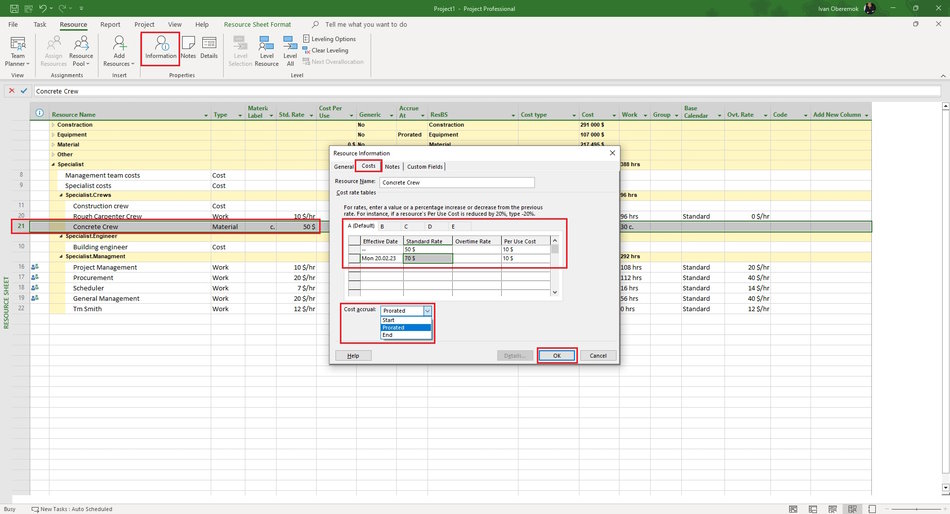
- Set the type of types of work for the crew. System use the "A" type for default. You can set five types of work for the crew.
- You can add a new rates in the "Cost rate tables" table :
- Enter the rate start date in the "Effective Date" column.
- Enter the rate value in the "Standard Rate" column.
- Enter the per use cost in the "Per Use Cost" column.
- You can set accrue in the "Cost accual:" field.
- Click the "Notes" tub.
- In the Notes text box, enter your note text. It is possible to format the entered text by clicking on the appropriate buttons "Format Font", "Align left", "Align center", "Align right", "Bulleted list".
- In the "Resource Infromation" window, on the "Notes" tab, click the "Insert Object" button. You can add a description of the crew resource or a link to a file with a description.
- In the "Insert object" window, click the "Create from file" button. Enter the full name of the file (including the path) you want to attach to the resource, or click the Browse button and browse for your file.
- To add an object to a project file, select the "Link" check box. Keep only references to this object.
- To display the object as an icon, select the "Display As Icon" checkbox:

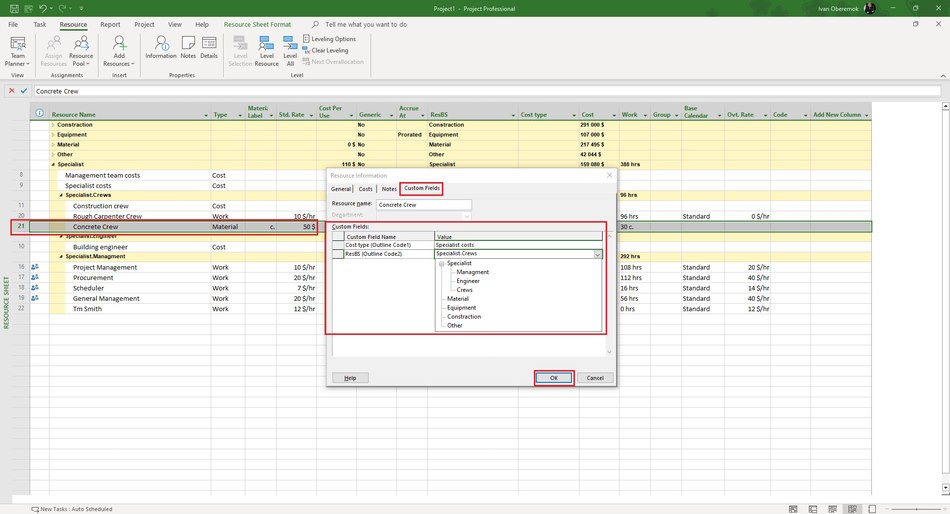
- Click the "Custom Fields" tub in the "Resource Information" window.
- Enter values in the custom column.
- For example set the "Crews" in the "ResBS" custom filed and the "Crews" in the "Cost type" custom filed.
- Click the "Ok" button.
#msprojectpro, #oberemokii, #projectmanagment, #projectresourcemanagement, #initiatingprocess

Author: Ivan Oberemok
