
Replacing resource in the task in MS Project Pro
Contents:
- Select tasks with the replaced resource in MS Project Pro
- Replacing resource in the task in MS Project Pro
- Chat
Select tasks with the replaced resource in MS Project Pro
You can replace resources on one or several tasks.
First tool. Steps to select tasks with the replaced resource in MS Project Pro:
- Open the Gantt chart view.
- Add the "Resource Names" column.
- Open the "Resource Names" column menu.
- Select the resource name.
- Click the "Ok" button.
Second tool. Steps to select tasks with the replaced resource in MS Project Pro:
- Open the Gantt chart view.
- Click the "View" item in the top menu.
- Click the "Filter" field.
- Select the "Using Resource" filter.
- Select the resource name in the "Show tasks using" field.
- Click the "Ok" button.

Replacing resource in the task in MS Project Pro
You can replace resources of the same type.
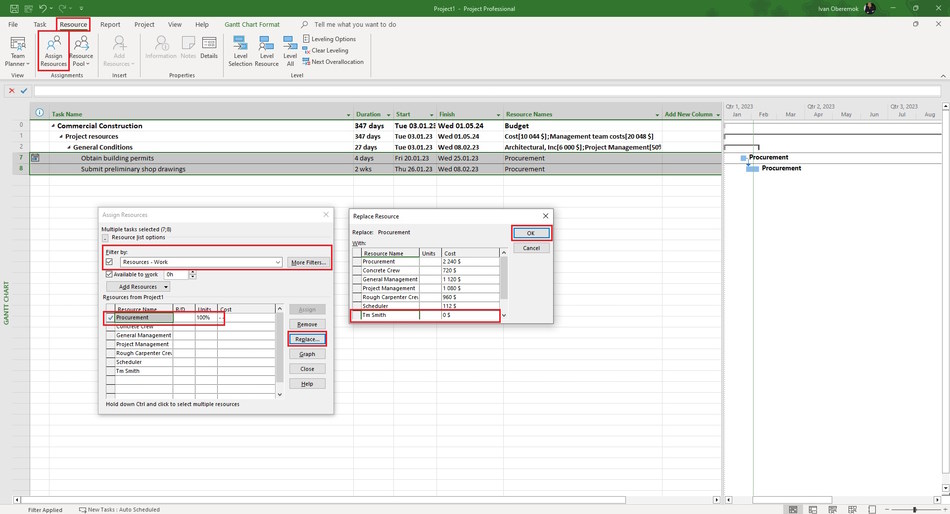
Steps to replace resource in the task in MS Project Pro:
- Open the Gantt chart view.
- Select the tasks in which you want to replace resources.
- Click the "Resource" item in the top menu.
- Click the "Assign Resources" in the "Assignments" block.
- Open the "Resource list options" block.
- Set the "Resources - Work" filter in the "Filter by:" field.
- Select the resource to replace.
- Click the "Replace ..." button.
- Select a new resource in the "Replace Resource" window.
- Click the "Ok" button in the "Replace Resource" window.
- Click the "Close" button in the "Assign Resources" window.
#msprojectpro, #oberemokii, #projectmanagment, #projectresourcemanagement, #planningprocess

Author: Ivan Oberemok
