
Add new tasks to the plan in MS Project Pro
Contents:
- Adding new tasks to the plan in MS Project Pro
- Adding recurring tasks to the plan in MS Project Pro
- Chat
Adding new tasks to the plan in MS Project Pro
The main view for creating and describing tasks in MS Project is the "Gantt Chart". In this view, it is possible not only to enter and view tasks, but also to view additional information about tasks that MS Project calculates on its own. Create the tasks in the order in which they will be executed. This approach will make the project more visible. MS Project gives you the ability to add, modify and delete tasks at any time.You can create a new task with several tools.
First tool. The steps of adding a new task:
- Open the "Gantt Chart" view in your plan.
- Enter the name's task in the column "Task Name".
- Choose the type of planning in the block "Tasks". We advise you to set the type "Manually Schedule".
Second tool. The steps of adding a new task:
- Open the "Gantt Chart" view in your plan.
- Click the item "Task" on the top menu.
- Click the item "Task" on the block "Insert".
- Click the subitem "Task" in the submenu.

You can copy task names from other applications Microsoft (MS Word, MS Excel). You can copy not only the name of the tasks, but also other data. The data type must be the same
Third tool. The steps of adding a new task:
- Select and copy task names in other applications Microsoft.
- Open the "Gantt Chart" view in your plan.
- Click the item "Task" on the top menu.
- Click the right mouse button and choose item "Paste".
MS Project provides two ways to move tasks in the list:
- Select a task by left-clicking on its number. The entire line of the task is highlighted.
- Hover your mouse over the box around the highlighted task line.
- Press the left mouse button and drag the frame until it is in the right place.
- Release the mouse button.
Use the commands "Copy", "Cut" and "Paste":
- Select the task you want to move or copy.
- To move a task, click on the "Cut" button or hotkeys Ctrl+X.
- To copy tasks, click on the "Copy" button or hotkeys Ctrl+C.
- Select the cell where you want to paste the task.
- Click on the "Insert" button or hotkeys Ctrl+V.
You can delete project tasks. The steps of deleting tasks:
- Select the entire task.
- You can select multiple tasks
- Click the button "Delete" on the keyboard.
Adding recurring tasks to the plan in MS Project Pro
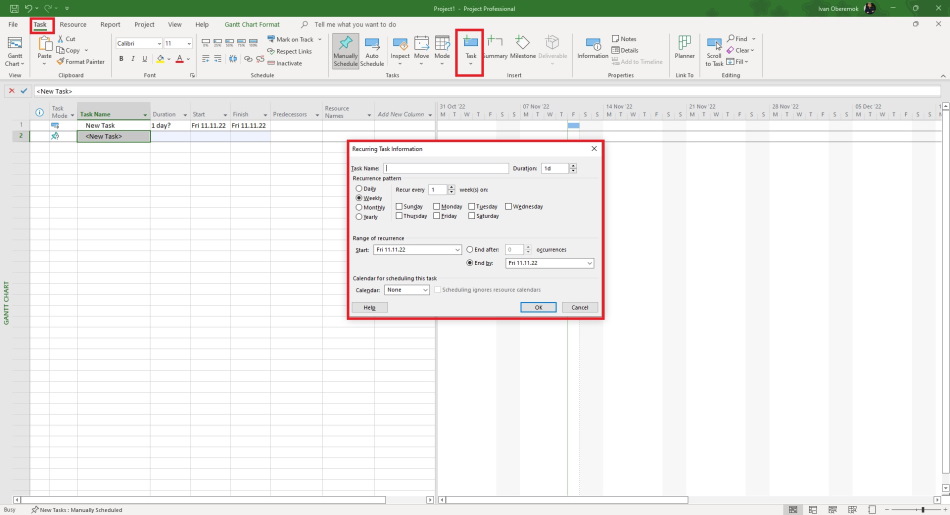
The steps of adding a new recurring task:
- Open the "Gantt Chart" view in your plan.
- Click the item "Task" on the top menu.
- Click the item "Task" on the block "Insert".
- Click the subitem "Recurring Task" in the submenu.
- Enter the task name in the field "Task Name".
- Choose the task recurrence pattern in block "Recurrence pattern".
- Enter start date (field "Start") and number of repetitions (field "End after") or end date (field "End by").
- Enter task calendar in the field "Calendar".

Author: Ivan Oberemok
