
Setting project lots in MS Project Pro
Contents:
Creating column "Make-or-Buy" in MS Project Pro
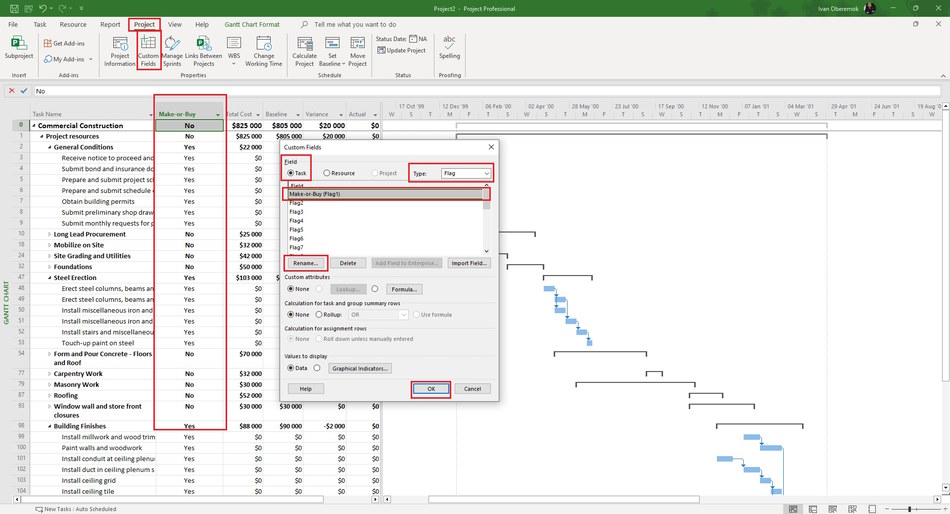
To appoint contractors, it is necessary to identify the tasks that they will implement. You can create a custom column that will allow you to highlight the tasks of subcontracting organizations.
Steps to create and use column "Make-or-Buy" in MS Project Pro:
- Click the "Project" button in the top menu.
- Click the "Custom Fields" button in the "Properties" block.
- Click the "Task" box in the "Field" block.
- Select the "Flag" in the "Type:" field.
- Select empty item in the "Field" block.
- Rename the field by clicking the "Rename ..." button.
- Click the "Ok" button.
- Add the "Make-or-Buy" column.
- Set "Yes" for tasks that will be implemented by contractors.
- You can set the filter and highlight the contractor tasks by this column.
Setting project lots in MS Project Pro
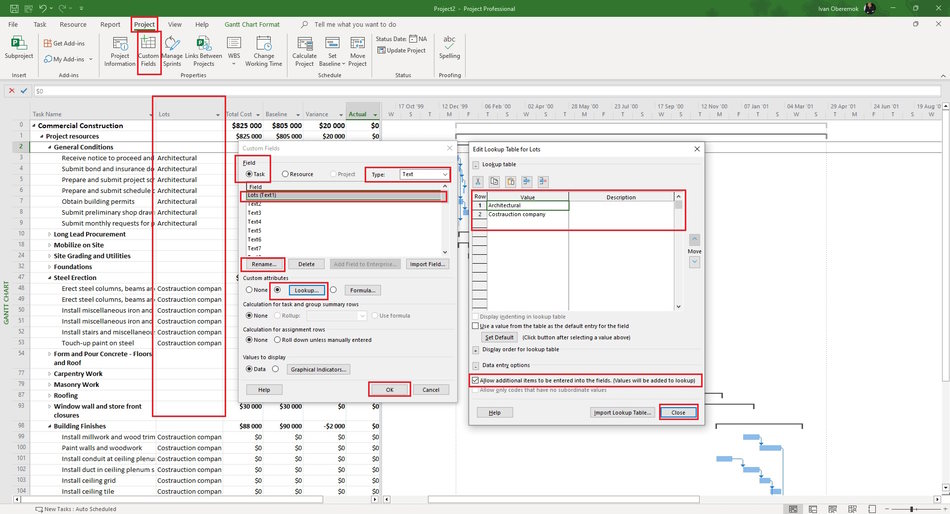
You can create a column that allows you to group the different lots of the project.
Steps to create and use lots custom column in MS Project Pro:
- Click the "Project" button in the top menu.
- Click the "Custom Fields" button in the "Properties" block.
- Click the "Task" box in the "Field" block.
- Select the "Test" in the "Type:" field.
- Select empty item in the "Field" block.
- Rename the field by clicking the "Rename ..." button (For example "Lots").
- Click the "Lookup ..." button in the "Custom attributes" block.
- Enter the list of name losts in the "Value" column.
- Click the "Allow additional items to be entered into the fields." box.
- Click the "Close" button.
- Click the "Ok" button.
- Add the "Lots" column.
- Set the name lost in the "Lots" column.
- You can set the filter and highlight the contractor tasks by this column.
- You can group lots by the "Lots" field.
#msprojectpro, #oberemokii, #projectmanagment, #projectprocurementmanagement, #initiatingprocess

Author: Ivan Oberemok
