
Setting links between MS Excel and MS Project Pro
Contents:
Setting links from MS Project Pro to MS Excel
You can set links from MS Project Pro to MS Excel. If you change the project data, the Excel data will be changed.
Steps to setting links from MS Project Pro to MS Excel:
- Select the project cell.
- Click the "Copy" button in the "Clipboard" block.
- Open the excel file.
- Select the excel cell.
- Click the "Past" button in the "Clipboard" block.
- Select the "Past Special ..." item.
- Clickt the "Paste link:" box in the "Past Special" window.
- Select the "Text" value.
- Click the "Ok" button.

Setting links from MS Excel to MS Project Pro
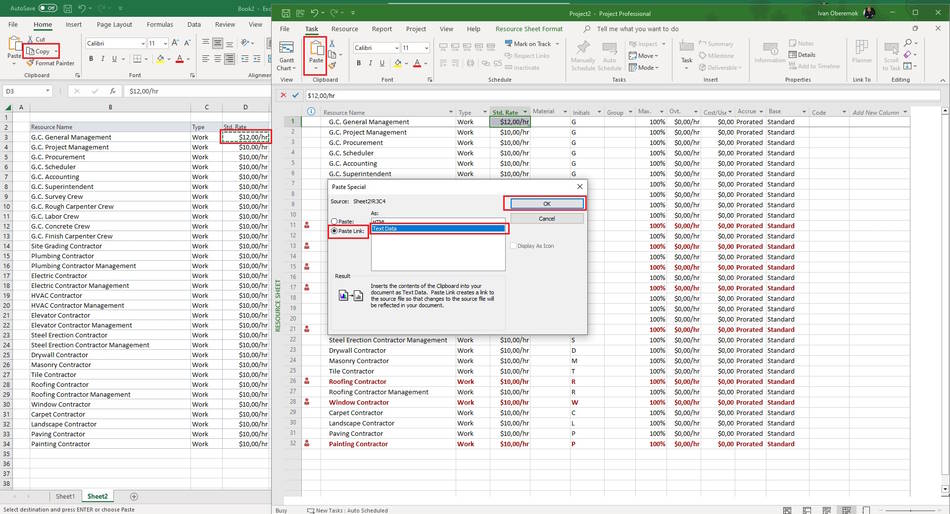
You can set links from MS Excel to MS Project Pro. If you change the excel data, the project data will be changed.
Steps to setting links from MS Excel to MS Project Pro:
- Select the excel cell.
- Click the "Copy" button in the "Clipboard" block.
- Open the project file.
- Select the project cell. Cell data type must match.
- Click the "Past" button in the "Clipboard" block.
- Select the "Past Special ..." item.
- Clickt the "Paste link:" box in the "Past Special" window.
- Select the "Text Data" value.
- Click the "Ok" button.
#msprojectpro, #oberemokii, #projectmanagment, #projectintegrationmanagement, #initiatingprocess

Author: Ivan Oberemok
