
Enterprise resource pool in MS Project Pro
Contents:
- Creating the enterprise resource pool in MS Project Pro
- Using the enterprise resource pool in MS Project Pro
- Editing the enterprise resource pool in MS Project Pro
- Chat
Creating the enterprise resource pool in MS Project Pro
You can create the enterprise resource pool file in MS Project Pro. You can use this file for different project files.
Resource manager can manage the company's corporate resources used in projects.
Steps to create the enterprise resource pool file in MS Project Pro:
- Create a new empty project file.
- Open the resource sheet view.
- Create corporate resources and describe them.
- Open the project file (don't close the enterprise resource pool file).
- Click the "Resource" in the top main.
- Click the "Resource" in the "Assigments" block.
- Click the "Share Resources ..." subitem.

Steps to add the enterprise resource pool to project plan in MS Project Pro:
- Click the "Use resources (requires at least one open resource pool)" box.
- If you want to prioritize enterprise shares resource, click the "Sharer tasks precedence" field.
- Click the "Ok" button.
You can edit and update the enterprise resource pool in
- When you open the project file you must to open the enterprise resource pool.
- If you want to load a new resources from the enterprise resource pool, click the "Refresh Resource Pool" button.
- If you edited a resource in the project plan, click the "Update Resource Pool" button to upload that resource to the enterprise resource pool..

Using the enterprise resource pool in MS Project Pro
Steps to use the enterprise resource pool in MS Project Pro:
- Open the enterprise resource pool.
- Open the resource usage.
- Add the "Project" column.
- You can analyze resource usage in projects.

Editing the enterprise resource pool in MS Project Pro
Steps to edit the enterprise resource pool to project plan in MS Project Pro:
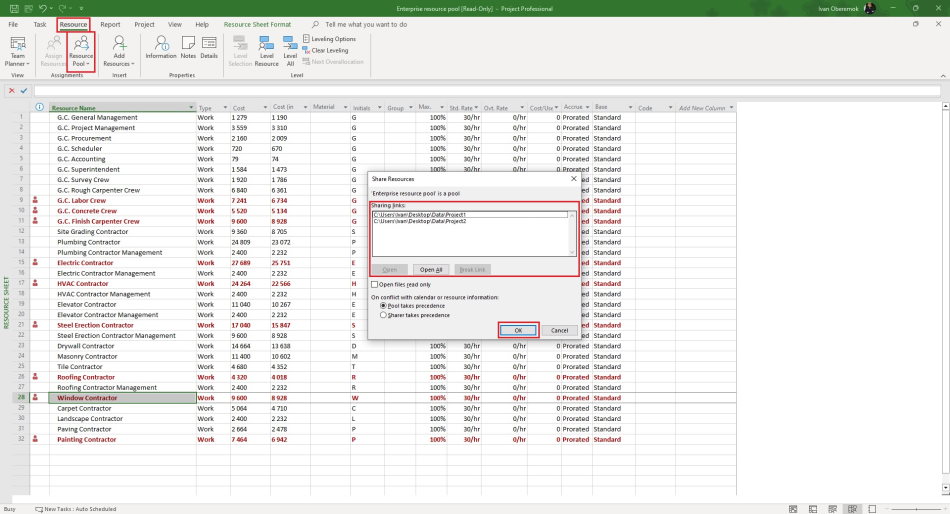
- Open the enterprise resource pool.
- Click the "Resource" in the top main.
- Click the "Resource" in the "Assigments" block.
- Click the "Share Resources ..." subitem.
- Click the project file link in the "Sharing links:" block.
- You can open project file by clicking the "Open" button.
- You can open the project file as read-only by clicking "Open files read only" box.
- You can break link with the project file by clicking "Break Link" button.
- If you want to prioritize enterprise shares resource, click the "Sharer tasks precedence" field.
- Click the "Ok" button.
#msprojectpro, #oberemokii, #projectresourcemanagement, #planningprocess, #programmanagement, #projectportfoliomanagement

Author: Ivan Oberemok
