
Sorting information in a view in MS Project Pro
Contents:
Sorting information in a view in MS Project Pro
In any view MS Project Pro you can sort the information of any columns.
First tool to sort information in a view in MS Project Pro:
- Open a column menu
- If you want to sort from smallest to largest, click the "Sort Smallest to Largest" item.
- If you want to sort from largest to smallest, click the "Sort Largest to Smallest" item.
Second tool to sort information in a view in MS Project Pro:
- Open the "View" item in the tom menu.
- Click the "Sort" button.
- Select the subitem. You can sort by: "by Start Date", "by Finish Date", "by Priority", "by Cost" and "by ID"
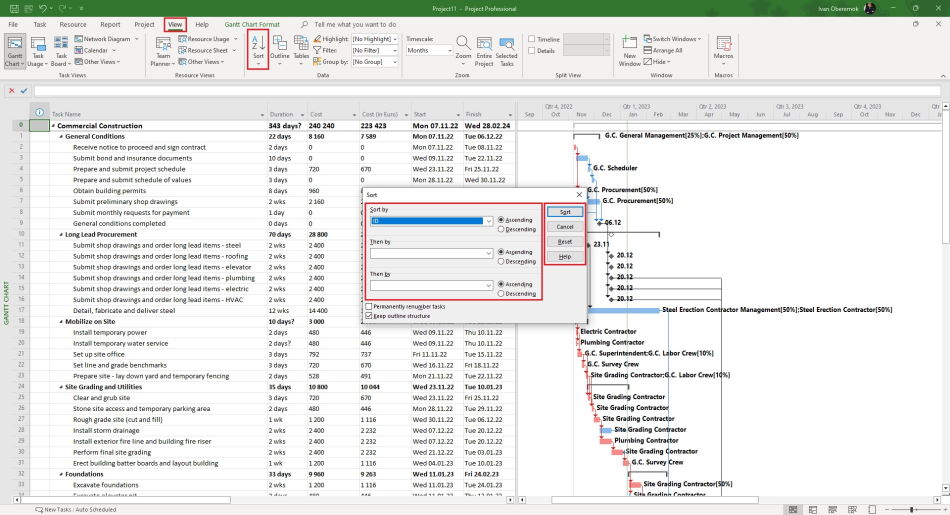
Third tool for sorting information in a view in MS Project Pro:
- Open the "View" item in the tom menu.
- Click the "Sort" button.
- Click the "Sort by ..." subitem.
- Select the MS Project Pro field in the "Sort by" field.
- Select sort order. You can use "Ascending" or "Descending".
- If you want to reset the old sort, click the "Reset" button.
- If you want to change the id task, click the "Permanently renumber tasks" box.
- If you want to keep the structure, click the "Keep outline structure" box.
- Click the "Sort" button.
#msprojectpro, #oberemokii, #projectmanagment, #projectintegrationmanagement, #planningprocess

Author: Ivan Oberemok
