
Critical path in MS Project Pro
Contents:
- Using the critical path in MS Project Pro
- Customizing the critical path for summary tasks in MS Project Pro
- Customizing the critical tasks in MS Project Pro
- Chat
Using the critical path in MS Project Pro
MS Project supports the critical path method. You can use the critical path to:
- Optimization of project implementation time. By reducing the duration of critical tasks, we reduce the duration of the project.
- Prioritizing tasks in a project. Critical tasks are the highest priority in a project. We must control critical tasks first
If you plan a project from the beginning, the critical path is calculated from the end of the project. The critical path is affected by task durations and links between tasks.
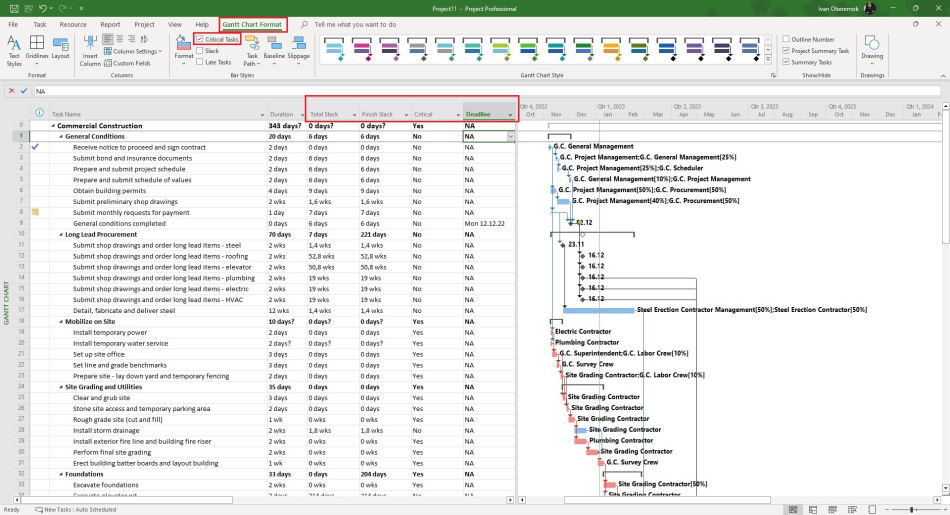
Steps to show or hide the critical path in the gantt chart view:
- Click the "Gantt Gart Fromat" item ofr the top menu.
- Click the "Critical Tasks" box in the "Bar Styles" block.
You can add a "Critical" column. The critical task has a value of "Yes".
You can add a "Total Slack" column. The critical task has a value of "0 days".
If you add a deadline to a task, the task slack will be calculated from that date.
Customizing the critical path for summary tasks in MS Project Pro
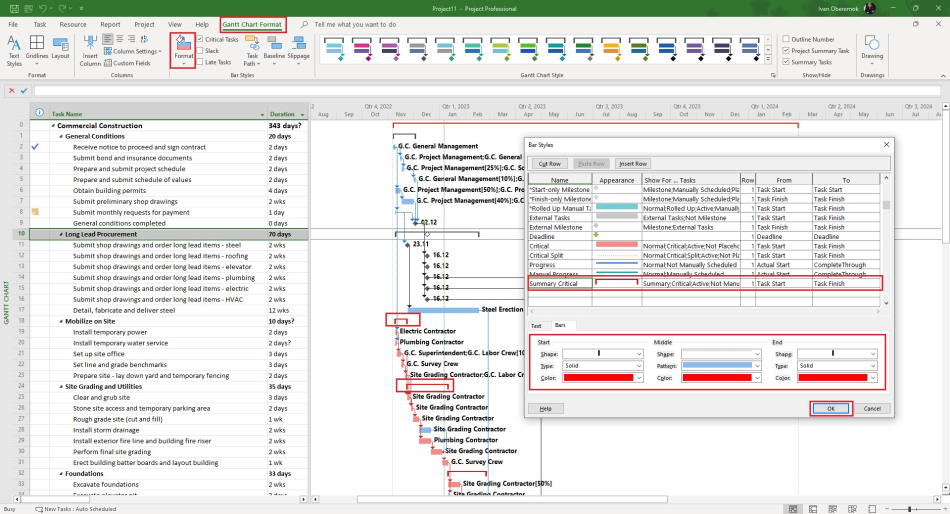
You can customize the critical path for summary tasks in MS Project Pro. Setup steps:
- Click the "Gantt Chart Format" item in the top menu.
- Click the "Format" button.
- Click the "Bar Style" subitem.
- Add a new line at the bottom of the list in the "Bar Styles" window.
- Enter the "Summary Critical" in the "Name" field.
- Set the bar style in the "Appearance" field.
- Set the "Summary;Critical;Active;Not Manually Scheduled" in "Show For .. Tasks" the field.
- Set the "1" in the "Row" field.
- Set the "Task Start" in the "From" field.
- Set the "Task Finish" in the "To" field.
- Click the "Ok" button.
Customizing the critical tasks in MS Project Pro
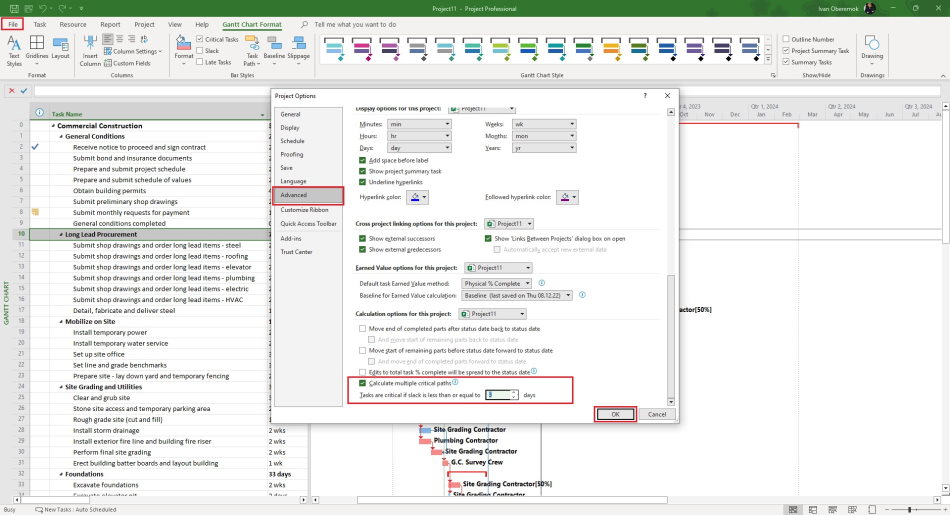
You can show as a critical task with a non-zero slack.
Steps to set which tasks are considered critical:
- Click the "File" item in the top menu.
- Click the "Options" item in the left menu.
- Click the "Advanced" item in the left menu in the "Project Options" window.
- Click the "Calculate multiple critical paths" box.
- Enter number of slick days for the critical days in the "Tasks are critical if slack is less then or equal to" field.
- Click the "Ok" button.
#msprojectpro, #oberemokii, #projectmanagment, #projectschedulemanagement, #planningprocess

Author: Ivan Oberemok
