
Editing resource assignments in MS Project
Contents:
- Resource assignments in task usage view in MS Project
- Resource assignments in resource usage view in MS Project
- Chat
Resource assignments in task usage view in MS Project
You can set the work for any resource yourself in MS Project Pro. You can edit resource assignments for each task.
MS Project Pro has some resource assignment types:
- Flat - the same work is assigned to each period.
- Bask Loaded - the maximum work assigned on the first day with a gradual decrease.
- Front Loaded - the maximum work assigned to the last day with a gradual decrease
- Double Peak -two peaks of work assignment for the entire duration of the task
- Early Peak - the maximum work is assigned in the first time period with a gradual decrease.
- Late Peak - the maximum work is assigned in the last time period with a gradual decrease.
- Bell - the peak work assignment at task duration center.
- Turtle - the peak work assignment at the center of task duration with gradual decline
Steps to edit resource assignments in task usage view in MS Project:
- Open the task usage view
- Add the "Work" column. You can edit task work or resource assignments work in this field.
- Add "Start" column. You can edit resource assignments start in this field.
- Add "Finish" column. You can edit resource assignments finish in this field.
- Clickt the "View" in the top menu.
- Set a time period in the "Timescale:" field in the "Zoom' block.
- Click the "Task Usage Fromat" in the top menu.
- Click the "Work" box in the "Detals" block.
- Set the work on the task row in the time column.
Steps to auto edit resource assignments in task usage view in MS Project:
- Open the task usage view
- Double click on the resource assignment.
- Click the "Generel" tub.
- Set the resource assignment type in the "Work contour:" field.
- Click the "Ok" button.

Resource assignments in resource usage view in MS Project
You can edit assignments for all tasks of each resource.
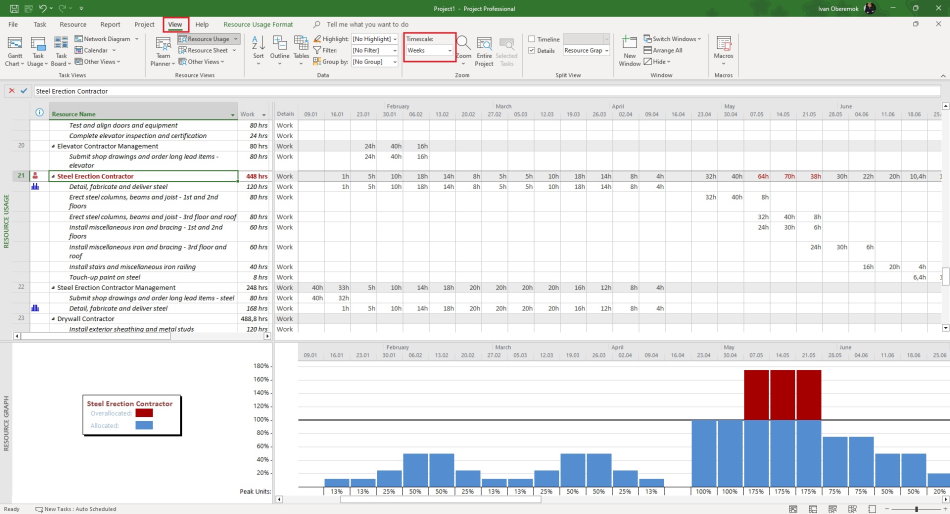
Steps to edit resource assignments in resource usage view in MS Project:
- Open the resource usage view.
- Add the "Work" column. You can edit task work or resource assignments work in this field.
- Add "Start" column. You can edit resource assignments start in this field.
- Add "Finish" column. You can edit resource assignments finish in this field.
- Clickt the "View" in the top menu.
- Set a time period in the "Timescale:" field in the "Zoom' block.
- Click the "Resource Usage Fromat" in the top menu.
- Click the "Work" box in the "Detals" block.
- Set the work on the task row in the time column.
Steps to auto edit resource assignments in resource usage view in MS Project:
- Open the resource usage view
- Double click on the resource assignment.
- Click the "Generel" tub.
- Set the resource assignment type in the "Work contour:" field.
- Click the "Ok" button.
#msprojectpro, #oberemokii, #projectmanagment, #projectresourcemanagement, #planningprocess

Author: Ivan Oberemok
