
Resource leveling in Microsoft Planner
Contents:
- Resource overload in Microsoft Planner
- Optimize workload by shifting tasks in MS Planner
- Optimize workload by redistributing effort in MS Planner
- Chat
Resource overload in Microsoft Planner
After assigning resources to project tasks in MS Planner, you can optimize their allocation. Optimization allows you to:
- Distribute the workload evenly among project team members. This helps avoid situations where one team member is underloaded and another is overloaded.
- Identify resource shortages. If the overload problem cannot be solved without extending the deadline, this signals that the project lacks performers with certain skills.
- Plan more tasks. Optimal resource utilization allows you to complete more tasks within the set deadlines.
What is the danger of insufficient resource utilization? When a specialist is assigned to a team, a budget is allocated for them. If the project resources are not fully utilized, they are used inefficiently, and the project manager is responsible for this.
What are the dangers of overloading resources? A specialist can work effectively for a limited number of hours (the norm is no more than 8 hours per day). If the workload is exceeded, either the quality of work declines or tasks are carried over to subsequent periods.

The first step in optimization is analyzing labor costs by period.
To do this:
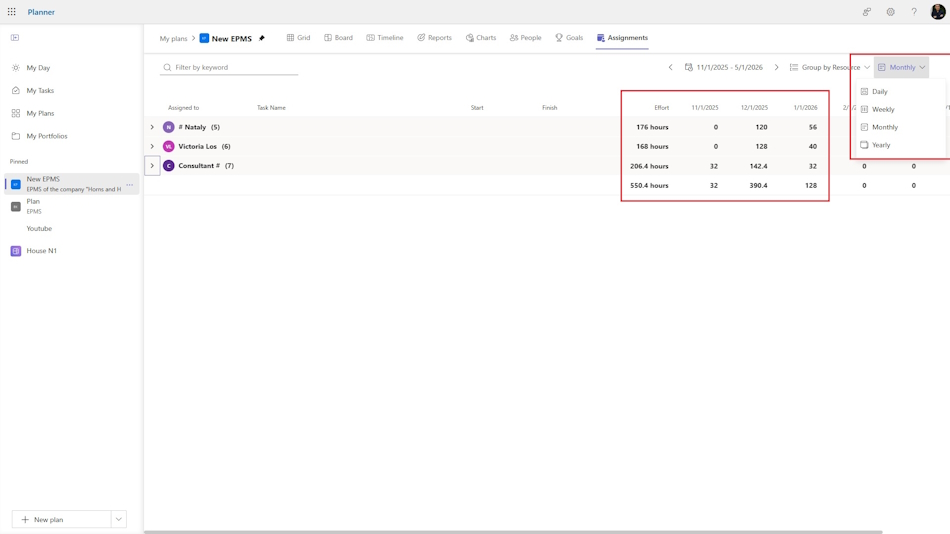
- Go to the Assignments view.
- Select the highest level of detail — year.
- Check for overruns by period. If there are none, go down to the next level.
- For preliminary assessment and planning for future periods, use the month or week level.
- For detailed analysis, go down to the day level.
- If you find insufficient workload or overload, select the appropriate optimization method.
Optimization tips:
- Start optimization with the current period.
- Close past periods by setting the fact of task completion.
- Plan the current period in more detail than future periods.
Optimize workload by shifting tasks in MS Planner
The simplest and most effective method of optimizing resource workload is shifting tasks along the timeline. This approach works when resources are evenly distributed across tasks. We select tasks that can be moved without harming project deadlines and adjust their start dates so they do not fall within the same time period.
Tasks for rescheduling are chosen based on the following criteria:
- Task criticality. Critical tasks should not be moved, as this could lead to project delays.
- Task priority. First, move tasks with low priority. Tasks with the highest priority remain unchanged.
How to apply this method in MS Planner:
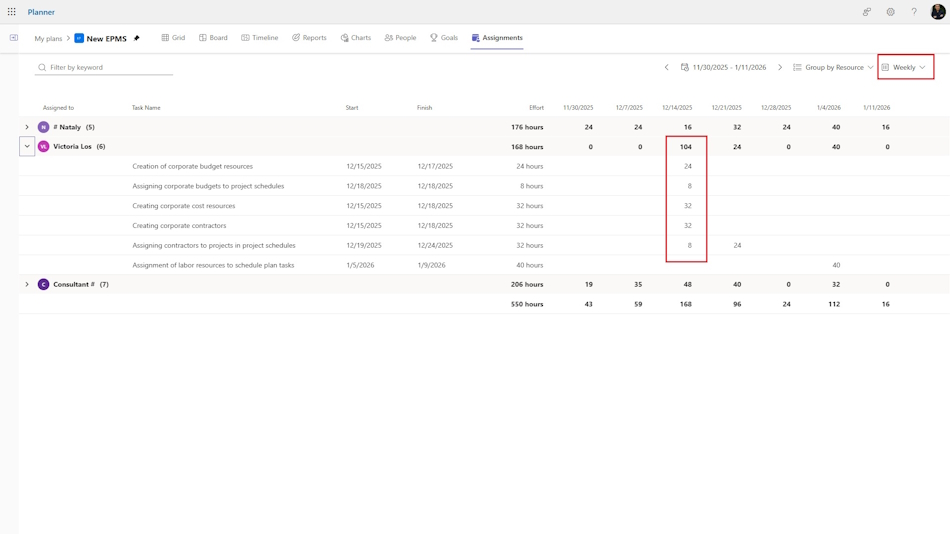
- In the Assignments view, identify peak resource workloads.
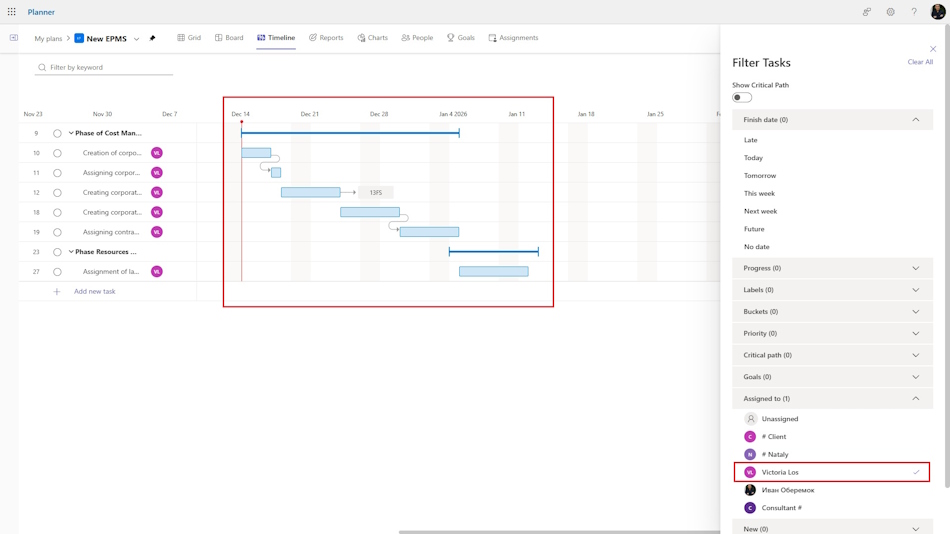
- Switch to the Timeline view.
- Apply a filter for resources and select overloaded resources one by one.
- Use the "Critical path" filter to determine which tasks are critical.
- Apply the "Priority" filter to assess the priority of each resource’s tasks.
- Drag and drop the lowest-priority tasks to new dates.
- Return to the Assignments view and check the results.
Optimize workload by redistributing effort in MS Planner
When resources are unevenly loaded within tasks, the method of optimizing workload across tasks and time periods is recommended. This approach allows for a more balanced allocation of work among team members but requires more time and effort.
How to apply this method in MS Planner:
- In the Assignments view, identify team members with uneven workloads.
- Switch to the week level.
- Optimize their workload by adjusting the number of hours per task within the period. While doing this, make sure to:
- stay within the total planned effort for the task;
- not exceed the 40-hour weekly limit.
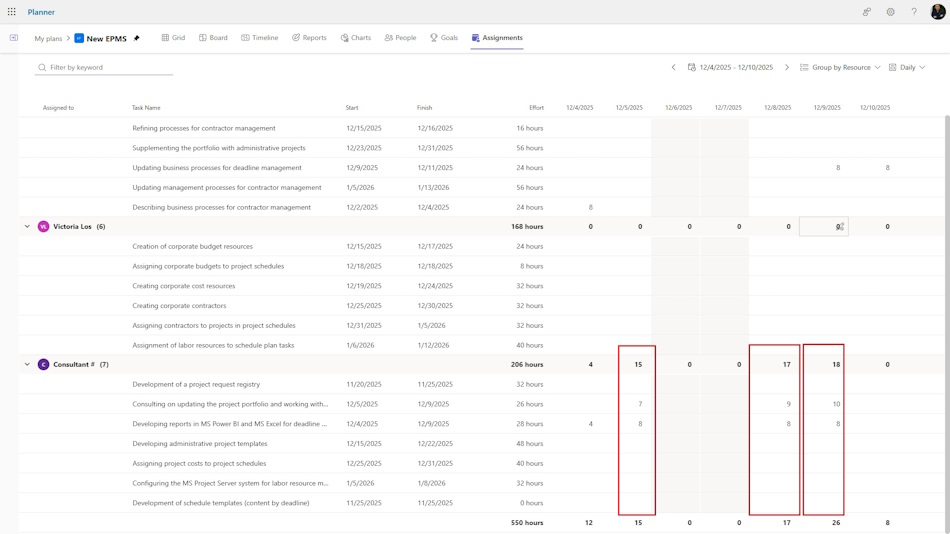
- After completing optimization at the weekly level, move to the day level.
- Adjust daily workloads, ensuring the 8-hour daily limit per resource is respected.
- Day-level optimization should only be performed for the current and upcoming periods (weeks).

Author: Ivan Oberemok
