
Planning today's work in MS Planner
Contents:
- Description of daily tasks in the MS Planner grid
- Description of daily tasks on the board in MS Planner
- Chat
Description of daily tasks in the MS Planner grid
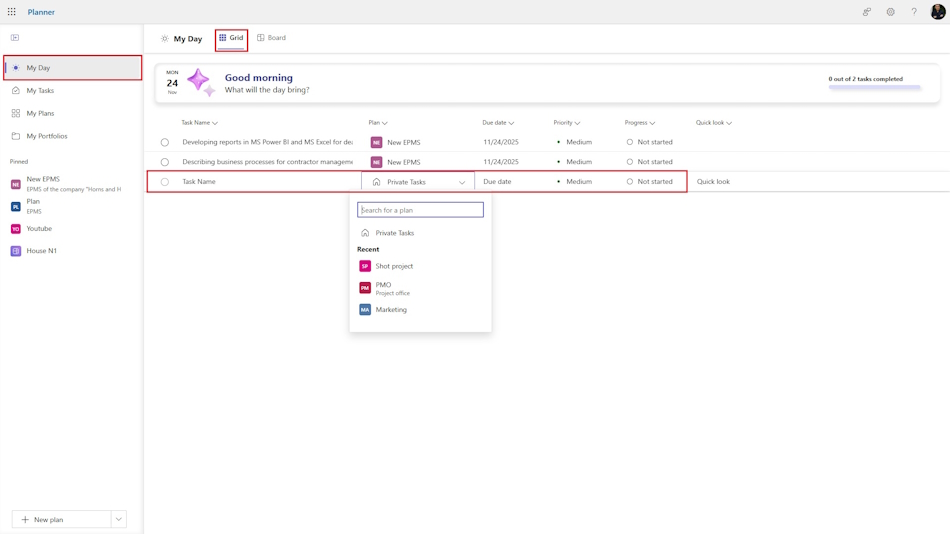
In MS Planner, you can monitor tasks assigned to you in different projects and assign personal tasks. For monitoring, you can use the “Grid” and “Board” views.
In the “Grid” view, you can:
- Report on the tasks in the projects where you are assigned. Select a task and in the “Progress” column, select “In progress” or “Completed”.
- For a detailed description, open the task description window.
- To move a task to another project, click on the three dots and select another project or segment within the project.
- In the “Due Date” column, you can set the final date for completing the task.
- You can determine the sequence of task completion by the “Priority” column.
Description of daily tasks on the board in MS Planner
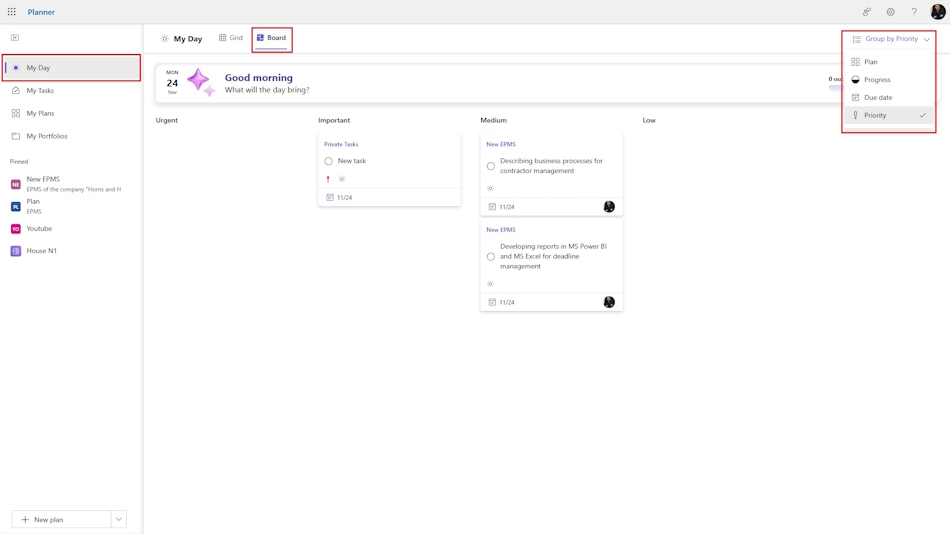
In the “Board” view, you can analyze tasks on the Kanban board view. In this view, you can use the following grouping fields:
- Plan. When grouped by “Plan,” your tasks are grouped by the projects you are assigned to. All tasks that are not part of a project are displayed in the “Private Tasks” column.
- Progress. When grouped by “Progress,” your tasks are grouped by the columns “Not started,” “In progress,” and “Completed.”
- Due date. When grouped by “Due date,” your tasks are grouped by the columns “Overdue,” “Today,” “Tomorrow,” “This week,” and “Next week.”
- Priority. When grouped by “Priority,” your tasks are grouped into the columns “Urgent,” “Important,” “Medium,” and “Low.”
#projectmanagment, #projectscopemanagement, #planningprocess, #msplanner, #oberemokii


Author: Ivan Oberemok
