
Work with a baseline in MS Planner
Contents:
- Saving the baseline project plan in MS Planner
- Comparison of deadlines with the baseline plan in MS Planner
- Chat
Saving the baseline project plan in MS Planner
A baseline plan in Microsoft Planner is the initial structure of a project, including a list of tasks, their deadlines, assignees, and stages. It serves as a starting point for tracking progress and analyzing deviations from the initial plan.
The baseline plan in Microsoft Planner saves the start and end dates of tasks and forms the “Finish Deviation” column. The “Finish Deviation” column shows the number of days we have deviated from the plan in either direction.
To get started with a baseline plan, follow these steps:
- Open Microsoft Planner via the web interface or the Teams app.
- Go to the “Grid” view.
- Click on the “Baseline” link.
- Click “Create Baseline”
- Enter a name for the plan and choose whether it will be public or private.
- Add a description so that participants understand the purpose of the project.
Tips for effective work
- Update tasks regularly — the relevance of information is critical.
- Use tags to quickly filter tasks by type or priority.
- Assign responsibilities — this increases accountability and transparency.
- Add comments — for communication within the task.
- Integrate with Teams — for collaboration and notifications.
This is especially useful for project managers who want to monitor deadlines and team performance.
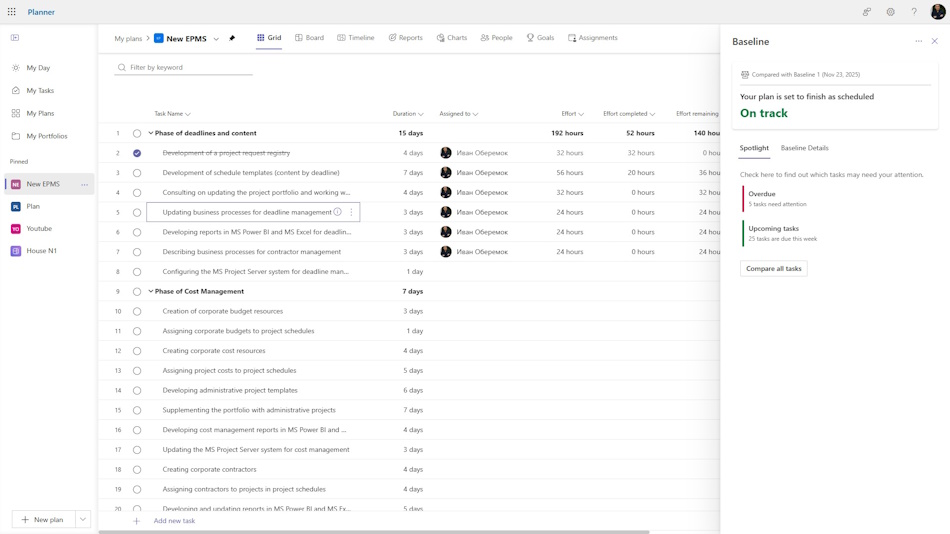
You can use the base plan as follows:
- Go to the “Grid” view.
- Click on the “Baseline” link.
- In the window that opens, click on the “Spotline” button.
- To set a filter for overdue tasks, click on the “Overdue” button.
- To select tasks to be implemented within the lines, click on the “Upcoming tasks” button.

Comparison of deadlines with the baseline plan in MS Planner
You can monitor project implementation deadlines using the baseline plan. To monitor general project parameters:
- Open the “Grid” view.
- Click on the “Baseline” link.
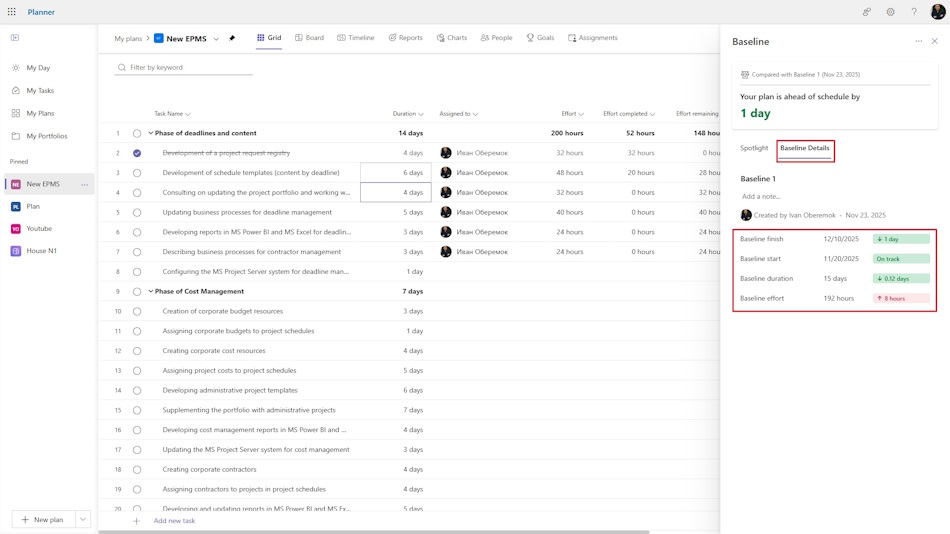
- In the window that opens, click on the “Baseline Details” link.
- Here you can change the name of the baseline plan. Add notes or a description of the baseline plan.
- The table below shows deviations in: project start date, project end date, project duration, and project labor costs.
To compare the current project implementation deadlines with the baseline ones:
- Go to the “Grid” view.
- Click on the “Baseline” link.
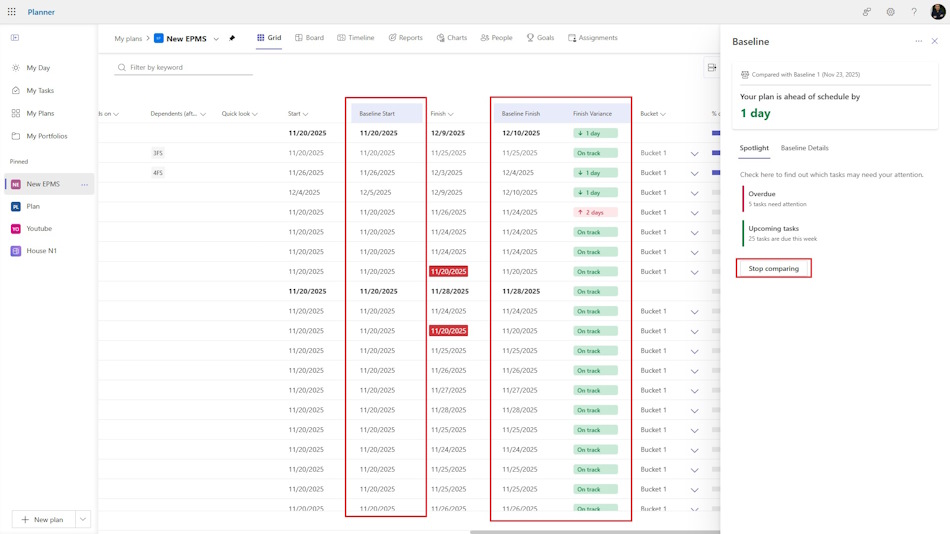
- Click on the “Compare all tasks” button.
- The baseline plan columns will be added to the view.
- You can monitor the deviation in the “Finish Veriance” column.

Author: Ivan Oberemok
