
Track resource work effort using assignments view in MS Planner
Contents:
Assigning project task effort in MS Planner
Efforts are the amount of time required to complete a task. In Planner, they are expressed in hours and are set manually when planning tasks. This parameter is critical for:
- estimating the amount of work;
- planning resources;
- analyzing performance;
- forecasting project deadlines.
The effort parameter is used when describing project tasks in MS Planner. The effort parameter is related to the duration of tasks, provided that performers are assigned to the task. Once you have assigned performers to a task, the parameters are recalculated using the following formula:
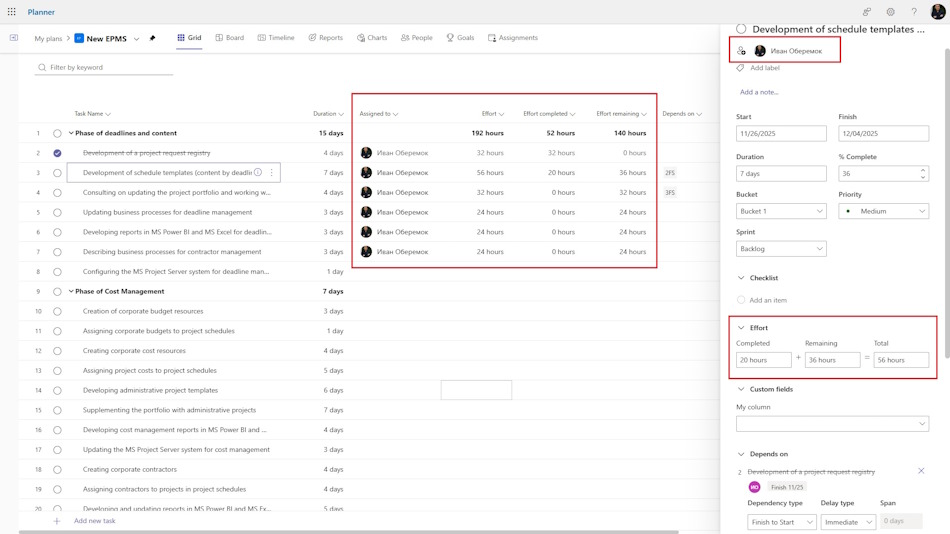
You can specify efforts for tasks in the Grid view. There are two methods for setting efforts:
- Enter data in the "Effort" column in the Grid view.
- Enter the actual effort in the "Effort completed" column in the Grid view.
- Enter effort in the task description window in the "Total" field in the "Effort" block.
- Enter actual effort in the task description window in the "Completed" field in the "Effort" block.
Analysis of project efforts in MS Planner
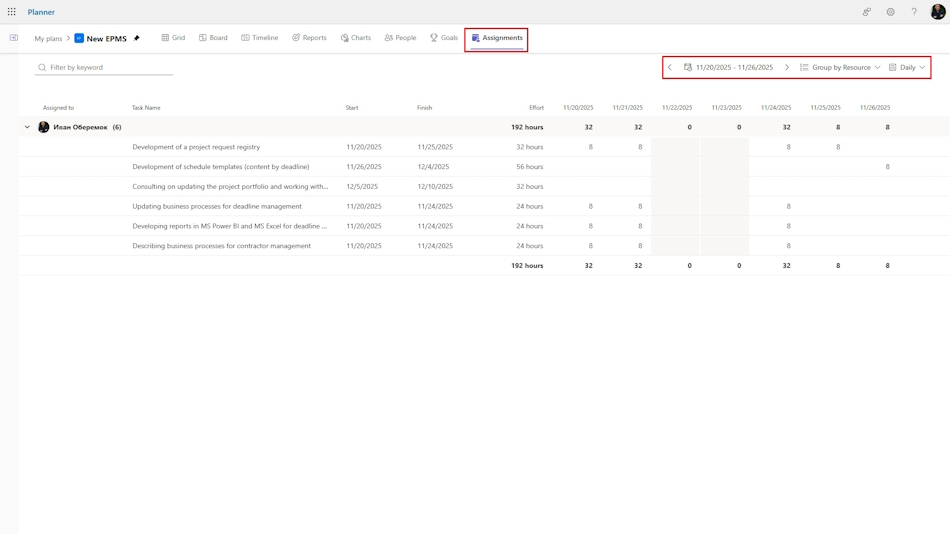
You can analyze the efforts of project performers in the “Assignment” view. This view displays all project performers with tasks, deadlines, and labor costs. You can edit the labor costs of resources for each task for a specific period. You can control the number of hours in the resource's total row.
The length of the time period is set at the top of the view. If you set the period to “Daily,” the number of hours cannot exceed the set norm (for example, 8-10 hours). If you set the period to “Weekly,” the number of hours cannot exceed 40. This mechanism allows you to solve the problem of resource overload.
Practical tips for analyzing efforts:
- Set realistic efforts: take into account the experience of the performer, the complexity of the task, and possible risks.
- Update actual data regularly: this will allow you to respond to deviations in a timely manner.
- Use task grouping: combine tasks by stage or type of work for easy analysis.
- Monitor resource utilization: make sure that employees are not overloaded or underutilized.
Efforts analysis in MS Planner is a powerful tool for increasing project transparency and manageability. It helps not only to plan work, but also to monitor its implementation, identify problems, and optimize resources. With the right settings and regular data updates, efforts become a key indicator of project and team performance.


Author: Ivan Oberemok
