
Planning summary tasks in MS Planner
Contents:
Planning summary tasks in MS Planner
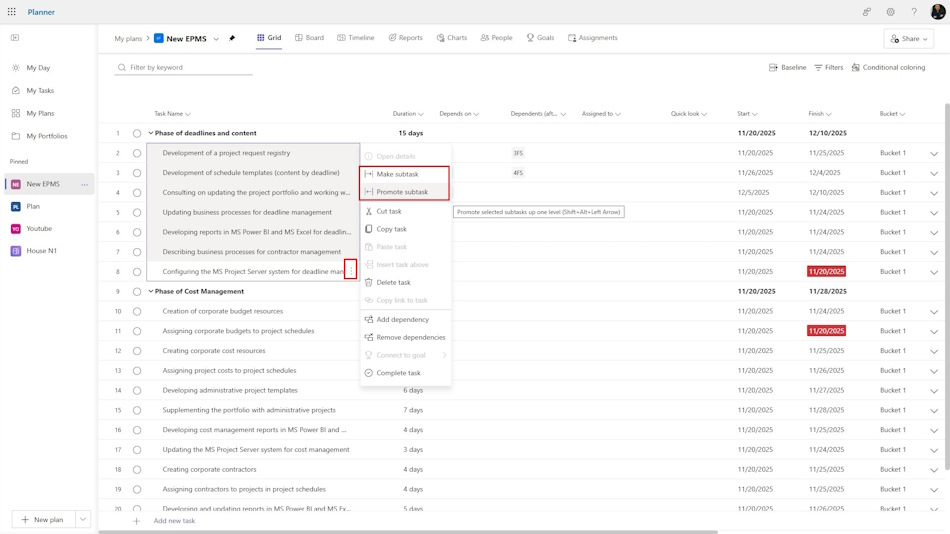
You can set any number of levels in a project created in MS Planner. The work breakdown structure (WBS) is represented here as a numerical task number. To view the project level structure, add the “Outline number” column.
To describe a task as a subtask, select it and click on the three vertical dots, then select “Make subtask”
To raise the level of tasks in the project structure, click on the “Promote subtask” menu item.
Summary tasks of projects are displayed in bold. For summary tasks, you can change the name, start date, and percentage of completion; all other parameters are calculated based on the data of the subtasks.
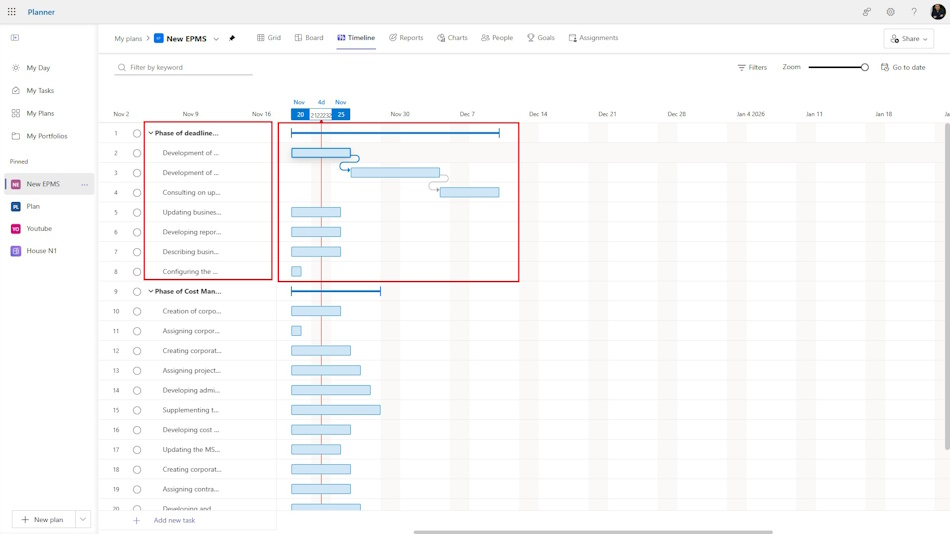
Planning summary tasks in “Timeline” view in MS Planner
The summary task allows you to control the task block data and the summary data for that block.
You can change some columns for summary tasks, but the values of other columns are calculated based on the subtask data. For example, you can change the start date for summary tasks, but the end date is calculated.
You can also change the data for summary tasks in the “Time Scale” view. Here you can easily set a new start date and change the duration of subtasks.

Author: Ivan Oberemok
