
Working with project goals in MS Planner
Contents:
Creating project goals in MS Planner
Project goals are specific results that the team must achieve within a certain time frame. They can be strategic (e.g., “increase market share by 10%”) or operational (e.g., “launch an advertising campaign by the end of the quarter”). It is important that goals are:
- Specific
- Measurable
- Achievable
- Relevant
- Time-bound (SMART)
Each goal can be formulated as a separate plan. This is useful if the goals are large-scale and require multiple tasks. For example, the goal “Automate the order processing process” may include a plan with tasks for selecting a platform, integration, testing, and staff training.
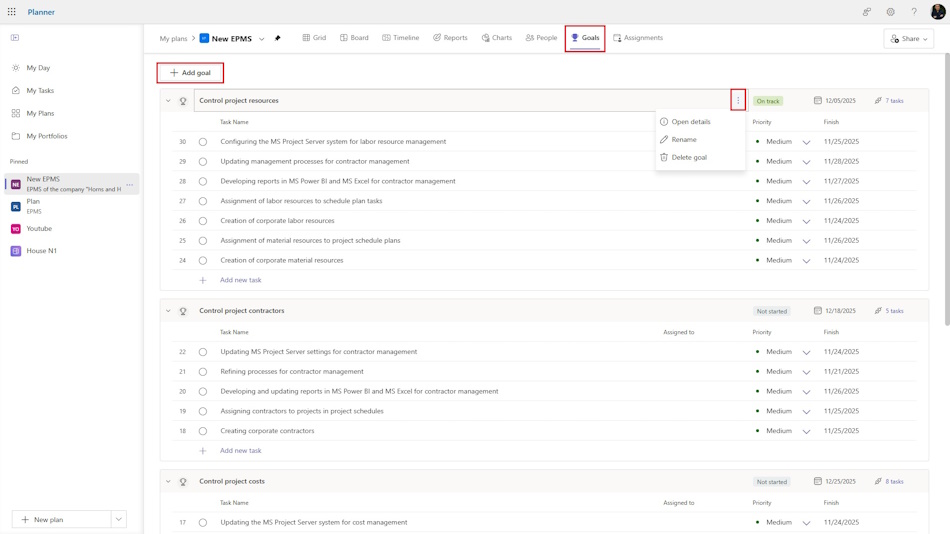
To create project goals in MS Planner:
- Go to the “Goals” view.
- Click on the “+ Add Goal” button.
- Enter the name of the goal in the new field.
- To edit the description of the goals, click on the name or on the three dots and select “Open details”
- To change the name of the goals, select “Rename”
- To delete a goal, select “Delete goal”

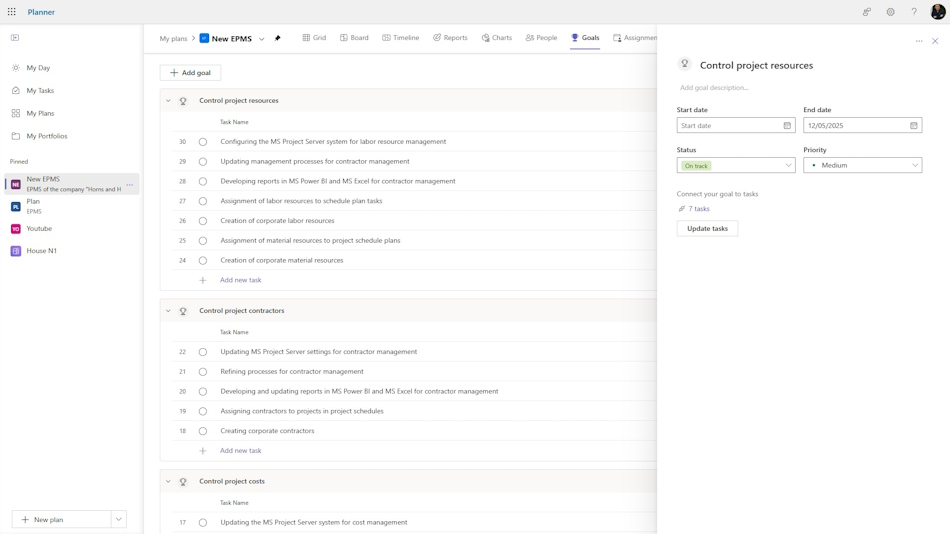
In the description editing window that opens, you can:
- Change the name of the goal by clicking on it.
- Set the start date for implementing the tasks to achieve the goal in the “Start date” field.
- Set the deadline for achieving the goal in the “End date” field.
- You can track the progress of achieving goals in the “Status” field.
- To set the importance of a goal, use the “Priority” field.
- To refine the list of tasks, click on the “Tasks” link.
Assigning tasks to project goals in MS Planner
Goals are achieved through the implementation of project tasks. You can assign tasks to a goal, track their completion, and monitor whether the goal is being achieved or not.
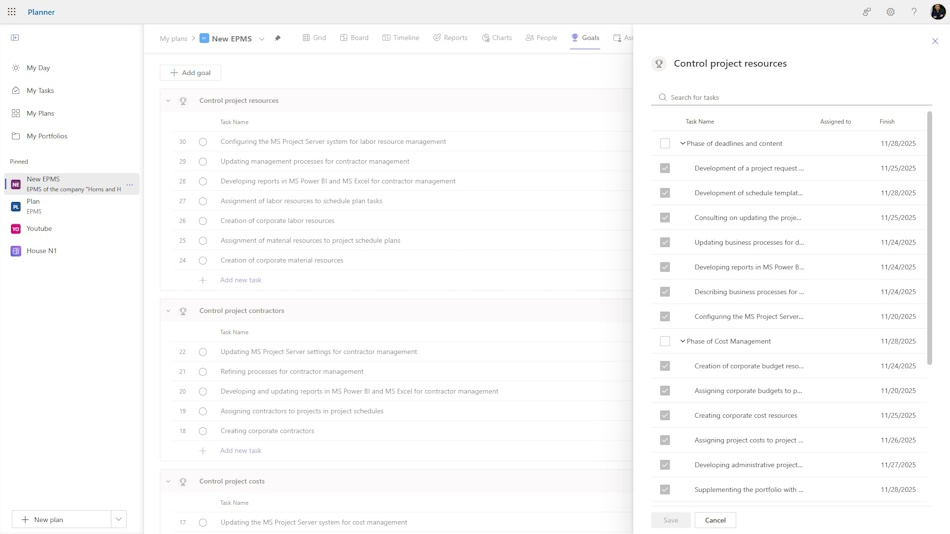
To assign tasks to goals:
- Select a goal and click on the “Tasks” link.
- Check the boxes next to the desired tasks. If a task has already been assigned to another goal, it will not be possible to check the box, as you can only assign a task to one goal.
- Click the “Save” button.
By clicking on a task, you can open its description and add additional data or refine the parameters.
You can use the described goals in other views.
- The list of project goals is displayed in the filter list.
- In the list of groupings on the board, you can select a grouping by goals.

Author: Ivan Oberemok
