
Prioritizing drivers in MS Project Server
Contents:
- Creating Driver Priorities in MS Project Server
- Comparison of drivers in MS Project Server
- Prioritizing drivers in MS Project Server
- Chat
Creating Driver Priorities in MS Project Server
We can set priorities for strategy drivers either manually or using a convenient factor comparison tool.
To use the factor priority calculation function:
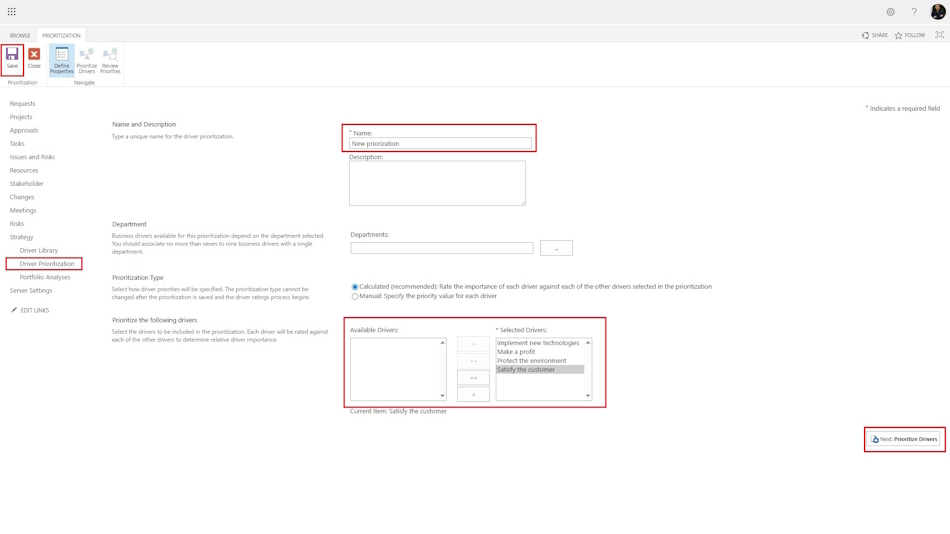
- Go to the “Strategy” menu item in the “Driver Prioritization” section.
- Create factors by clicking the “New” button in the top menu.
- In the window that opens, enter the name of the priority group in the “Name” field. You can also enter a description of the priority group.
- In the Priority Definition Type field, select “Calculation (recommended): evaluate the importance of each factor relative to other factors selected in the priority definition.”
- Select a list of factors in the “Prioritize the following drivers” block.
- Click the “Next” button.
Comparison of drivers in MS Project Server
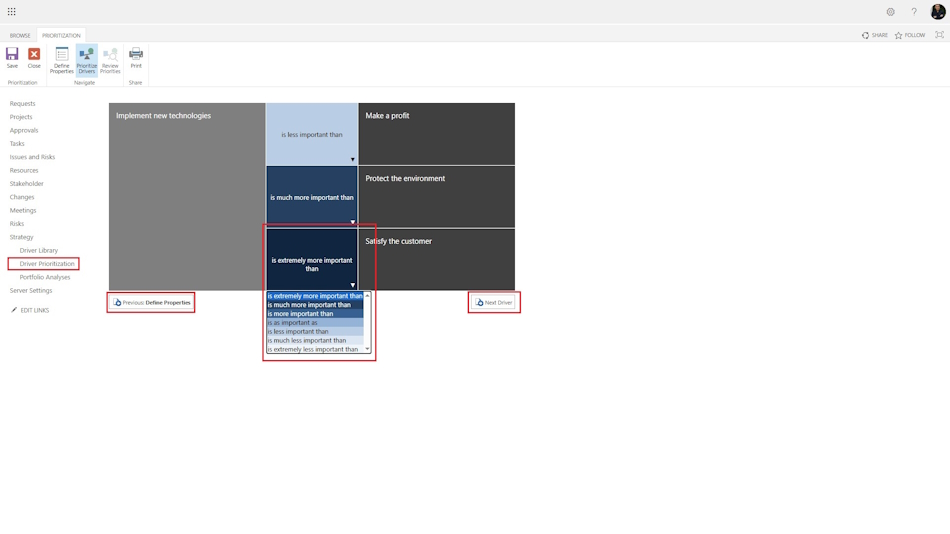
To compare drivers in the window that opens, set the comparison values for the left factor with the right ones and click the “Next” button. When comparing, you must set how much more important one driver is than another in your opinion using the following values:
- is extremely more important than
- is much more important than
- is more important than
- is as important as
- is less important than
- is much less important than
- is extremely less important than
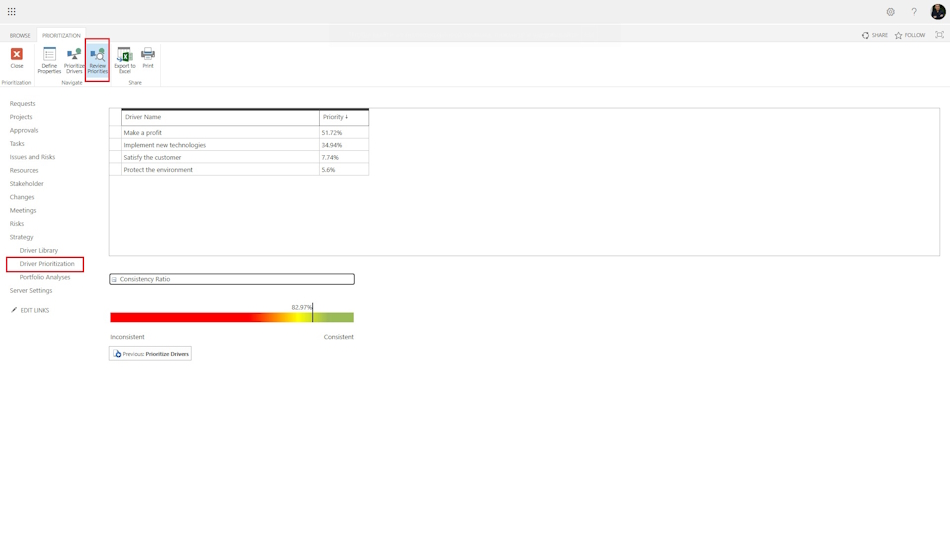
At the end, you will receive the factor priorities calculated by the system.
Prioritizing drivers in MS Project Server
As a result, MS Project Server calculates the comparative priority of each driver. Driver prioritization is used to determine the priorities of projects in the portfolio. The more a project influences priority factors, the higher its priority in the portfolio and the more resources it receives.
You can manually adjust the prioritization of drivers. To set priorities manually:
- Go to the “Strategy” menu item in the “Driver Prioritization” section.
- Click on the “New” button in the top menu “Prioritization”.
- In the window that opens, enter the name of the priority group in the “Name” field. You can also enter a description of the priority group.
- In the Priority Definition Type field, select “Manual: Specify the priority value for each driver”
- Select a list of factors in the “Prioritize the following drivers” block.
- In the window that opens, set the priority for each factor manually. To agree on the values, click on the “Normalize” button.
- To save the values, click on the “Save” button. To exit, click on the “Close” button.
- To delete a set of priorities from the list, select it and click the “Prioritization” menu at the top.

Author: Ivan Oberemok
