
Replacing generic resources in MS Project Server
Contents:
- Skill settings in MS Project Server
- Assigning skills to resources in MS Project Server
- Replacing generic resources in MS Project Server
- Chat
Skill settings in MS Project Server
At the level of the technological schedule, you determine the type of resources required to implement the project. This can be simply a general name for resources, for example (crane, excavator, team of workers). When describing these resources, you specify the resource parameters that are known to you at the time of planning. In the “Resource Sheet” view, you specify these resources as general. During further planning, you can refine the universal resource and split it into two resources, for example: “tower crane” and “mobile crane”.
When you have finished working with universal resources, you need to describe the resource parameters or skills, if we are talking about labor resources. After developing an operational project plan, you need to assign performers to the tasks in the operational plan. Using the skills specified for the role, select employees who possess these skills. By comparing these parameters with the parameters of the company's actual resources from the corporate resource pool, you can select the resource you need.
After developing an operational plan for the project, it is necessary to assign executors to the tasks in the operational plan. Using the skills specified for the role, select employees who possess these skills. If you can manage with one resource for two roles, and the resource you have selected is underloaded, you can add more resources in the assignment window.
If the corporate pool does not have the necessary resource that meets all the specified parameters, divide this resource into several different universal resources that correspond to the company's resources and reassign them to project tasks.
It is possible that the company does not have specialists with the required skills, in which case the human resources manager must select external experts to perform the work requiring these skills.
To describe the skills of resources on the server, you need to create a table with skill values and then create a column for resources.
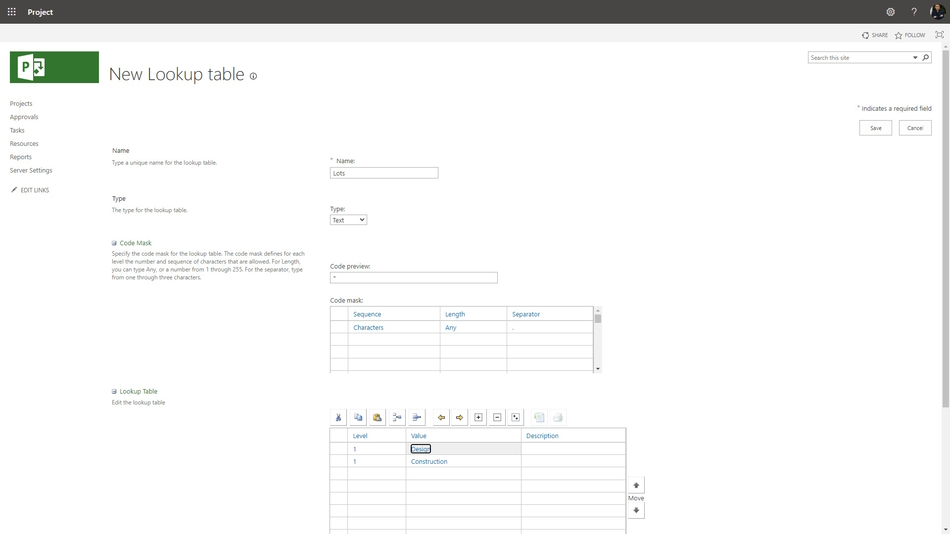
Steps to the lookup table to the enterprise skills custom field in MS Project Server:
- Click the "Server Settings" item in the left menu.
- Click the "Enterprise Custom Fields and Lookup Tables" item in the "Enterprise Data" block.
- To create the lookup table, click the "New Lookup Table" button.
- Enter the "Skils" in the "Name" field.
- Select the "Text" in the "Type" field.
- You can set multi level outline, add more values of the code mask table. Set up the code mask values:
- Set the type a separator.
- Set the length of level values.
- Set the character type for each level.
- Add vlues to the lookup table:
- Enter the table values in the "Value" column.
- If you want, you can add the description in the "Description" column.
- To save click the "Save" button.
Steps to create the enterprise skill custom field in MS Project Server:
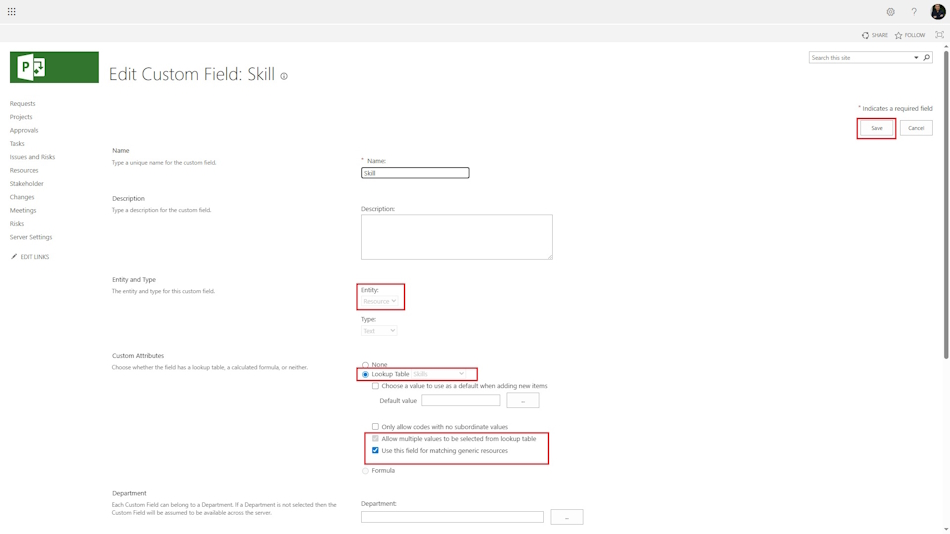
- Click the "Server Settings" item in the left menu.
- Click the "Enterprise Custom Fields and Lookup Tables" item in the "Enterprise Data" block.
- To create the custom fields, click the "New Field" button.
- Enter the "Skill" in the "Name" field. The name must to be unic. You can use special symbols.
- Enter the field description in the "Description" field.
- Select the "Task" in the "Entity" field.
- Select the "Lookup Table" in the "Custom Attributes" block.
- Select the "Skill" table.
- Set multiple values, click the "Allow multiple values to be selected from lookup table" box.
- Click the "Use this field for matching generic resources" box.
- To save click the "Save" button.
Assigning skills to resources in MS Project Server
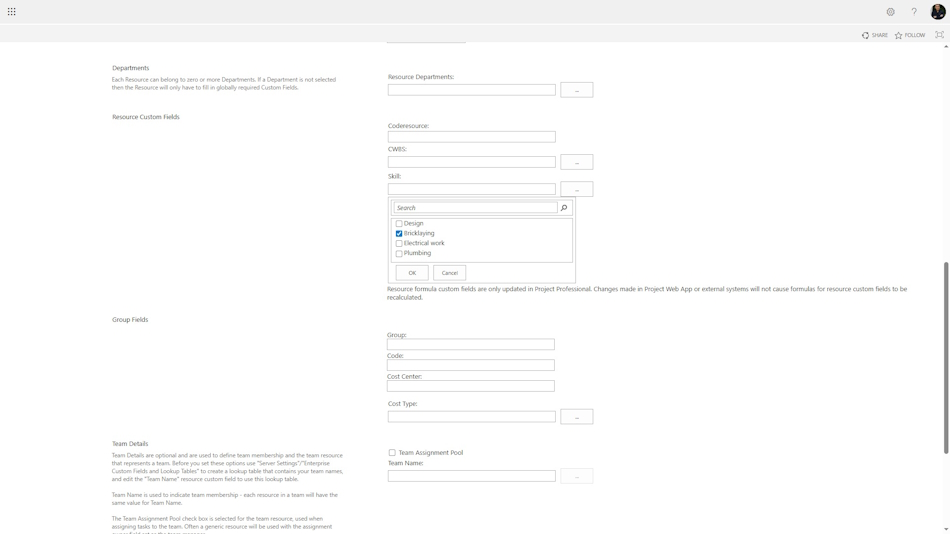
Set skills for resources and general resources:
- Go to the enterprice resources pool. Click on the “Resources” link.
- Select a resource from the list.
- In the “Skill” field, select the required resources.
- Save the resource.
Replacing generic resources in MS Project Server
After setting up all the settings on the server, we can proceed to assign resources.
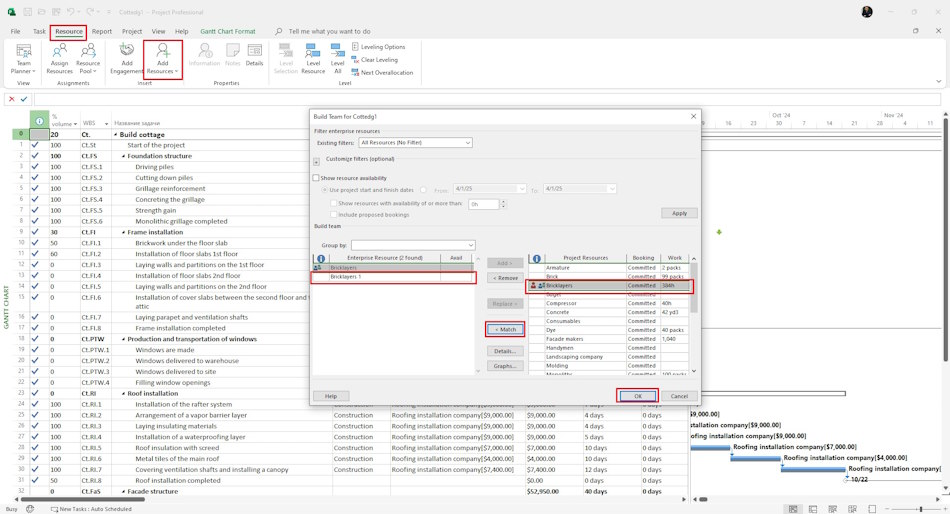
To select resources by skill:
- Open MS Project Pro.
- Assign universal resources to project tasks.
- Go to the “Resources” tab, click on the “Add resources” button, and select “Build Team from Enterprise...”.
- Select a universal resource on the right-hand side.
- Click on the “< Match” button.
- The program will select resources that match the set of competencies.
- Select a corporate resource and click on the “Replace >” button.
- Click “OK”

Author: Ivan Oberemok
