
Analysis of portfolio contractors on MS Project Server
Contents:
- Create a view for analyzing portfolio contractors in MS Project Server
- Analysis of portfolio contractors on MS Project Server
- Chat
Create a view for analyzing portfolio contractors in MS Project Server
- Go to the “Server Settings” menu item.
- Go to “Manage View”
- Find the “Summary” view in the block "Resource Assignments" in the “Manage View” table.
- Click the buttom "Copy View".
- Enter the view name in the "Name:" field.
- In the “Edit View: Task Tracking” window, in the “Table and Fields” section, add the contract fields from the “Available fields:” list to the “Displayed fields” list.
- Save the created view.
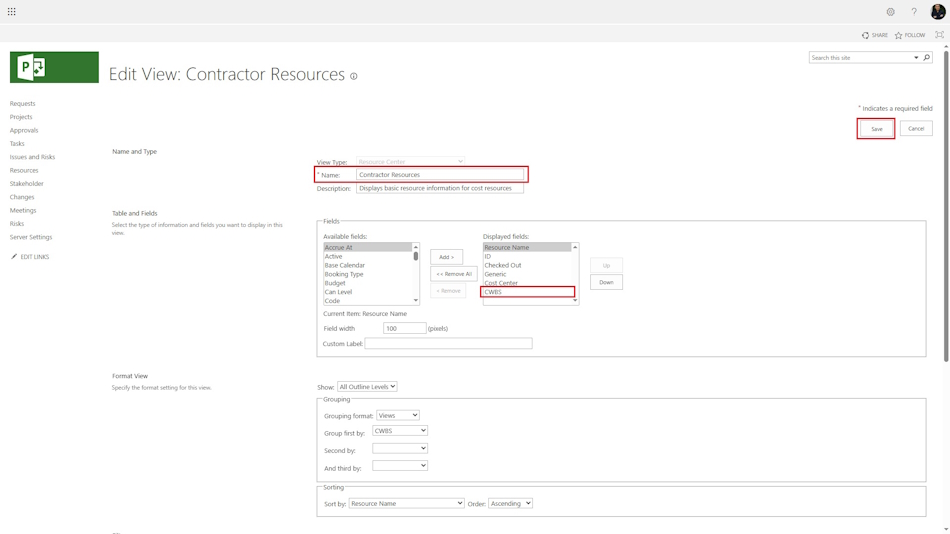
Analysis of portfolio contractors on MS Project Server
MS Project Server allows you to analyze contractors in the project portfolio in the resource pool. To analyze contractors:
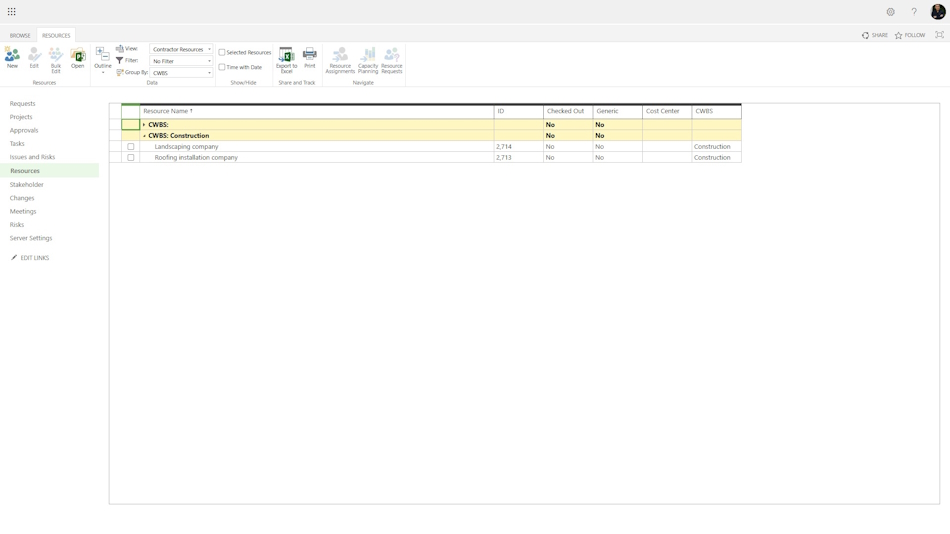
- Go to the corporate resource pool by clicking on the “Resources” link in the left menu.
- Go to the cost resources view.
- Group all data by the contract type column. Before doing this, you need to add the contract type column to the resource cost view.
- Select the contractor resources.
- In the top menu, click on the “Resource Assignments” button.
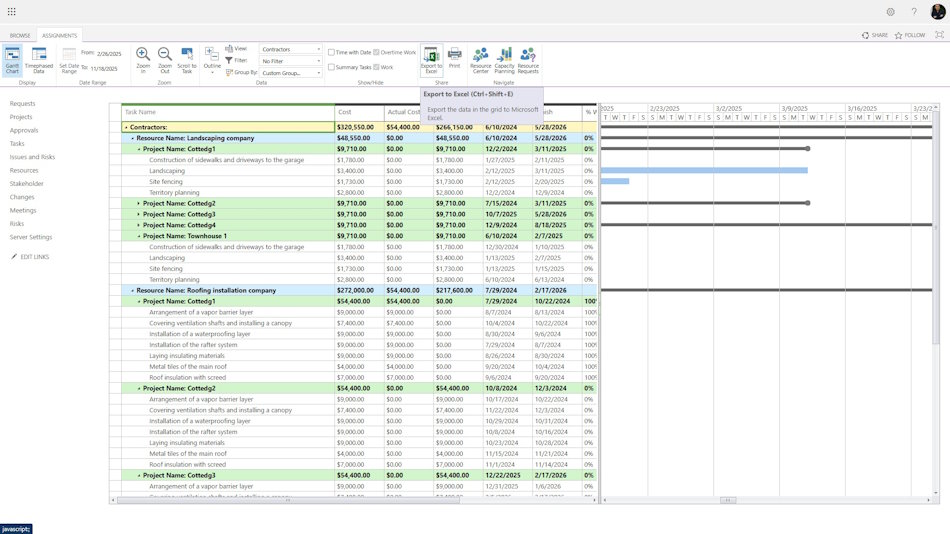
In the window that opens, select the “Contractors” view. In this view, all contractors are grouped by type and name. You can analyze the types of costs by contractor and contractor type. It is also possible to analyze the work of contractors in projects.
#projectportfoliomanagement, #projectprocurementmanagement, #monitoringandcontrollingprocess, #msprojectserver, #oberemokii

Author: Ivan Oberemok
