
Closing a project in MS Project Server
Contents:
- Closing a project on a project card in MS Project Server
- Closing project tasks in MS Project Server
- Chat
Closing a project on a project card in MS Project Server
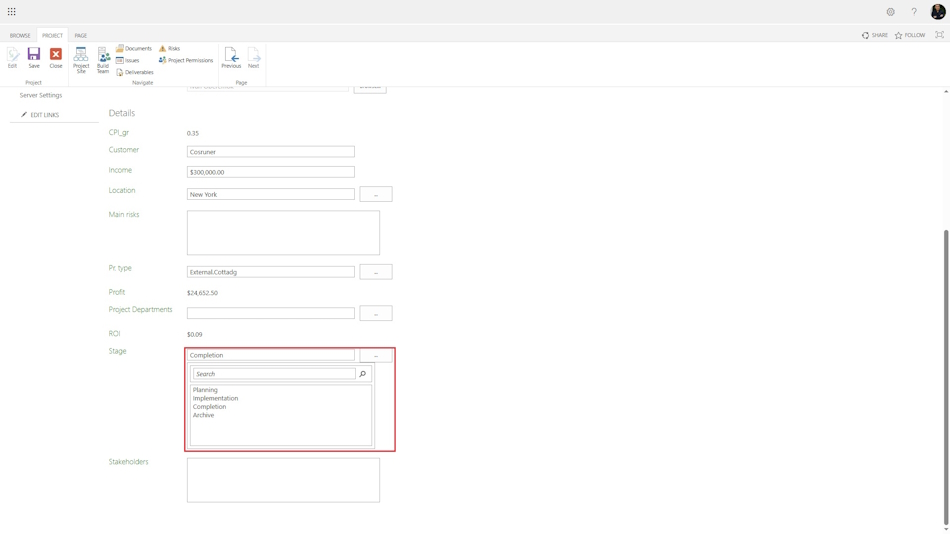
Once the decision to close the project has been made, the project manager must move the project to the “Closing” stage.
To do this:
- Open the project in MS Project Server.
- Go to the “Project Details” tab on the left side of the menu.
- Set the value “Completion” in the “Stage” field.
Closing project tasks in MS Project Server
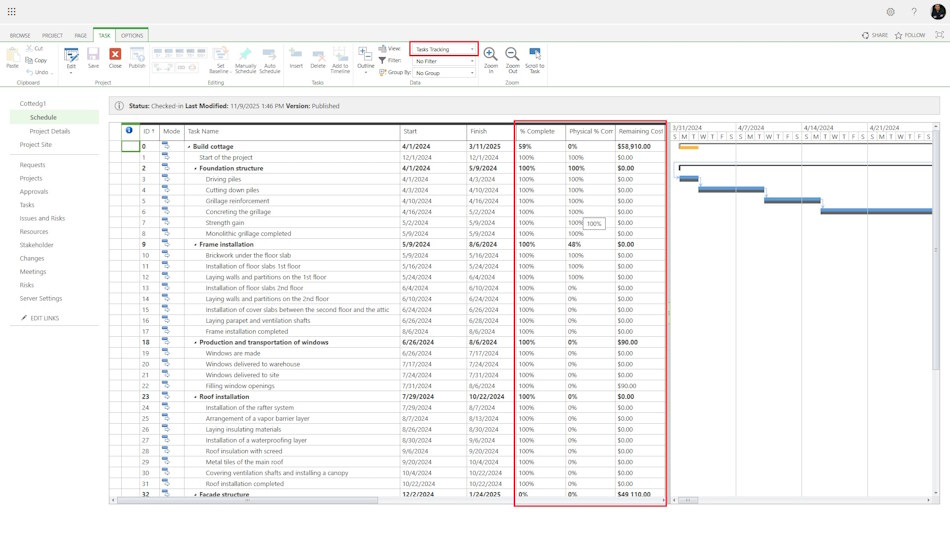
To close a task in MS Project Server, you can close tasks by percentage of completion:
- Open the project in the “Task Tracking” view.
- Add the following fields to the view: “% Complete”, “Pysical % Complete”, "Actual Cost" and “Remaining Cost”.
- We mast ot close the tasks with:
- “% Complete” ≠ 100 %.
- “Pysical % Complete” ≠ 100 %.
- “Remaining Cost” ≠ 0.
- Set the percentage complete in “% Complete” and “Pysical % Complete”.
- Set the actual cost in task with remaining cost.
- Publish project, click the "Publish" button in the top menu.
#projectmanagment, #projectschedulemanagement, #projectcostmanagement, #closingprocess, #msprojectserver, #oberemokii

Author: Ivan Oberemok
