
Plan % complete in MS Project Pro
Contents:
- Creating the custom column "Plan % complete in MS Project Pro
- Compare the "Plan % complete" column with the "% complete" column
- Adding graphical indicator for custom column "Remaining % complete"
- Chat
Creating the custom column "Plan % complete" in MS Project Pro
The project manager can update the project after the end of the implementation period. But in the during project implementation project, manager want to know, what percent complete must be for each tasks. We can calculate it using the current date.
Steps to create the custom column "Plan % complete" in MS Project Pro:
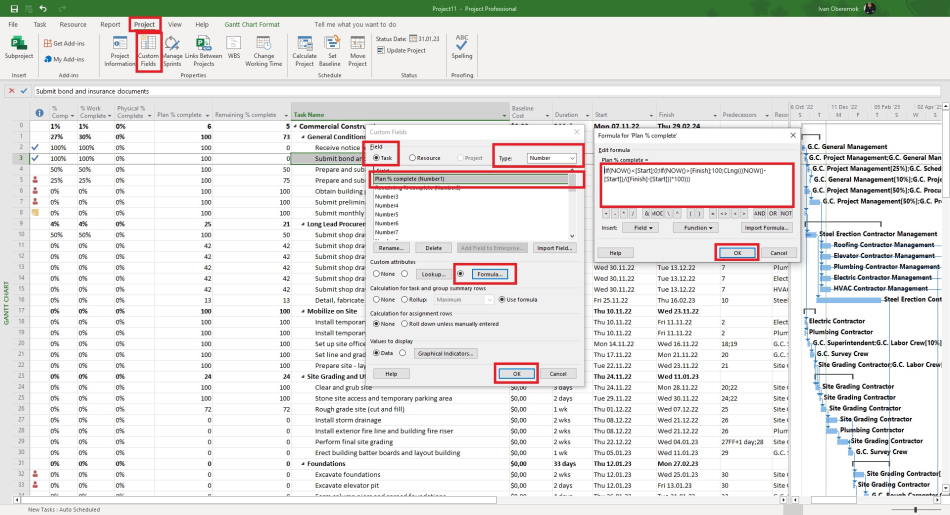
- Click the "Custom Fields" button in the "Properties" block in the "Project" item of the top menu.
- Select field type "Task" in the "Field" block.
- Select type "Number" in the "Type:" field.
- Select the empty field in the table and click the "Rename ...." button.
- Add the "Plan % complete" name of field.
- Click the button "Formula..." in the "Custom attributes" block.
- Add the formula "IIf(NOW()<[Start];0;IIf(NOW()>[Finish];100;CLng(((NOW()-[Start])/([Finish]-[Start]))*100)))".
- Click the "Ok" button in the "Formula for Plan % complete" window.
- Click the "Ok" button in the "Custom Fields" window.
Compare the "Plan % complete" column with the "% complete" column
You can analyze the execution, compare the "Plan % Complete" column with the "% Complete" column.
Steps to create the custom column "Plan % complete" in MS Project Pro:
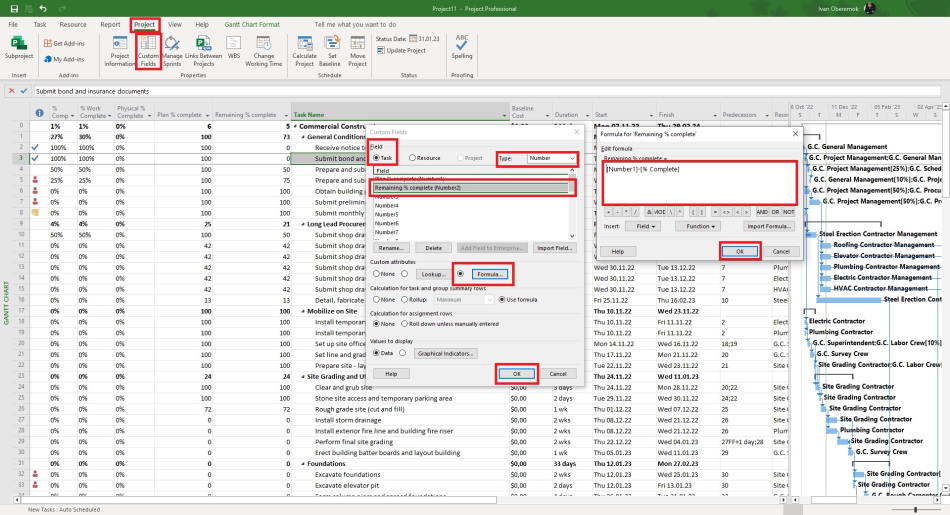
- Click the "Custom Fields" button in the "Properties" block in the "Project" item of the top menu.
- Select field type "Task" in the "Field" block.
- Select type "Number" in the "Type:" field.
- Select the empty field in the table and click the "Rename ...." button.
- Add the "Remaining % complete" name of field.
- Click the button "Formula..." in the "Custom attributes" block.
- Add the formula "[% Complete]-[Plan % complete]".
- Click the "Ok" button in the "Formula for Remaining % complete" window.
- Click the "Ok" button in the "Custom Fields" window.
Adding graphical indicator for custom column "Remaining % complete"
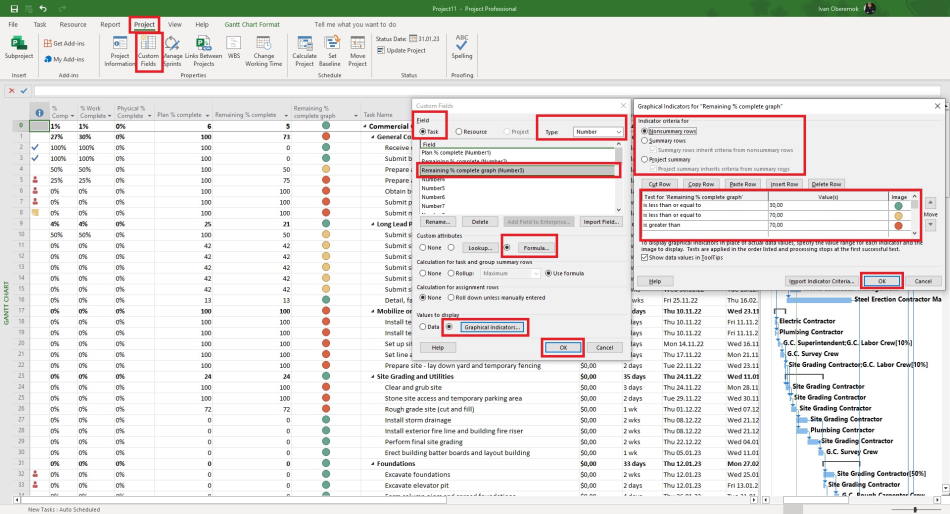
You can add graphical indicator to show the result of comparing the "Plan % complete" column with the "% complete" column
Steps to create the custom column with graphical indicator in MS Project Pro:
- Click the "Custom Fields" button in the "Properties" block in the "Project" item of the top menu.
- Select field type "Task" in the "Field" block.
- Select type "Number" in the "Type:" field.
- Select the empty field in the table and click the "Rename ...." button.
- Add the "Remaining % complete graph" name of field.
- Click the button "Formula..." in the "Custom attributes" block.
- Add the formula "Remaining % complete".
- Click the "Ok" button in the "Formula for Remaining % complete graph" window.
- Click the "Graphical indicator ..." button.
- Choose the rules to test field in the "Test for Remaining % complete graph" column.
- Enter a value for the rules in the "Values" column.
- Choose a image in the "Images" column.
- Set rules for summary rows and the project summary.
- Click the "Ok" button in the "Graphical indicator for Remaining % complete graph" window.
- Click the "Ok" button in the "Custom Fields" window.
#msprojectpro, #oberemokii, #projectmanagment, #projectschedulemanagement, #monitoringandcontrollingprocess

Author: Ivan Oberemok
