
Report on project duration and cost in MS Project Pro
Contents:
- Report on project duration and cost in MS Project Pro
- Customize the project duration and cost report in MS Project Pro
- Chat
Report on project duration and cost in MS Project Pro
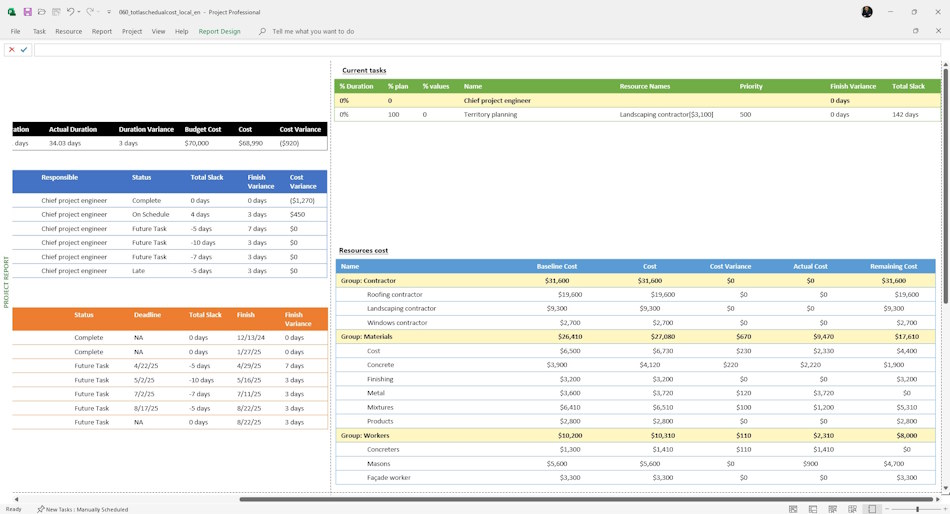
The purpose of the project report is to show the status of the project. Management in turn must make decisions to intervene in project management or to continue implementation without change. The project template shows the quality of management, not the quality of the realization of the project products.
A project report does not have a standardized view. It all depends on what the company does, what projects it implements and what level of technological maturity it is at. Let's break down the report point by point:
General Project Information and Key Results
The section “General Project Information” displays general information about the project. To describe the current situation, we suggest the following items:
- % Duration - percentage of project completion by time. The information is calculated by MS Project Pro based on the actual duration of tasks and start and end dates. Suitable for all projects and organizations expecting the project to be completed as soon as possible.
- % by volumes - the percentage of project tasks completed by the Chief Engineer and responsible specialists in the subject area. The indicator shows the subjective assessment of the responsible project specialists of the level of readiness of the project products.
- % plan - planned percentage is calculated by MS Project Pro on the basis of data on actual project start and current date.
- % costs - the percentage of costs is calculated by MS Project Pro based on the data on actual costs in relation to planned costs.
- Start - project start date.
- Finish - planned date of project completion.
- Finish variance - an indicator of how far the planned completion date has deviated from the one approved by the management.
- Duration - an indicator of the current planned duration of the project.
- Actula Duration - duration of the project based on actual data.
- Budget - approved budget for the project
- Cost - a measure of the current planned cost of the project.
- Cost variance - the difference between the current planned cost and the cost approved by management. It shows how much the project cost has changed to date.
The “Top-level tasks” section displays general information about the project. To describe the current situation, we suggest to specify the following items:
- % duration - percentage of tasks completion by deadlines. The information is calculated by MS Project Pro on the basis of actual duration of tasks and start and end dates.
- % by volume - percentage of project tasks completion completed by Chief Engineer and responsible specialists in the subject area. The indicator shows the subjective assessment of the responsible project specialists of the level of readiness of the project products.
- % planned - planned percentage is calculated by MS Project Pro on the basis of data on the actual project start and current date.
- WBS - value of the project work breakdown structure code for top-level tasks.
- Name - name of top-level tasks.
- Responsible - name or role of those responsible for the tasks.
- State - value of the task state.
- Total slack - the number of days of deviation to the deadline.
- Finish variance - an indicator of how far the planned completion date has deviated from the one approved by the management.
- Cost variance - the difference between the current planned cost and the cost approved by management. It shows how much the project cost has changed to date.
The “Milestones” section presents the entire list of project deliverables and their status. The deliverables are described as milestones. The following items are given in this section:
- % of duration - mark whether the product is ready in the project schedule.
- % by scope - mark whether the product is ready according to the opinion of the Chief Engineer and responsible specialists in the subject area.
- % planned - an assessment of whether the project should be ready based on the project dates.
- Name - product name.
- Status - value of products receipt.
- Finish - planned date of receiving products.
- Deadline - date of the deadline for product delivery.
- Total slack - number of days of deviation from the deadline.
- Finish variance - an indicator of how far the planned date of product receipt deviated from the one approved by the management.

Current period tasks and project resource expenditures
The “Current tasks” section includes project tasks planned and not completed in the current time period. The list of tasks depends on the “% Completed” and “Status Report Date” fields. The following items are listed in this section:
- % duration - percentage of project completion by time period. The information is calculated by MS Project Pro on the basis of actual task duration and start and end dates.
- % by volume - percentage of project tasks completion completed by Chief Engineer and responsible specialists in the subject area. The indicator shows the subjective assessment of the responsible project specialists of the level of readiness of the project products.
- % plan - planned percentage is calculated by MS Project Pro on the basis of data on actual project start and current date.
- Name - name of tasks of the current period.
- Status - the task status.
- Priority - task priority.
- Finsih deviation - the indicator of how far the planned end date has deviated from the one approved by the management.
- Totla slack - number of days of deviation to the deadline.
The section “Resources cost” provides a list of project resources with indication of cost estimation indicators.
- Name - the name of the resource.
- Baseline costs - the approved costs of the project resources.
- Costs - the planned costs of the project resources.
- Cost variance - the extent to which the cost of resource utilization has changed during implementation.
- Actual cost - the actual cost of the project resources.
- Remaining costs - the costs of resources that remain to be utilized.
Tasks by current months
The “Tasks by mounth” section displays and groups tasks of the past, current and future months. The list helps to evaluate the quality of project tasks realization. The list contains the following set of columns:
- WBS - the value of the project work breakdown structure code for the top-level tasks.
- Name - the name of the tasks.
- Responsible - name or role of those responsible for the tasks.
- Start - tasks start date.
- Finish - planned date of tasks completion.
- % duration - percentage of project completion by time. The information is calculated by MS Project Pro on the basis of actual task duration and start and end dates.
- % volumes - percentage of project tasks completion completed by the Chief Engineer and responsible specialists in the subject area. The indicator shows the subjective assessment of the responsible project specialists of the level of readiness of the project products.
- % plan - planned percentage is calculated by MS Project Pro based on the actual project start and current date.
- % costs - the percentage of costs is calculated by MS Project Pro based on the data on actual costs in relation to planned costs.
- Total Slack - the number of days of deviation to the deadline.
- Finish variance - an indicator of how far the planned completion date has deviated from the one approved by the management.
- Cost variance - the extent to which the cost of resource utilization has changed during implementation.

Customize the project duration and cost report in MS Project Pro
How to get the report on project duration and cost in MS Project Pro
- Register or log in.
- Make a payment.
- Download the schedule with the report.
Steps to customize the report on project duration and cost in MS Project Pro
- Open the file with the report.
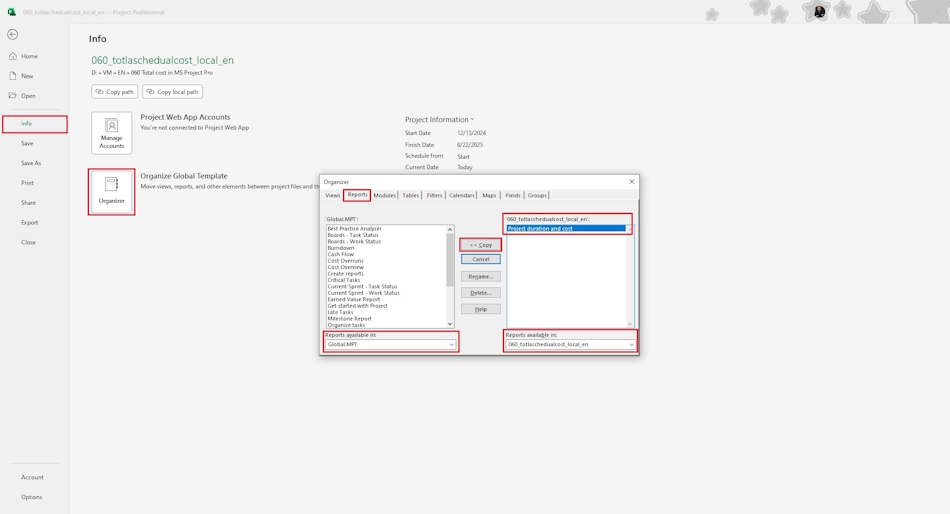
- Go to the Organizer section
- Copy the filters “Current tasks”, “Оnly tasks”, “Non-budget Resources” and “Filter by period”.
- Copy the fields “Responsible”, “Period”, “% plan”, “% cost” and “% volumes” .
- Copy the “Responsible” and “Group by Period” groups.
- Copy the “Project duration and cost” report to your project or “Global.mpt” project
- Open the report and check the report operation.
Documents
- Send email: info@pmhub.pro
- Write to Telegram: +38 (097) 906-95-62. Send request
- Write on Whatsapp: +38 (097) 906-95-62. Send request
- Write on Viber: +38 (097) 906-95-62. Send request
- Call the phone: +38 (097) 906-95-62

Author: Ivan Oberemok
