
Physical % complete in MS Project Pro
Contents:
- Use column "Physical % complete" for track the plan
- Customize the use of the "Physical % complete" column
- Chat
Use column "Physical % complete" for track the plan
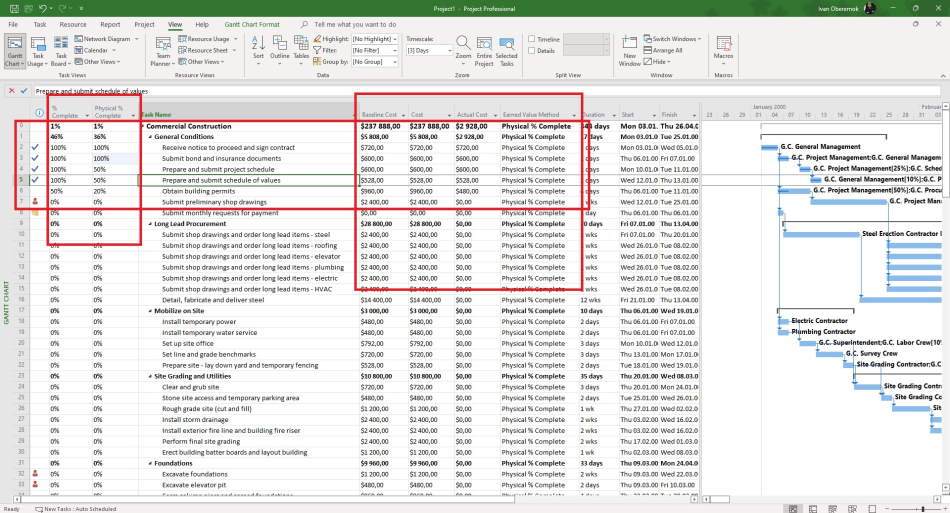
Subject matter experts evaluate the readiness of the task product as a percentage. The project manager sets this value in the ""Physical % complete"" field. This field records the subjective assessment of the readiness of the task product
- Steps to set "Physical % complete":
- Open "Gantt Chart" in your plan.
- Insert the "Physical % complete" column.
- Set values in the "Physical % complete" column.
Values summary tasks for the column value is calculated. MS Project Pro calculates the value of the "Earned Value" field by multiplying the fields: "Physical % complete" and "Baseline Cost". For summary tasks, the value of the "Physical % complete" field is calculated by dividing the "Baseline Cost" field by the "Earned Value" field.
Steps to set values in the "Physical % complete" column for summary tasks:
- Set rates for the resources.
- Assign resources to tasks.
- Save the baseline plan.
- Set the values in the "Physical % complete" column for subtasks.
Customize the use of the "Physical % complete" column
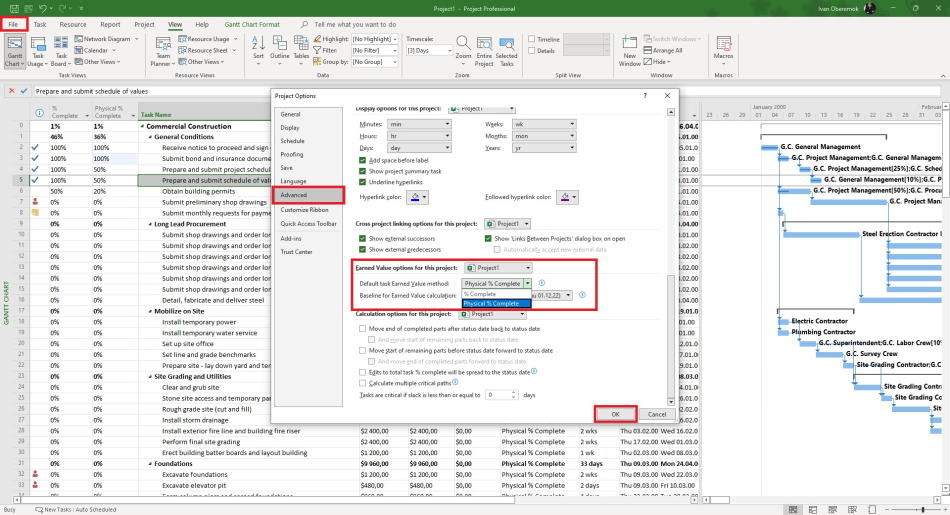
Default, MS Project Pro uses the column "% complete" for count Earned Value. The column "Physical % complete" uses for count Earned Value in MS Project Pro.
Steps to set the option to count physical complete for all summary task of the plan in MS Project Pro:
- Click the "File" item in the top menu.
- Cick the "Options" item in the left menu.
- Click the "Advanced" item in the "Project Options" window.
- Choose the name of your project in the "Earned Value option for the project:" field.
- Choose the "Physical % complete" column in the "Defaul task Earned Value metod:" field in the "Earned Value option for the project:" block.
- Choose the name of baseline in the "Baseline for Earned Value calculation:" field.
- Click the "Ok" button.

Author: Ivan Oberemok
