
Project Costs report based on material resources in MS Project Pro
Contents:
- Using "Project Costs" report based on material resources in MS Project Pro
- Customize “Project Costs” report based on material resources in MS Project Pro
- Chat
Using "Project Costs" report based on material resources in MS Project Pro

In the project cost table, the total project costs are summarized:
- Base Budget Costs.
- Base costs.
- Planned costs.
- Deviation in costs (planned from base costs).
- Actual costs.
- Remaining costs.
The graph “Cumulative Costs” shows the cumulative cost figures. The graph shows the S-curve based on costs. The graph displays:
- Base costs
- Planned costs
- Actual costs.
The graph “Cumulative active cost” shows the cost indicators cumulatively. The graph shows the combustion of tasks on the cost base. The graph shows the following indicators:
- Remaining planned costs.
- Remaining actual costs.
The Top Level Project Task Costs table shows the costs of the first level project tasks. The following indicators are derived in the chart:
- Base costs.
- Planned costs.
- Deviation in costs (planned from base costs).
- Actual costs.
- Remaining costs.
The “Task cost shares” chart shows the share of costs of the first level tasks of the project.
The table “Top-level task costs” and the “Task cost shares” chart allows you to evaluate the level of costs of project tasks and optimize them if necessary.
You can use the “Cost deviations” chart to control deviations in project costs.
Customize “Project Costs” report based on material resources in MS Project Pro
How to get Project Costs report based on material resources in MS Project Pro
- Register or log in.
- Make a payment.
- Download the schedule with the report.
Steps to customize the Project Costs report based on material resources in MS Project Pro
- Open the schedule plan with the report.
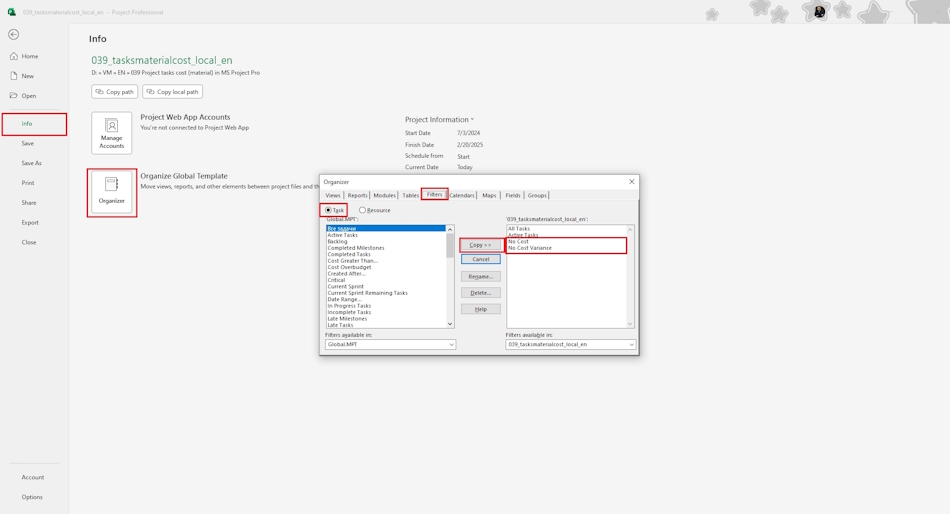
- Go to the Organizer section
- Copy the “No Сost” and “No Сost Variance” filters.
- Copy the “Project Costs” report to your project or “Global.mpt” project
- Open the report and verify the report works.
Documents

Author: Ivan Oberemok
