
Calculation "Physical % complete" in MS Project Pro
Contents:
- Creating custom fields for product quantification in MS Project Pro
- Creating custom fields for сalculation "Physical % complete" in MS Project Pro
- Chat
Creating custom fields for product quantification in MS Project Pro
MS Project Pro has a column "Physical % complete" for set the percentage of physical readiness of the product. Project manager with responsible for the task estimate what percentage of the task product is ready. But this assessment is always subjective.
For an objective assessment, you can add custom columns for the calculation "Physical % complete". The data for the calculation is taken from custom columns with plan and actual values.
Steps to add custom columns with plan and actual values:
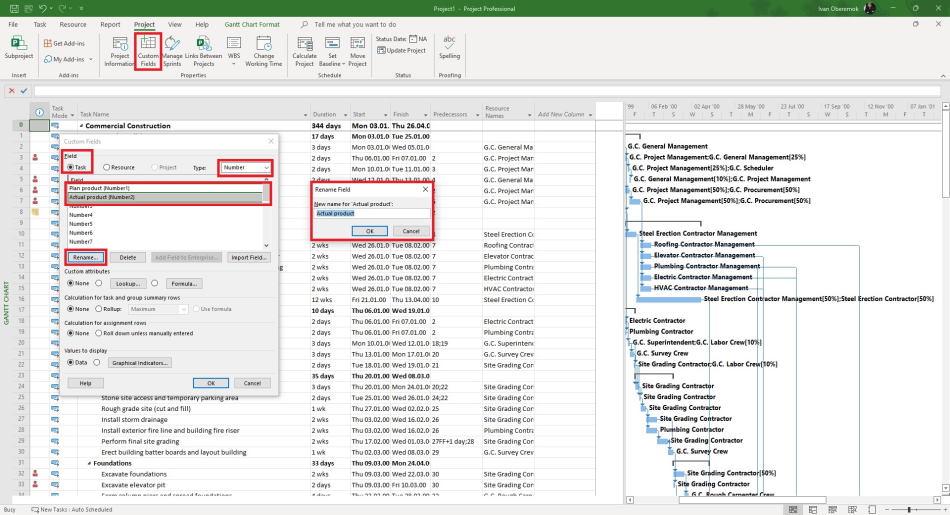
- Click the "Custom Fields" button in the "Properties" block in the "Project" item of the top menu.
- Select field type "Task" in the "Field" block.
- Select type "Number" in the "Type:" field.
- Select the empty field in the table and click the "Rename ...." button.
- Add two button: "Plan product" and "Actual product".
- Click the "Ok" button.
You must enter the amount of product for each task. For example, what volume of the wall needs to be left. How much it is planned to build and how much you are ready.
Creating custom fields for сalculation "Physical % complete" in MS Project Pro
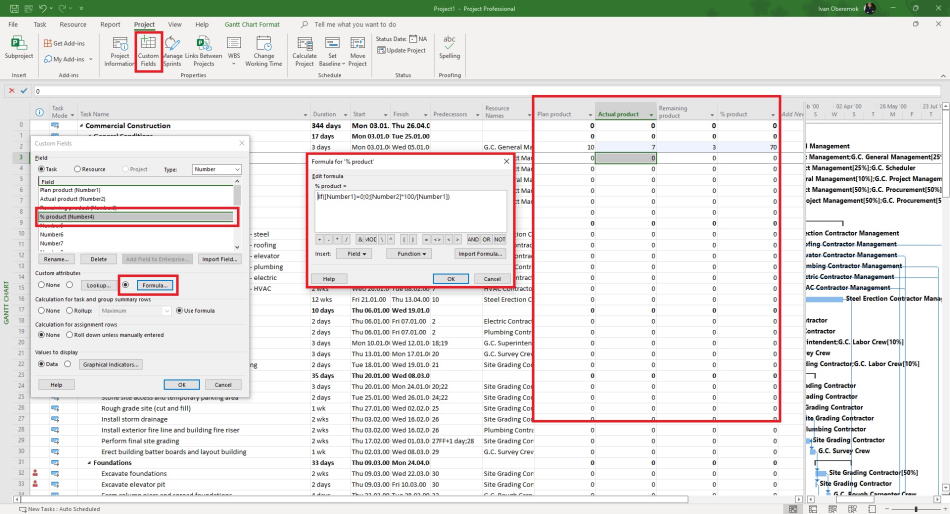
You can add two custom columns to control physical volumes. The first custom column shows the deviation ("Remaining product" field) of the planned from actual values. The second custom column shows the attitude ("% product" field) of planned to actual volumes.
Steps to add the "Remaining product" fieild:
- Click the "Custom Fields" button in the "Properties" block in the "Project" item of the top menu.
- Select field type "Task" in the "Field" block.
- Select type "Number" in the "Type:" field.
- Select the empty field in the table and click the "Rename ...." button.
- Add the "Remaining product" field.
- Click the "Formula ..." button.
- Add the formula: "[Plan product] -[Actual product]".
- Click the "Ok" button.
- Click the "Ok" button.
Steps to add the "% product" fieild:
- Click the "Custom Fields" button in the "Properties" block in the "Project" item of the top menu.
- Select field type "Task" in the "Field" block.
- Select type "Number" in the "Type:" field.
- Select the empty field in the table and click the "Rename ...." button.
- Add the "% product" field.
- Click the "Formula ..." button.
- Add the formula: "IIf( [Plan product]=0; 0; [Actual product]*100/[Plan product])".
- Click the "Ok" button.
- Click the "Ok" button.
The project manager checks the calculation in the custom column "% product" and enters the data in the system column "Physical % complete".

Author: Ivan Oberemok
